

Prerequisites
- A SambaCloud account
- A SambaNova API key
- Visual Studio Code installed
- KiloCode extension installed from the VS Code Extensions Marketplace (publisher:
kilocode.Kilo-Code)
Setup
Follow these steps to connect SambaCloud models in KiloCode:1
Open KiloCode
In VS Code, open the KiloCode panel (usually located in the sidebar).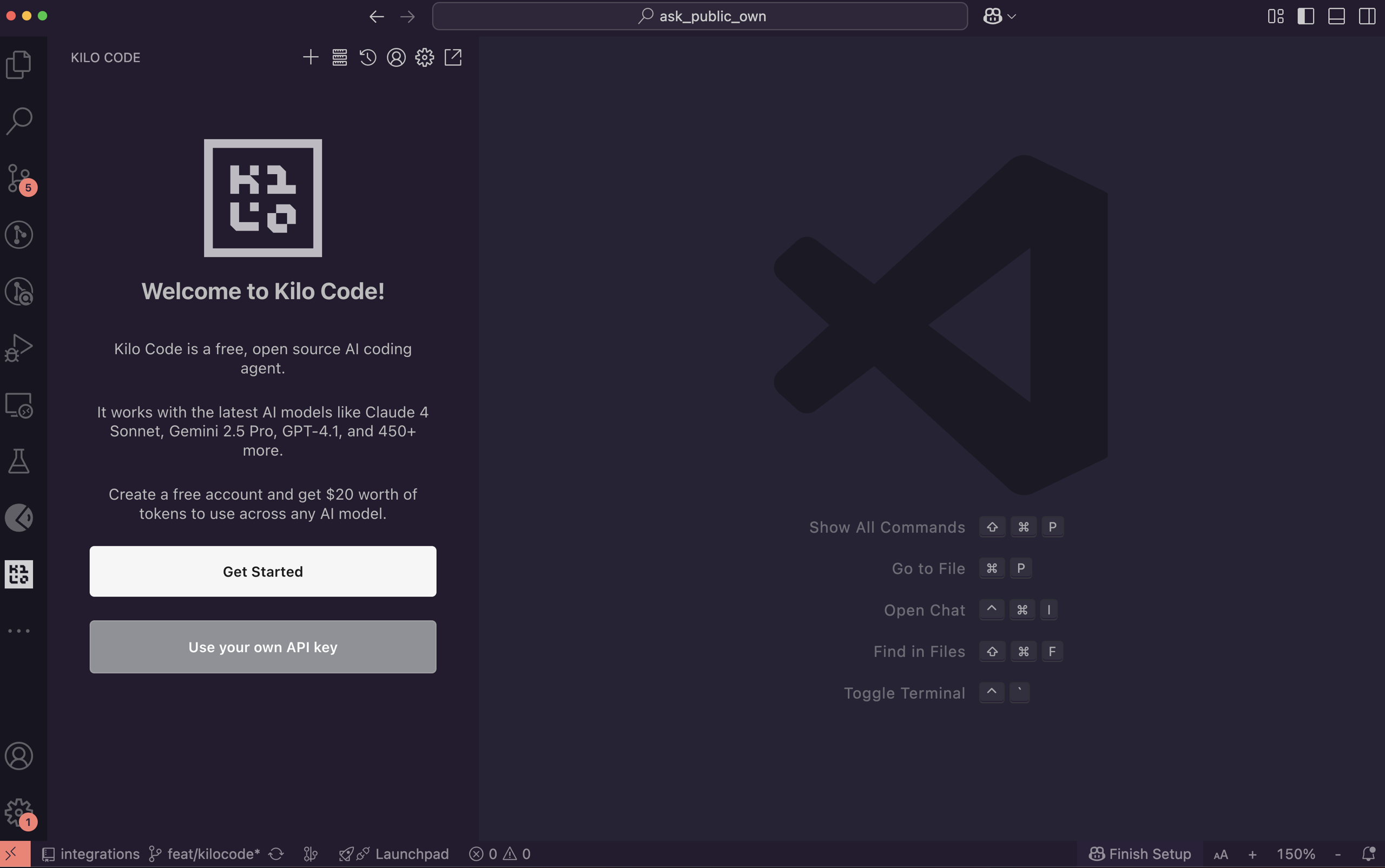
2
Add your SambaCloud API key
- Click Use your own API key.
- In the API Provider dropdown, select SambaNova.
- Enter your SambaCloud API key.
- Choose a model from the Model dropdown (e.g.,
MiniMax-M3). - Select your preferred output verbosity.
- Click Let’s go!
Usage
- Choose an interaction mode
From the bottom-right panel, select one of the following modes:architectcodeaskdebugorchestrator
You can customize interaction modes in the Edit section. - Start coding with SambaCloud in KiloCode
- Provide a task or prompt.
- Review the assistant’s plan.
- Approve the actions you want KiloCode to execute. Example:
The model was prompted to build a basic calculator app with a FastAPI backend that performs addition, subtraction, multiplication, and division. The frontend uses HTML/CSS/JavaScript to accept input, select an operation, and display results, communicating with the backend via a fetch API call.
The KiloCode panel displays executed tasks, token usage, and session cost at the top bar.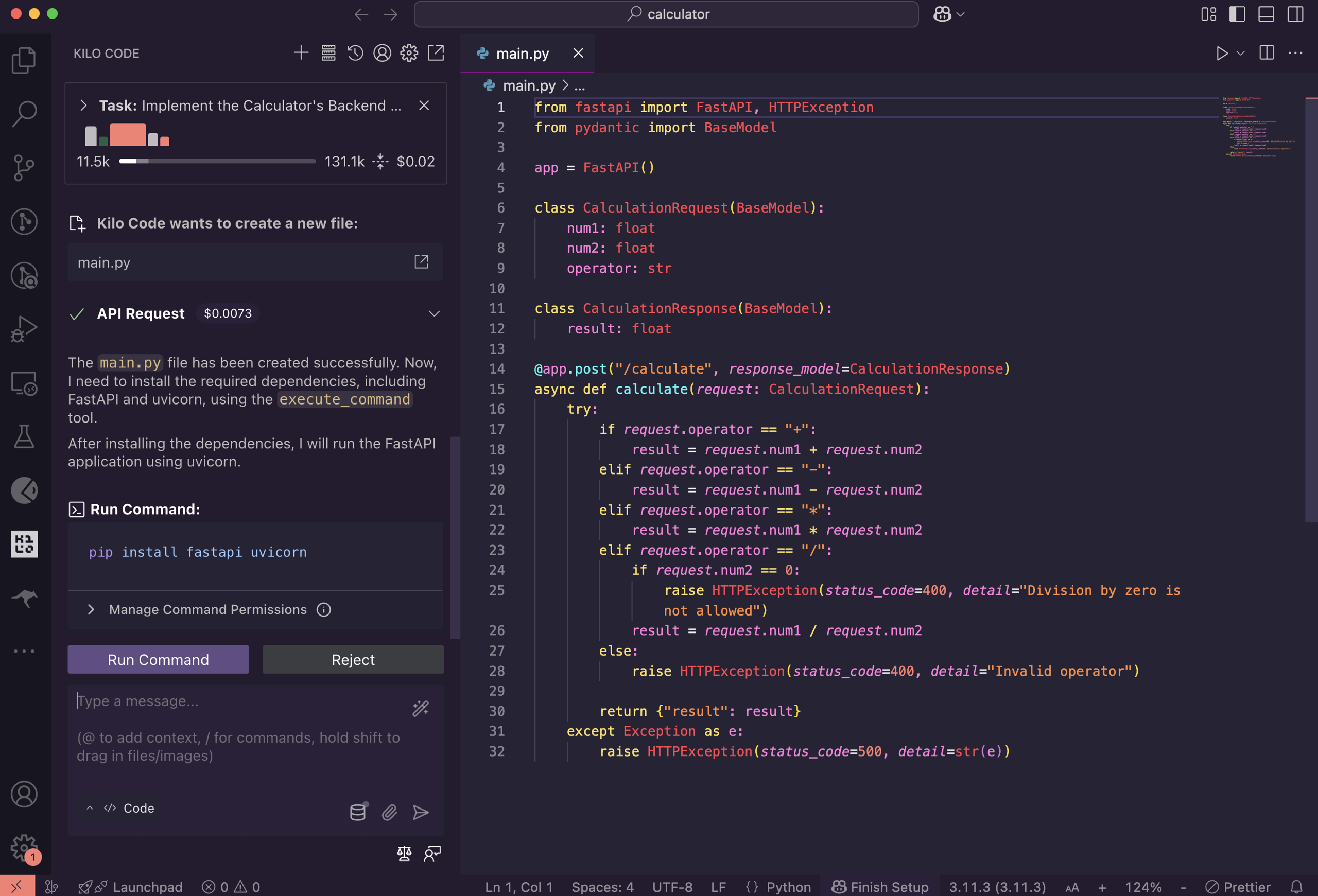
Next steps
Your SambaCloud models now power the KiloCode assistant.Troubleshooting
SambaNova provider not appearing in API Provider dropdown
SambaNova provider not appearing in API Provider dropdown
Update KiloCode to the latest version. Open VS Code Extensions, find KiloCode, and click Update.
Model not found or invalid model ID
Model not found or invalid model ID
Check the model ID is correct. See available models for valid IDs.