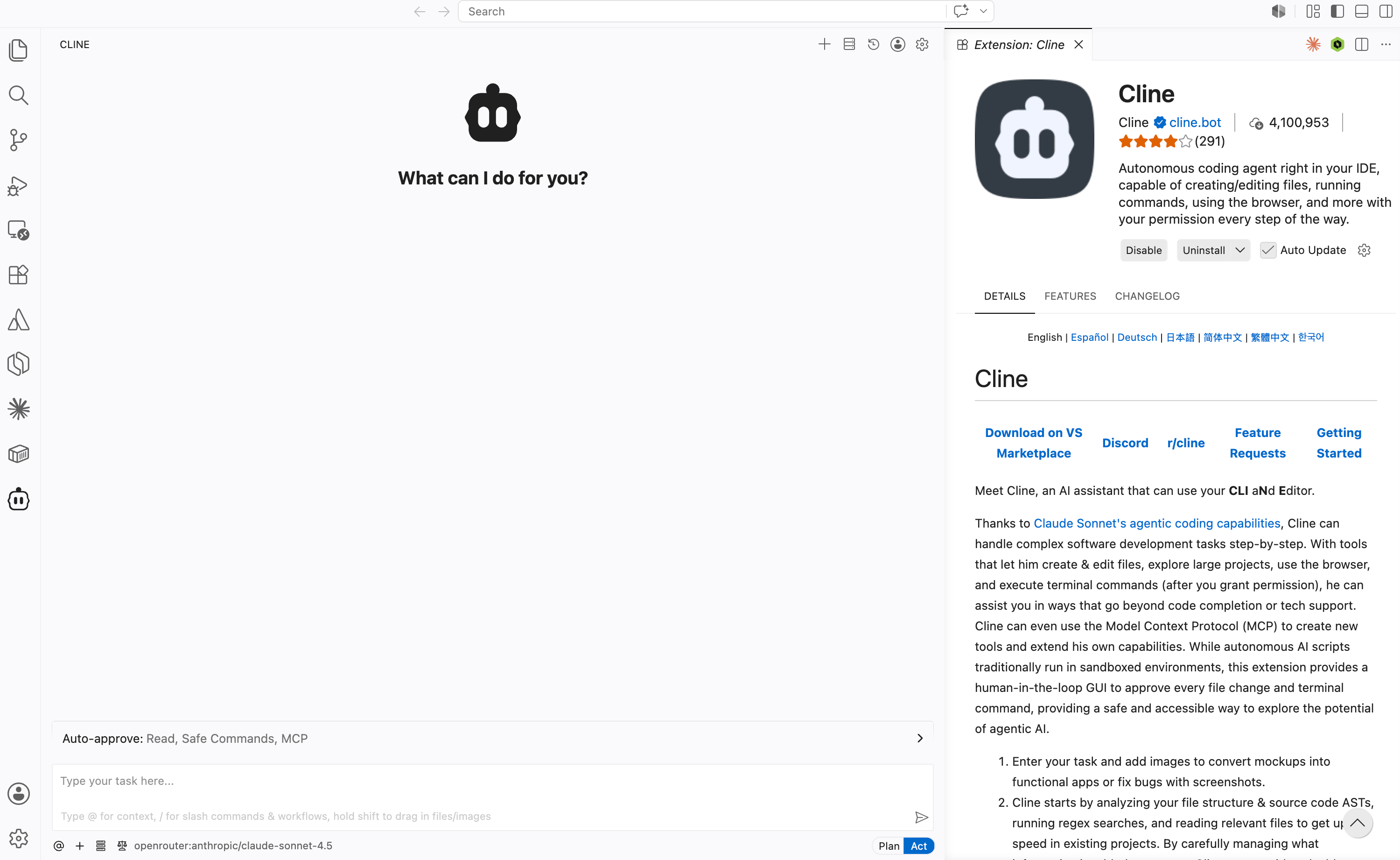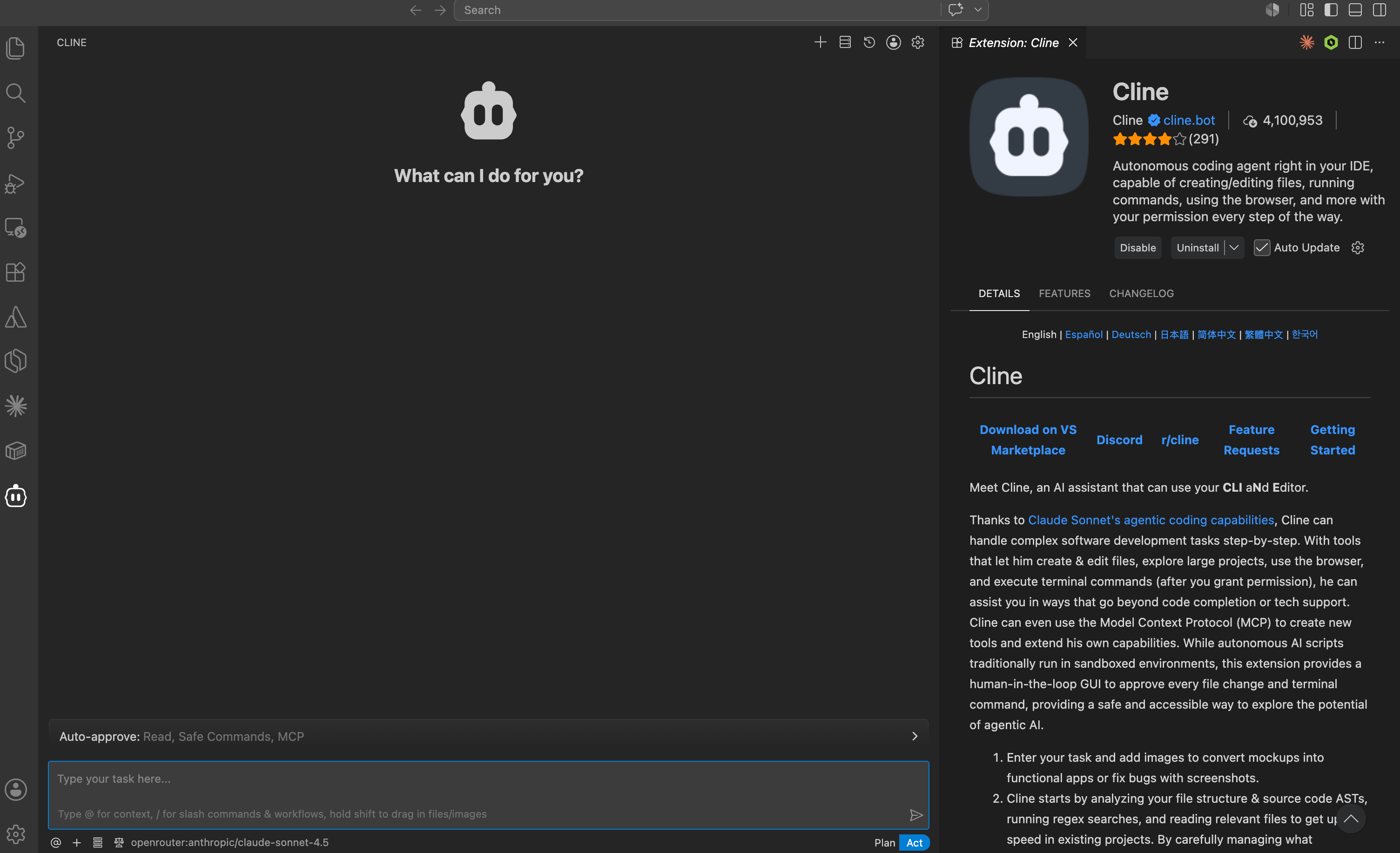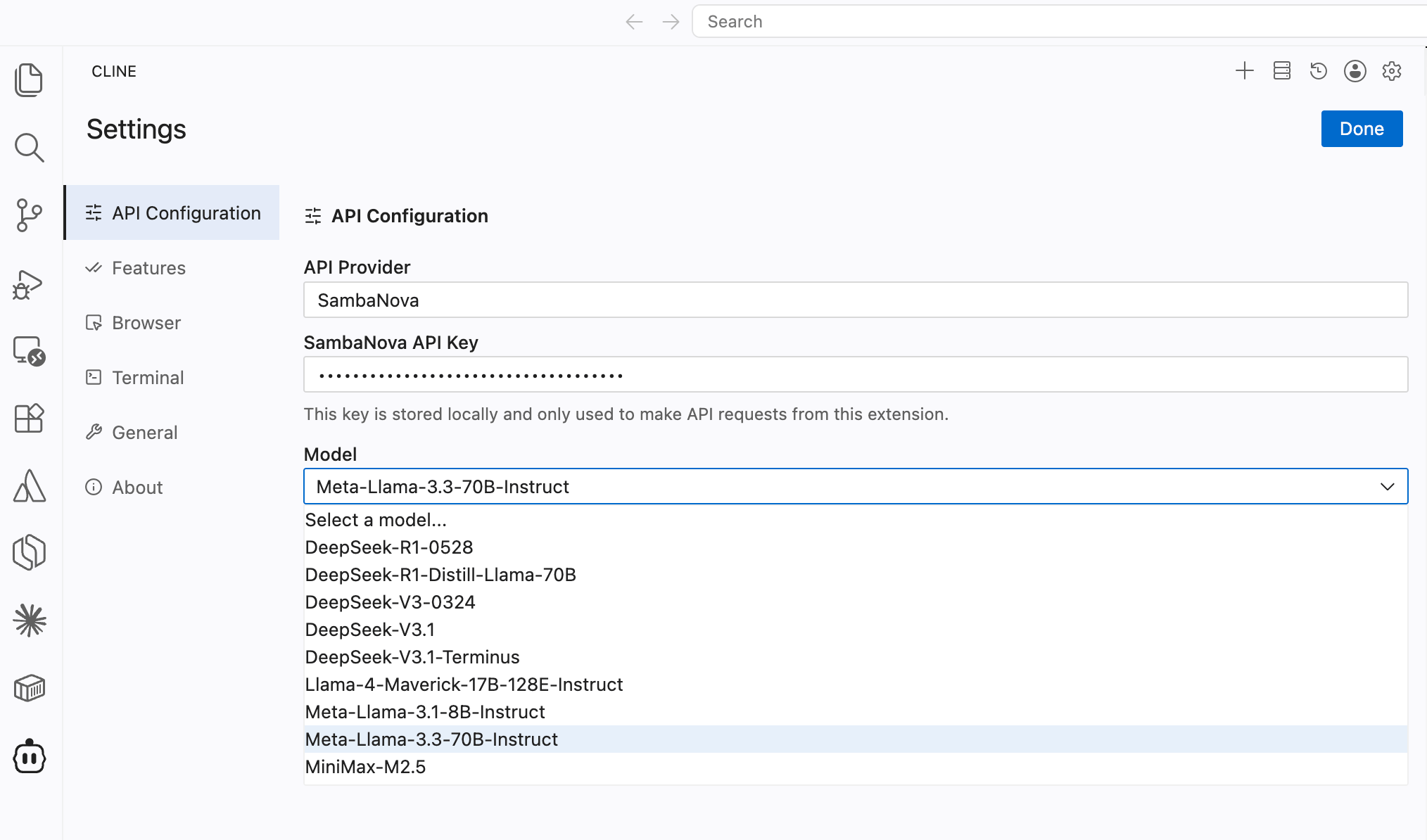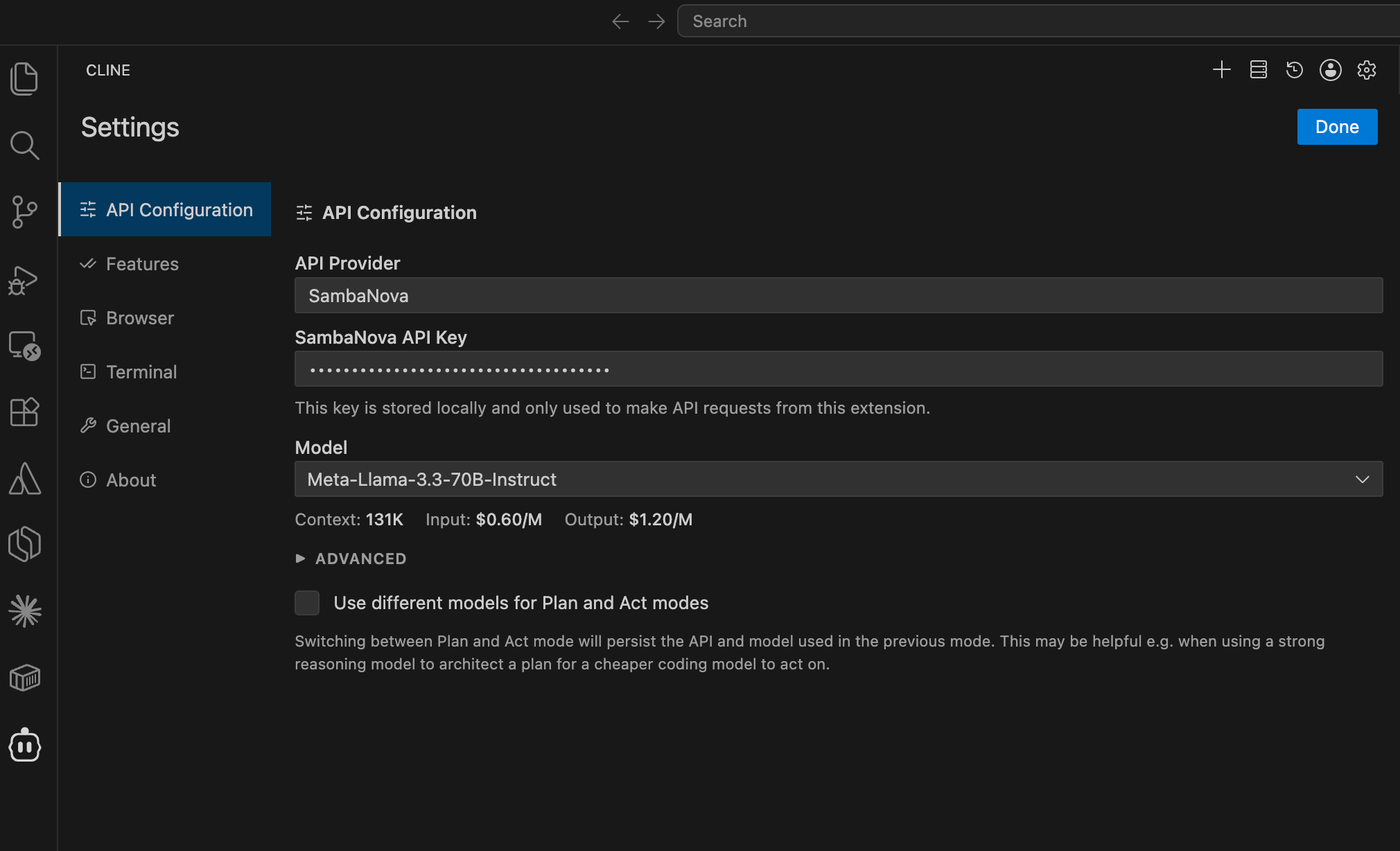

Cline is a coding assistant that streamlines development workflows, provides account management features, and optimizes provider routing for developers. For basic single-model use: once you’ve configured the Cline extension, choose SambaNova as your API provider and enter your API key. For more details, view the Cline documentation. Selecting SambaNova as the API provider in Cline's settings This guide goes further than the basic setup above: it wires Cline’s Plan / Act modes to SambaNova-hosted models and walks through three real demos — including one that uses an MCP server for live library docs. The demos build on each other, so run them in order.

What it does

Cline is a VS Code coding agent with first-class Plan / Act modes — two model slots, one for thinking, one for doing. That makes it the most direct mapping of SambaNova’s planner / executor pattern from the Responses API blog: pair a frontier reasoning model in Plan with MiniMax-M2.7 in Act, and the 50–200 file-edit-and-test-run turns go to the cheap, fast model where they belong. SambaNova is a built-in provider in Cline’s dropdown — no proxy, no custom JSON.

Prerequisites

  • VS Code ≥ 1.84 (or Cursor / Windsurf — Cline runs in any VS Code fork).
  • Cline extension installed from the Marketplace (publisher: saoudrizwan).
  • SambaNova API key from cloud.sambanova.ai.
  • (For Demo 2 & 3) an Anthropic or OpenAI key for the frontier Plan-mode model.

Wire up SambaNova

  1. Open the Cline sidebar (robot icon in the activity bar) and click the ⚙️ gear at the top of the panel.
  2. API Provider → select SambaNova from the dropdown.
  3. API Key → paste your SambaNova key.
  4. Model → pick MiniMax-M2.7. This sets your Act-mode model (the executor) — Act is selected by default via the Plan / Act toggle at the bottom of the chat box (see below).
  5. Scroll down and enable “Use different models for Plan and Act mode”. A second model picker appears.
  6. Under the Plan-mode picker:
    • For an SN-only setup: select SambaNova → DeepSeek-V3.1 (or gpt-oss-120b).
    • For a frontier planner setup: switch the provider to Anthropic / OpenAI and pick e.g. claude-sonnet-4-6 or gpt-5. Add that key in the same settings panel.
  7. Done → back to the chat panel.
Fallback — if the native SambaNova provider errors. If the SambaNova dropdown won’t load models, throws on connect, or is missing a model you want, use Cline’s generic OpenAI Compatible provider against SambaNova’s OpenAI-compatible endpoint instead — see Model id confusion under Common gotchas for the exact base URL and steps.
At the bottom of the Cline chat box you’ll see a Plan / Act toggle. That’s the knob you’ll flip between the demos. Make a demo workspace and open it in VS Code:
mkdir -p ~/sambanova-cline-demo && cd ~/sambanova-cline-demo
code .

Demo 1 — SambaNova end-to-end

A pet-friendly “hello world” landing page, built and verified entirely by MiniMax-M2.7. For this demo, set Act to SambaNova MiniMax-M2.7. Switch the toggle to Act, and in the Cline chat:
Create a minimalist, pet-friendly "hello world" landing page in this folder. One index.html, one style.css, no JS frameworks. Soft pastel palette, a friendly paw-print emoji, a short tagline ("Hello, friend"), and a single call-to-action button. Keep it under 80 lines of HTML+CSS combined. Open index.html when done so I can preview it.
Approve the file writes when Cline asks. Then verify in the browser:
open index.html          # macOS
# Linux:   xdg-open index.html
# Windows: start index.html
That’s the SN-only baseline. Plan-mode model unused; one fast executor.

Demo 2 — Frontier plans, SambaNova executes

The architect/builder split, done the way Cline expects it. Plan mode (frontier — Claude / GPT) writes a precise PLAN.md; Act mode (MiniMax-M2.7) executes it. The plan is the artifact that crosses the boundary — reproducible, swappable, reviewable. If you haven’t already, in ⚙️ settings set Plan mode to a frontier model (e.g. Anthropic → claude-sonnet-4-6) and Act mode to SambaNova → MiniMax-M2.7. Step 1 — switch the toggle to Plan, then in the chat:
Read index.html and style.css in this folder. Write PLAN.md describing how to extend this landing page into a "pet adoption finder" demo:

- A gallery of 6 placeholder pet cards (name, species, one-line bio) in CSS grid
- A search input that filters cards by name (vanilla JS, no frameworks)
- A dark-mode toggle that persists in localStorage

Include exact file layout, the JS event handlers needed, and a verification checklist a human can run in the browser. Don't modify any code yet.
In Plan mode, Cline can’t edit files — it can only read, search, and draft. The PLAN.md write is the one action you’ll need to approve. Review and edit it freely; that’s the point of materializing the plan. Step 2 — switch the toggle to Act, then:
Read PLAN.md and execute every step. After each step, list which acceptance criteria from the plan are now satisfied. Open index.html at the end so I can verify in the browser.
Cline keeps the same conversation when you flip Plan→Act, so the executor sees PLAN.md and your follow-up instructions, but not the planner’s chain-of-thought. The plan is the contract. Step 3 — verify: open index.html. You should see the gallery, working search, and dark-mode toggle.
Want to test the executor in isolation? Open a fresh Cline task (the + icon) and just say “read PLAN.md and execute it” — same result, no shared history.

Demo 3 — MCP-fed planning with live library docs

Demo 2, plus an MCP server. The Plan-mode model uses Context7 to fetch current docs for a library, bakes them into PLAN.md, and Act-mode MiniMax executes. Solves the “model trained on stale docs” problem without writing custom retrieval.

Install Context7

Free API key from context7.com/dashboard. In the Cline sidebar, click MCP ServersMarketplace. Search for Context7 and install it, then click Done. If you want to validate the installation, return to the MCP Servers option and go to Configure. Cline should show context7 as connected, with two tools: resolve-library-id and query-docs.

The task

Stamp each pet card from Demo 2 with a human-readable “Added X days ago” label, computed at page load with date-fns (formatDistanceToNow). date-fns is a good Context7 target: its v2→v3 rewrite changed how it’s imported (tree-shakeable named exports, a new UMD cdn.min.js build) and v4 added time-zone support — so models routinely emit stale default-import patterns that don’t run.

Step 1 — Plan-mode (frontier) fetches current docs and writes the plan

Switch the toggle to Plan, then:
Use the `context7` MCP server to look up **current** date-fns docs, then plan adding an "Added X days ago" label to each pet card.
Before writing any code
Verify and quote verbatim from the docs:
- The exact `formatDistanceToNow` signature and what the `addSuffix` option does
- How to load date-fns in a plain browser page (UMD `cdn.min.js` → `dateFns` global) vs ESM named imports — and which one works over `file://`
- The exact `<script>` CDN tag and version
Analyze the existing codebase
- Are cards static or JS-injected? Where would a `data-added` ISO date live?
- Any existing markup the label should slot into without reflowing the card?
Write PLAN.md "Phase 2" covering
1. Progressive enhancement — cards stay readable if JS/CDN fails (no blank labels)
2. Data — give each card a fixed `data-added` ISO date so the demo is reproducible
3. Render — call the date-fns global once per card on load; map `data-added` → "Added X days ago"
4. Complete code — no placeholders, the CDN tag and function call quoted from the docs
5. Verification — what each card should read on normal load, and behavior with JS off / CDN blocked
Final self-check
Confirm the function name, `addSuffix` usage, and CDN tag all match the quoted docs — zero invented options.
Cline will prompt to call resolve-library-id and query-docs — approve. The planner writes a plan grounded in today’s API.

Step 2 — Act-mode (SambaNova) executes

Switch the toggle to Act:
Read PLAN.md "Phase 2" and execute it. After loading, open index.html and confirm each card shows an "Added X days ago" label.
The executor doesn’t need MCP — PLAN.md already contains the resolved API. MCP access stays on the (more expensive) Plan-mode side, where it pays off.

Step 3 — verify

open index.html          # macOS
# Linux:   xdg-open index.html
# Windows: start index.html
Each of the 6 cards should show an “Added X days ago” label (e.g. “Added 3 days ago”).

Why this matters

MCP-fed planning keeps the frontier planner well-informed and the SambaNova executor cheap and tool-light. The boundary is PLAN.md — and in Cline, the Plan / Act toggle makes it impossible to accidentally run the wrong model on the wrong side.

Tips

  • The Plan / Act toggle is at the bottom of the chat box. It survives across tasks in the same workspace — verify before sending a prompt.
  • Auto-approve sparingly. Cline’s auto-approve toggles are per-tool (read, edit, bash, MCP). For demos, leave edits manual so you can watch the executor work.
  • One task per demo. Hit the + icon to start a fresh task for Demo 3 — keeps the planner’s PLAN.md write clean without earlier context bleeding in.
  • @workspace, @file, @url in the chat are Cline-specific context shortcuts. Useful when handing PLAN.md over without re-pasting it.

Common gotchas

“Plan and Act use the same model.” The setting is “Use different models for Plan and Act mode” in the API settings panel — it’s off by default. Toggle it on, then re-pick the model for the currently inactive mode (Cline only shows the picker for whichever mode is selected at the bottom). MCP tools not visible. Cline reads cline_mcp_settings.json on save, but if the server fails to start (bad API key, network) it’ll show red in the MCP Servers panel. Click the server name for stderr. 401 Unauthorized after switching providers. Each provider has its own API-key field. Switching the Plan mode to Anthropic doesn’t surface the Anthropic key picker until you click into that mode’s section in settings. Model id confusion. Cline’s SambaNova dropdown lists models by their bare id (MiniMax-M2.7, DeepSeek-V3.1, gpt-oss-120b). If you don’t see a model you expect, hit the refresh icon next to the dropdown — Cline pulls the live model list from SambaNova. If refresh still doesn’t surface it, or the SambaNova provider errors on connect, fall back to Cline’s generic OpenAI Compatible provider against SambaNova’s OpenAI-compatible endpoint:
  1. API Provider → select OpenAI Compatible.
  2. Base URLhttps://api.sambanova.ai/v1
  3. API Key → your SambaNova key.
  4. Model ID → type the model id directly (e.g. MiniMax-M2.7, DeepSeek-V3.1, gpt-oss-120b) — there’s no dropdown, so spell the id exactly as SambaNova lists it.
This works the same way for both the Plan and Act model slots; everything else in the demos is unchanged.

Composing with MCP servers

Cline’s Plan / Act split + MCP gives you a clean handoff:
ModeModelBest forMCP access
Plan (frontier or DeepSeek-V3.1)reading, reasoning, MCP callsfull — Cline approves per-callyes
Act (MiniMax-M2.7)the 50–200 file edits and test runsfull edit + shellyes (often unused)
Three patterns fall out: 1. MCP-fed planning. Plan pulls external context (docs, Jira via the Atlassian MCP server, GitHub issues), bakes it into PLAN.md, hands to Act. 2. MCP-driven handoff. After Act finishes, switch to Plan and use a GitHub or Slack MCP server to open a PR / post a summary — the executor never needs those credentials. 3. Shell-CLI tools inside Act. Act has terminal access. Any CLI on PATH (gh, git, aws, …) is fair game — tell it in the prompt:
Example: “Implement PLAN.md, run npm test, then run gh pr create --fill to open a draft PR.”

References