

Prerequisites
- A SambaCloud account and API key
- A JetBrains IDE (IntelliJ IDEA, PyCharm, or similar)
- A JetBrains account with a credit card registered on the Payment methods page. JetBrains requires a card on file to activate the AI features, even for a trial.
- An active JetBrains AI subscription or trial (for example, JetBrains AI Pro - trial). Once active, it appears on your account’s Transactions page.
Setup
1
Install the JetBrains AI Assistant plugin
Open Settings → Plugins, search for JetBrains AI Assistant, install it, and restart the IDE when prompted. On some IDEs and editions it may already be bundled.
2
Open the provider settings
Go to Settings → Tools → AI Assistant → Providers & API keys.
3
Add SambaNova as a custom provider
Under Third-party AI providers, set: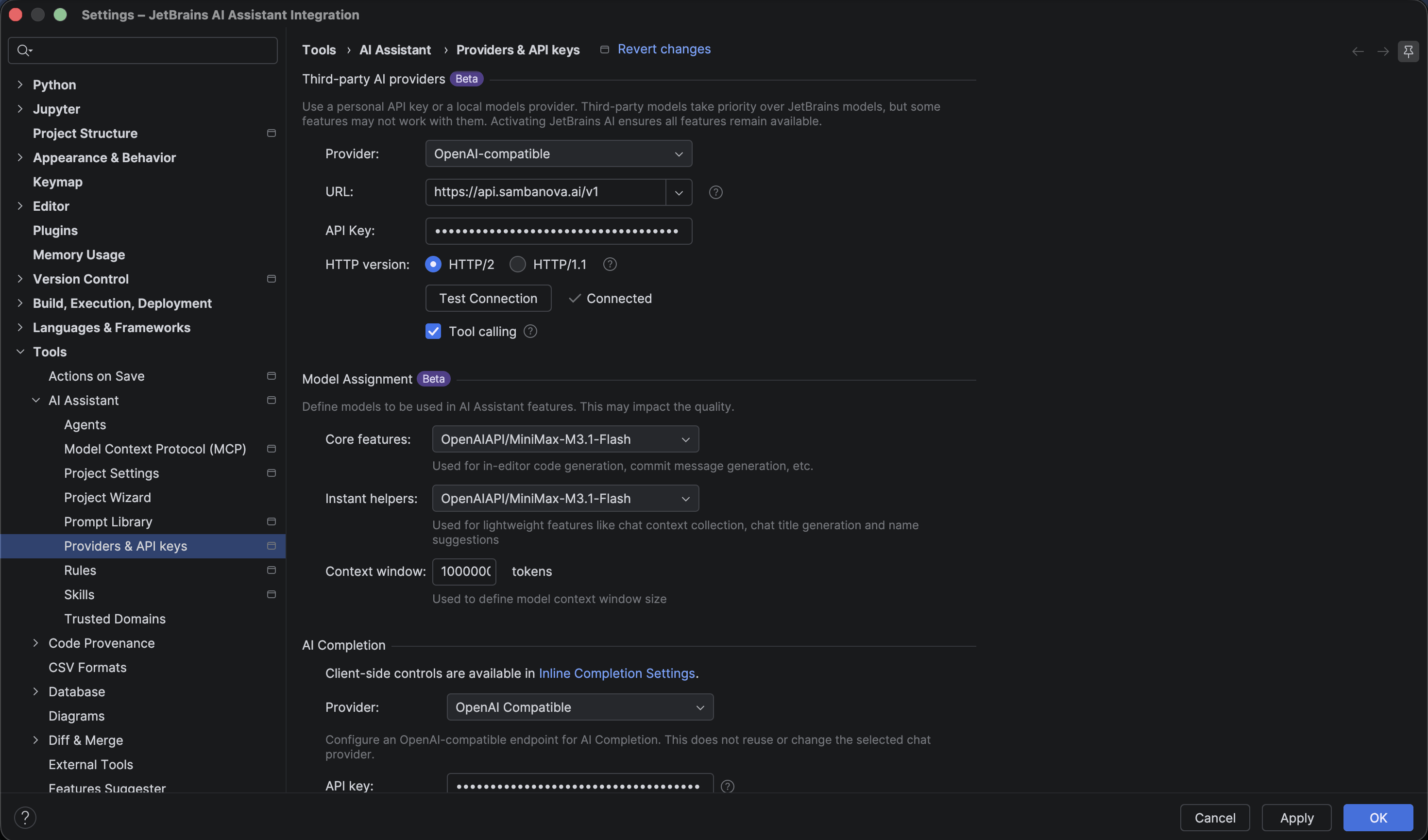
- Provider:
OpenAI-compatible, notOpenAI. TheOpenAIoption has only an API key field and no URL field, so it can’t point at SambaCloud. - URL:
https://api.sambanova.ai/v1 - API Key: your SambaCloud API key
- Tool calling: enabled (checkbox)
4
Assign the model to AI Assistant features
Custom models are not automatically used by every feature. In the Model Assignment section further down the same page, set:
- Core features (in-editor code generation, commit message generation, etc.):
OpenAIAPI/MiniMax-M3.1-Flash - Instant helpers (chat context collection, chat title generation):
OpenAIAPI/MiniMax-M3.1-Flash - Context window: raise it from the default
64000to1000000, which is close to the1048576-token context length ofMiniMax-M3.1-Flash. See SambaCloud models for other models’ context lengths.
Example: AI Chat
With the provider connected, AI Chat answers using the configured SambaNova model. The model picker at the bottom of the chat panel confirms which model actually answered: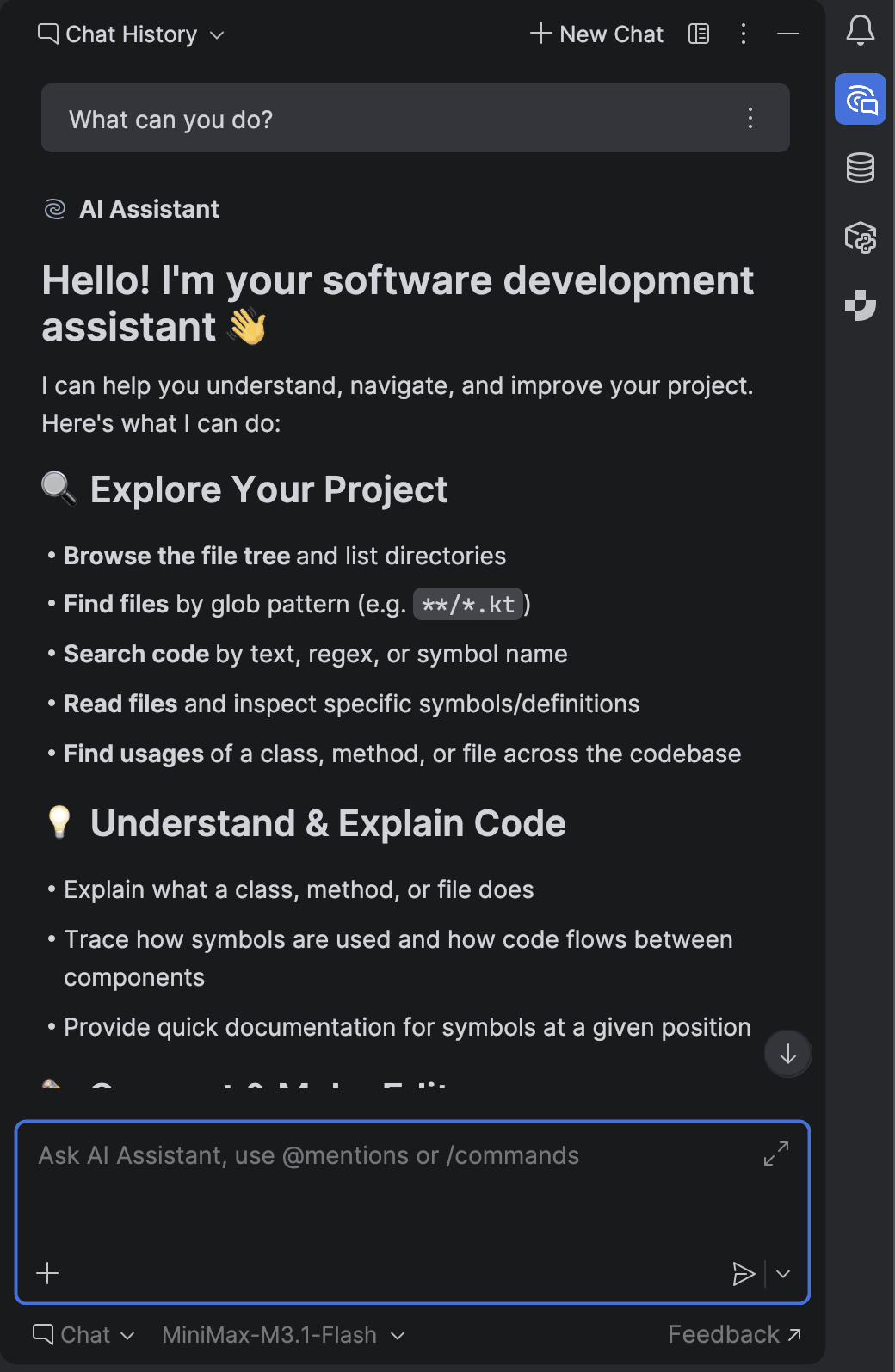
AI Completion is a separate configuration
Inline code completion (suggestions as you type) is configured independently, under AI Completion further down the same settings page — it has its own Provider dropdown and its own API key field, and does not reuse the chat provider you configured above. Pointing AI Chat at SambaNova does not change what inline completion uses; that needs its ownOpenAI Compatible entry with the same URL and a key.
Then choose a Model. Use DeepSeek-V3.1: the IDE recognizes it as a code completion model and sets Prompt schema to (fim) DeepSeek, so suggestions use the code both before and after the cursor. Other SambaCloud models show “Model is not recognized” and only continue the code before the cursor, unless you select a (fim) Prompt schema for the model’s family yourself.
Troubleshooting
No URL field appears after selecting a provider
No URL field appears after selecting a provider
You selected
OpenAI instead of OpenAI-compatible. OpenAI has only an API key field and always uses OpenAI’s own endpoint. Select OpenAI-compatible to get both the URL and API key fields.Custom model works in AI Chat but not for code generation or commit messages
Custom model works in AI Chat but not for code generation or commit messages
Those are separate features governed by Model Assignment, not by the provider connection alone. Go to Settings → Tools → AI Assistant → Providers & API keys, scroll to Model Assignment, and set Core features and Instant helpers to your SambaNova model explicitly.
No valid licenses are associated with your account
No valid licenses are associated with your account
AI Chat shows this message when the IDE isn’t signed in to a JetBrains Account that has an active JetBrains AI subscription or trial. A third-party API key alone doesn’t unlock AI Chat. Sign in to the IDE with that account, confirm the subscription or trial is active (see Prerequisites), then open AI Chat again.
Inline code completion still uses a different model
Inline code completion still uses a different model
Inline completion (AI Completion) has its own separate provider configuration on the same settings page, independent of the chat/core-features provider. Configure it separately with the same URL and API key if you want completion to use SambaNova too.