

Prerequisites
- A SambaCloud account and API key.
- Visual Studio Code installed.
- The Cline extension installed from the VS Code Extensions Marketplace (publisher:
saoudrizwan).
Setup
1
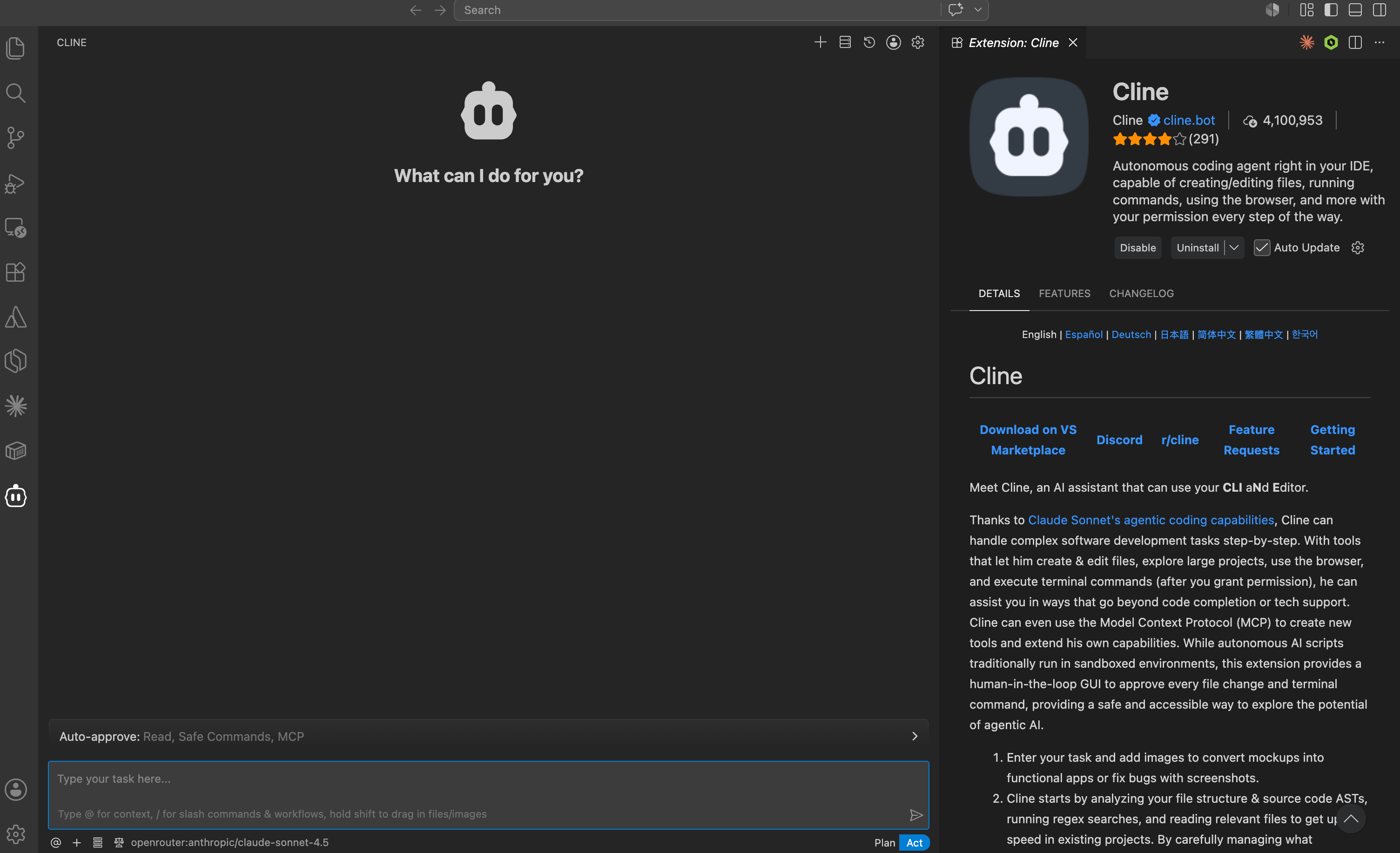
Open Cline in VS Code
Launch VS Code and open the Cline panel from the sidebar.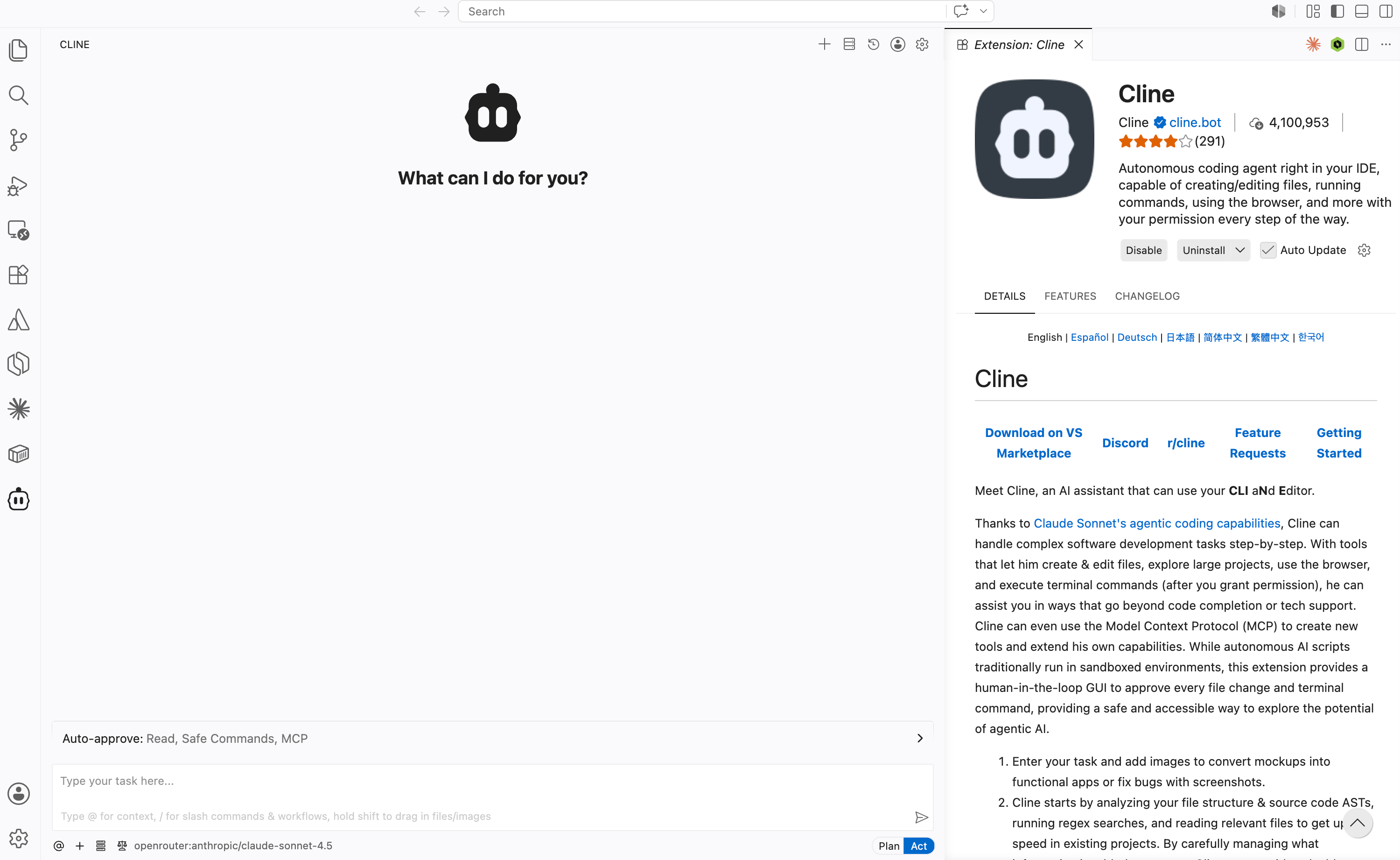
2
Configure SambaNova as the API provider
- Click the settings icon in the Cline panel.
- In the API Provider dropdown, select SambaNova.
- Enter your SambaCloud API key.
- Choose a model from the Model dropdown (e.g.,
MiniMax-M3).
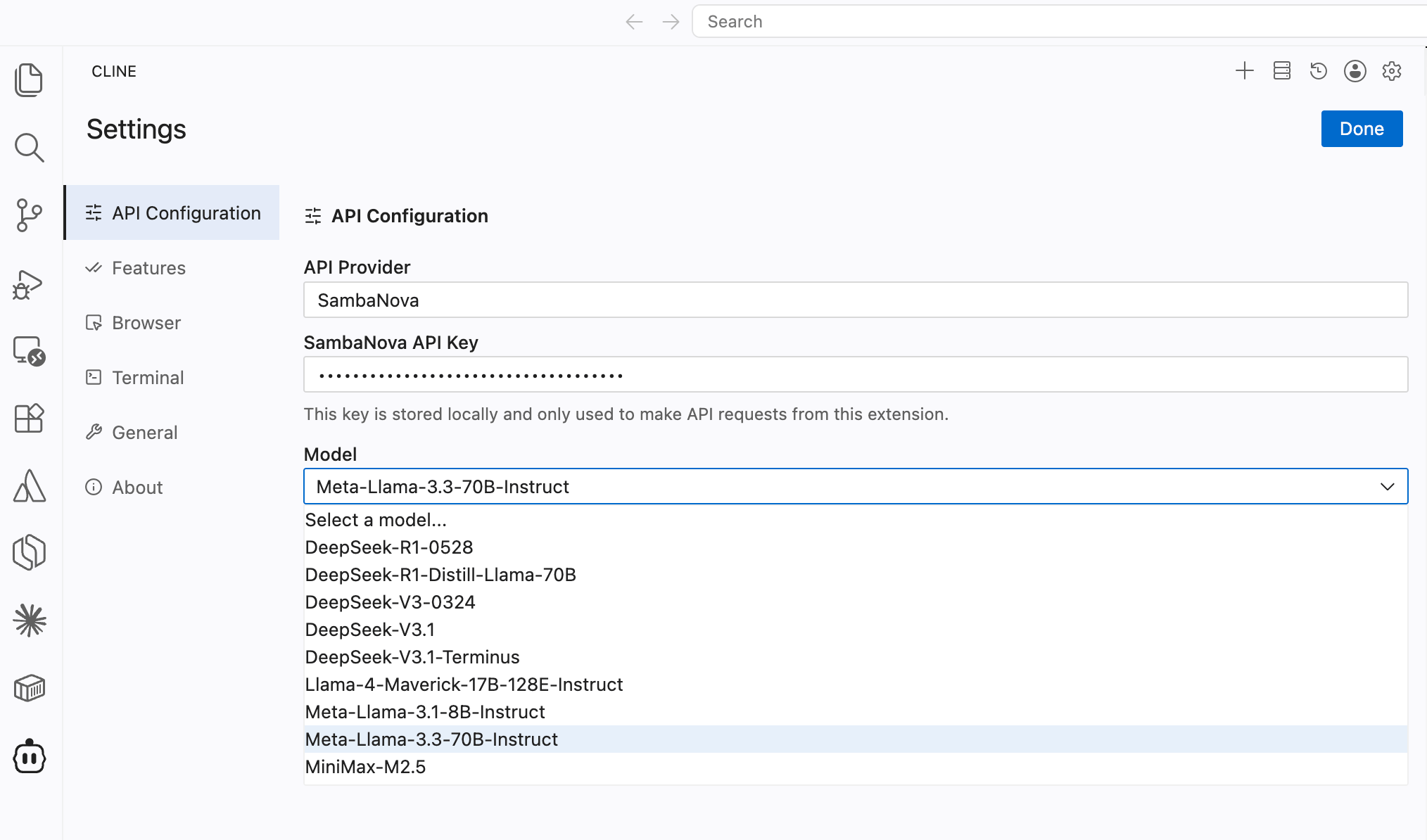
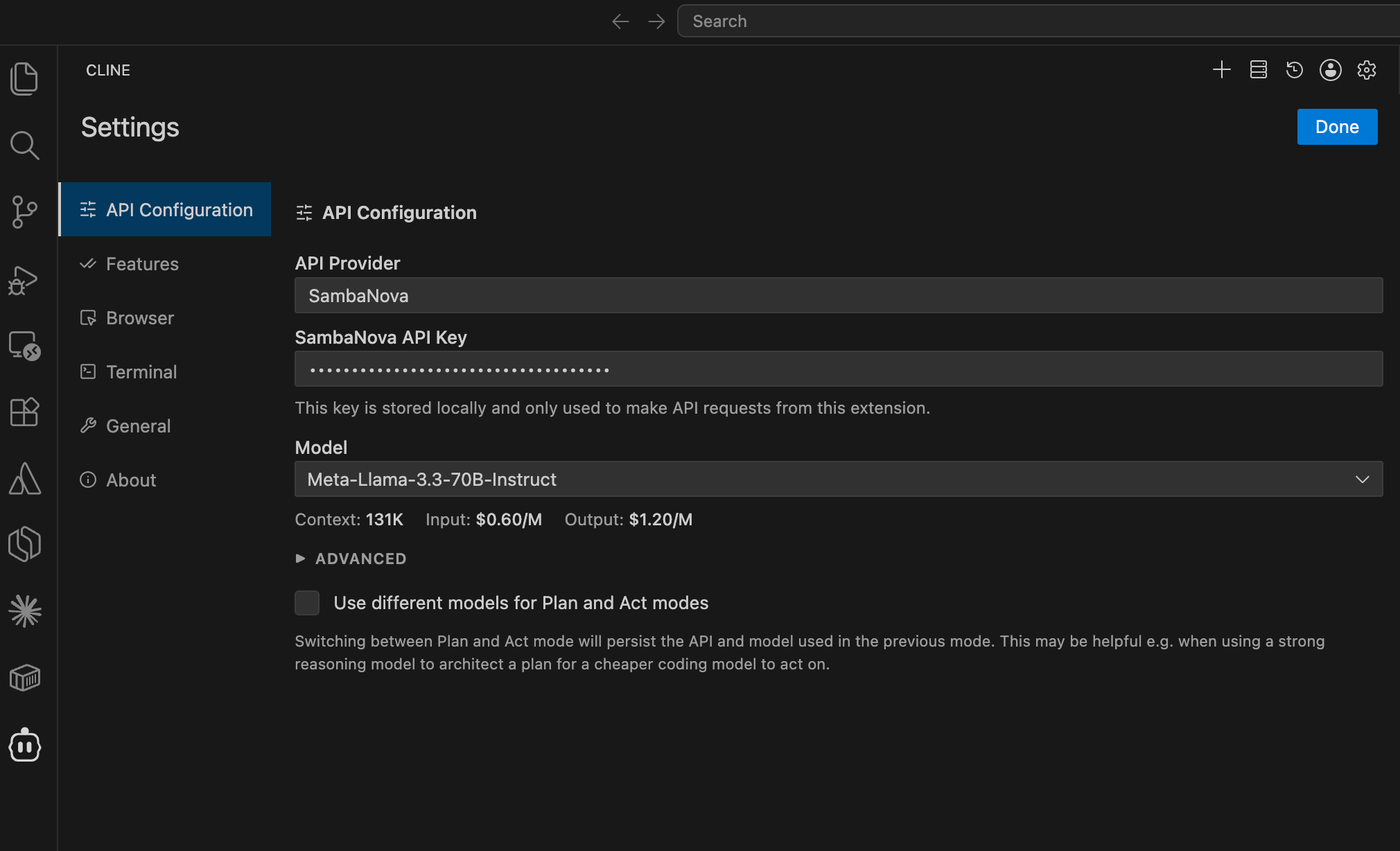
- Click Done to save.
Usage
Once configured, you can start interacting with Cline using SambaNova models.- Open a new task in the Cline panel.
- Provide a prompt describing what you want to build.
- Review the actions Cline proposes.
- Approve each step before Cline executes file edits or terminal commands.
You can monitor token usage and session cost in the Cline panel’s top bar.
Troubleshooting
Model not appearing in dropdown
Model not appearing in dropdown
- Verify your API key is correct and active in the SambaCloud portal
- Ensure you selected SambaNova in the API Provider dropdown
- Try removing and re-entering your API key
Authentication errors
Authentication errors
- Regenerate your API key in the SambaCloud portal
- Verify the key was copied correctly without extra spaces or line breaks
Cline not connecting to SambaNova
Cline not connecting to SambaNova
- Check your internet connection
- Confirm your SambaCloud account is active
- Re-open the Cline settings and re-save your configuration
SambaNova provider errors or model missing from dropdown
SambaNova provider errors or model missing from dropdown
If the SambaNova provider fails to connect or a model is not listed in the dropdown, use Cline’s OpenAI Compatible provider as a fallback:
- In the API Provider dropdown, select OpenAI Compatible.
- Set Base URL to
https://api.sambanova.ai/v1. - Enter your SambaCloud API key.
- In the Model ID field, type the model name exactly as listed in the SambaCloud portal (for example,
MiniMax-M3).