

Prerequisites
Before you begin, ensure you have:- A free account on SambaCloud.
- Visual Studio Code installed.
- The RooCode extension installed from the VS Code extensions panel.
Setup
Getting started with SambaNova’s LLM in RooCode is quick and easy. Follow the steps below to connect SambaCloud models.-
Open RooCode In VS Code
- Launch VS Code.
- Open the RooCode panel from the sidebar.
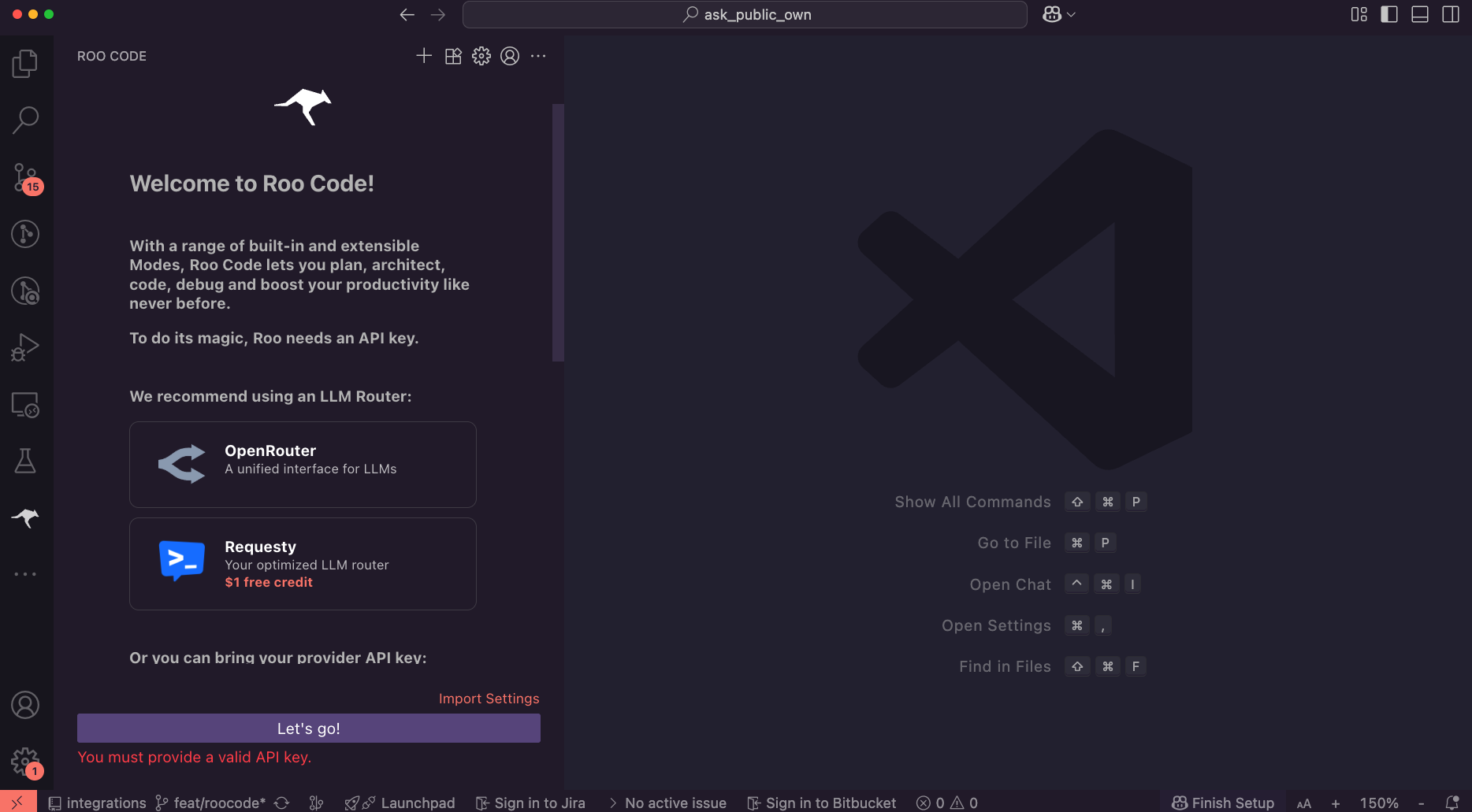
-
Add SambaCloud API Key
- Select
SambaNovain the API Provider dropdown. - Set your SambaCloud API key in the API key field
- Select a model to use in the Model dropdown (e.g.,
Llama-4-Maverick-17B-128E-Instruct) - Click on the
Let's go!button’
- Select
Usage
- Select the Agent role
- architect (for solution design)
- code (for writing code)
- ask (for answering questions)
- debug (for troubleshooting)
- orchestrator (for coordinating multiple tasks)
Additional agent roles are available in the
Mode Marketplace to customize your workflow.- Code with SambaCloud in RooCode
- Prompt the agent with your task.
- Review the proposed actions.
- Approve the actions you want the agent to execute.
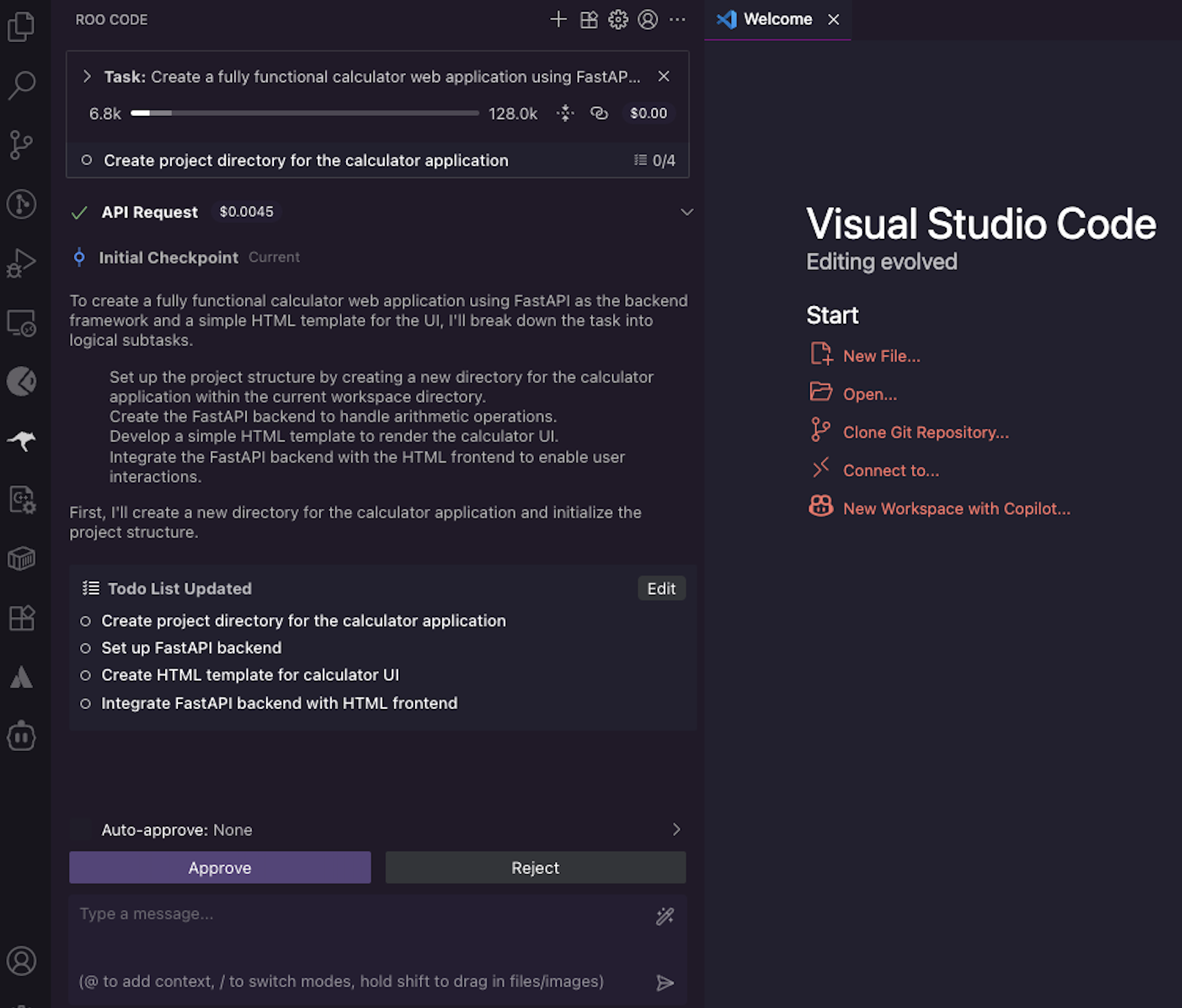
You can monitor token usage and pricing for the current session in the RooCode panel’s top bar.