

SambaStack on-prem architecture
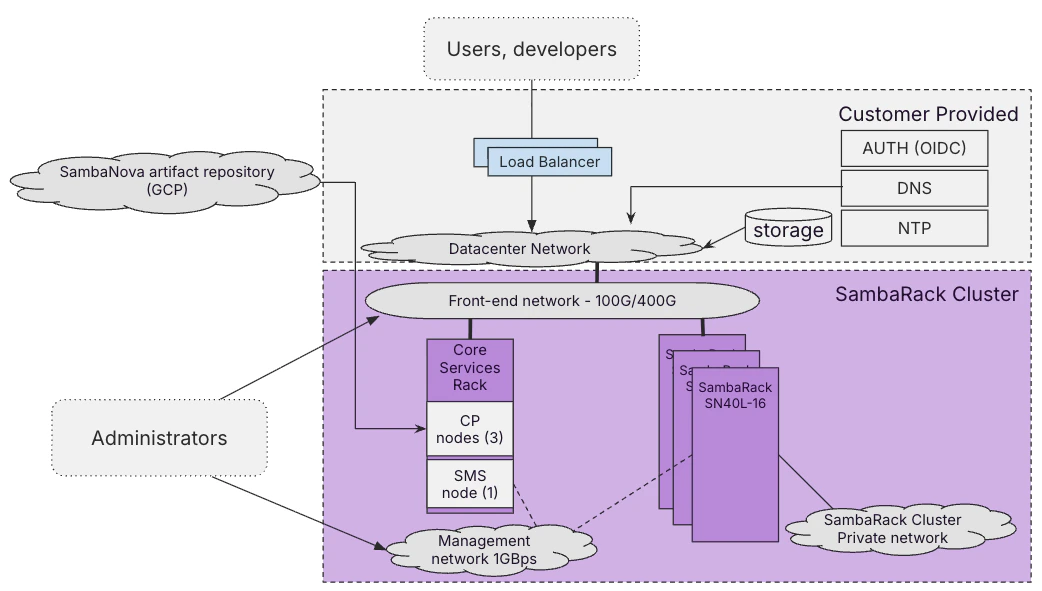
- Users and developers send requests through a Load Balancer to the Datacenter Network
- The Datacenter Network routes traffic to the SambaRack Cluster over a 100G/400G front-end network
- The front-end network delivers requests to the Core Services Rack and the SambaRack SN40L-16 units, which run inference
- Administrators reach the cluster over two separate networks: the front-end network for cluster operations, and a dedicated 1Gbps management network for out-of-band hardware access
- The SMS node and the SambaRack SN40L-16 units both also connect to the management network
- Storage and three customer-managed services – AUTH (OIDC), DNS, and NTP – connect into the Datacenter Network
- The SambaNova artifact repository (hosted on GCP) delivers checkpoints and software updates directly to the CP nodes – this bypasses the Datacenter Network entirely, it’s a separate, direct path
- SambaRack SN40L-16 units communicate with each other over a dedicated SambaRack Cluster Private network
Prerequisites
This section outlines the prerequisites for deploying SambaStack and guides you through obtaining the necessary credentials and configurations.SambaNova collects hardware prerequisites (such as load balancer configuration) and OS configuration requirements (such as NTP servers) through the SambaNova site survey. Contact your SambaNova representative for details.
SambaRack SN40L-16 systems may be deployed with either 12TB or 4TB of DDR memory, and mixed-memory clusters are supported when the cluster is configured to use the lower memory limit across all nodes. All newly shipped SN40L-16 hardware is configured with 4TB of DDR memory, while existing 12TB systems can continue operating at their full capacity when deployed in uniform clusters. SambaNova-provided bundles are validated for 4TB systems, and SambaStack also supports cluster-level memory limit enforcement to ensure bundle configurations stay within the declared node capacity.
- This guide assumes you have a kubernetes cluster already in place.
-
You must provide two TLS certificates and DNS names for the API and UI endpoints:
api.<your-domain>– certificate and private keyui.<your-domain>– certificate and private key
-
You must provide certificates as either:
- Two individual certificates (one for each hostname), or
- A single wildcard certificate (e.g.,
*.example.com) covering both
Self-signed certificates are not supported for production environmentsCertificates must be issued by a trusted Certificate Authority (CA) such as Let’s Encrypt, DigiCert, or your organization’s internal CA -
Ensure the following tools are installed/present:
-
Make sure you have received the following from SambaNova
- Helm chart OCI registry URLs
SambaNova provides the full registry URL,
service-account-keyfile, and version number during handover. Contact your SambaNova representative for access credentials.Version numbers change with new chart releases. Check with your SambaNova representative for the current installation version. - Configuration files
- Sample
sambastack.yamlfile for your deployment - this guide also shows how to build this from scratch. - Sample models chart values file (for example
models-values.yaml) for thesambastack-modelsinstall.
- Sample
- Google Cloud service account key file. This file is used to create:
- Image Pull Secret
- Artifact reader secret
- Helm chart OCI registry URLs
Setup
Authenticate and Configure Cluster
- Create sambastack namespace
- Create a Docker registry secret for pulling images from Artifact Registry using your Google Cloud service account JSON key:
- Create a secret for reading model artifacts from Google Cloud Storage:
- Label each RDU node for scheduling. Add
--overwritefor idempotency:Repeat this command for each node in your cluster.
Configure sambastack.yaml
- Configure a minimum viable
sambastack.yamlfile:SambaRack SN40L-16 systems may have either 12TB or 4TB of DDR memory, but all newly shipped systems are 4TB, so configure the cluster memory limit accordingly and use the lower limit when mixing node types.See the SambaStack.yaml Reference for a full example. - Configure a
models-values.yamlfile for the models chart:This file deploys a bundle that you will be able to query.modelBundleSpecsselects which of the provided model bundles to render, andmodelDeploymentSpecsdeploys them — the name must match a bundle name. For every available key, see Model configuration.
Helm Login and Install
- Use your Google Cloud service account to authenticate with the Helm registry:
- Install the base chart, the main SambaStack chart, and the models chart, in that order:
Install the charts in the order shown.
sambastack-base → sambastack → sambastack-models is the recommended order.SambaNova provides the full registry URL and version number during handover. Contact your SambaNova representative for access credentials.
Version numbers change with new chart releases. Use the version number provided by your SambaNova representative.
Refer to the Pods reference table for details on the pods created after installation.
Confirm the releases installed
List the Helm releases in the namespace:You should see three releases, all with status
deployed:Ensure Pods are Running
- Run the following command to see all the pods running in your cluster:
- Make sure all pods are
Running. Your response should resemble the following:It usually takes about 5-10 minutes for all the pods to reach their desiredRunningstate.See the Pods reference table for more details.
6
Create User and API Key
This quickstart guide uses the default keycloak auth setup to get started. To configure custom authentication, check out the authentication page.
- Retrieve keycloak
temp-admincredentials: - Port forward keycloak
- Log into keycloak at
http://localhost:8080/withtemp-admincredentials above.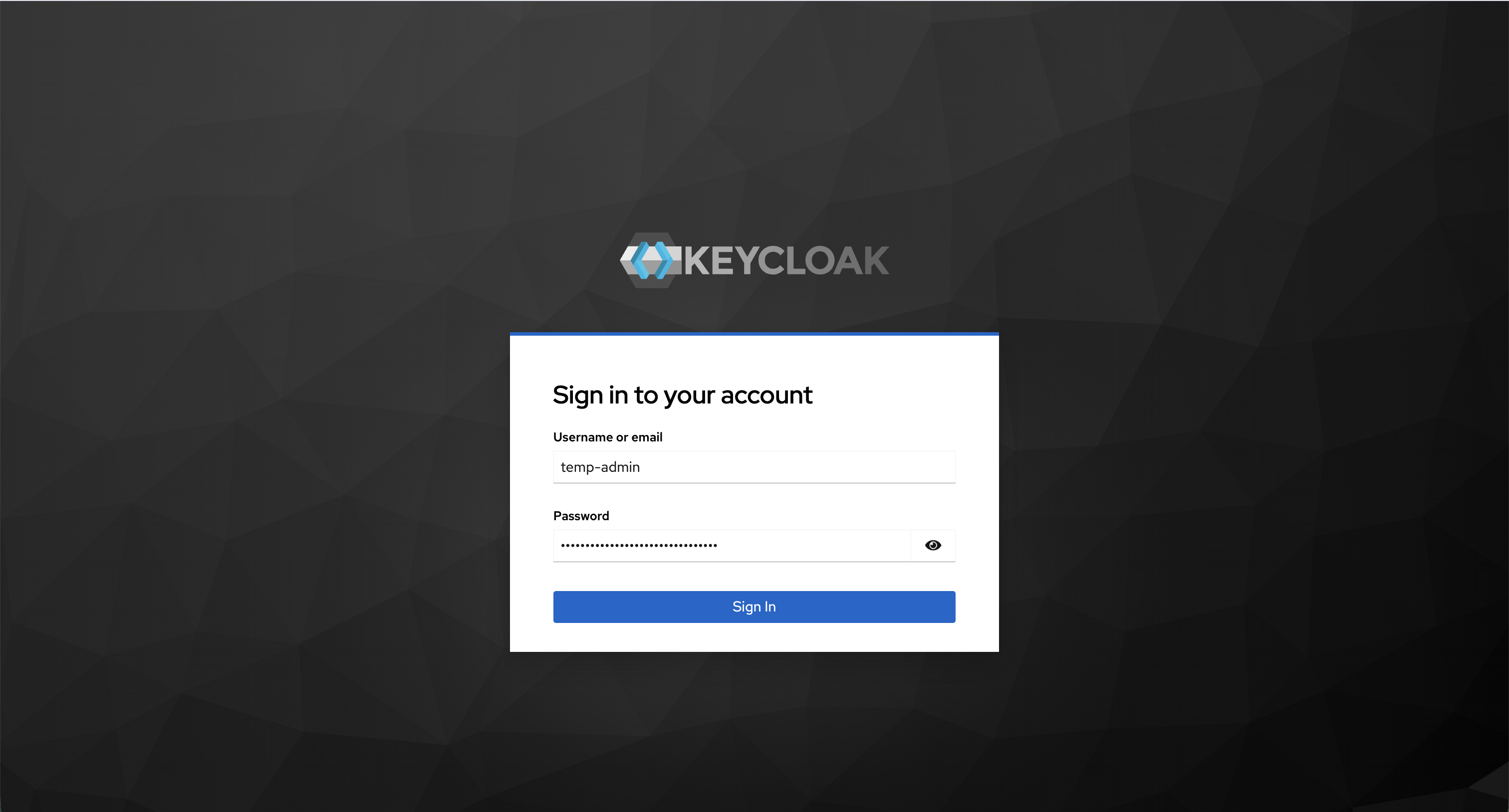
- Create admin user
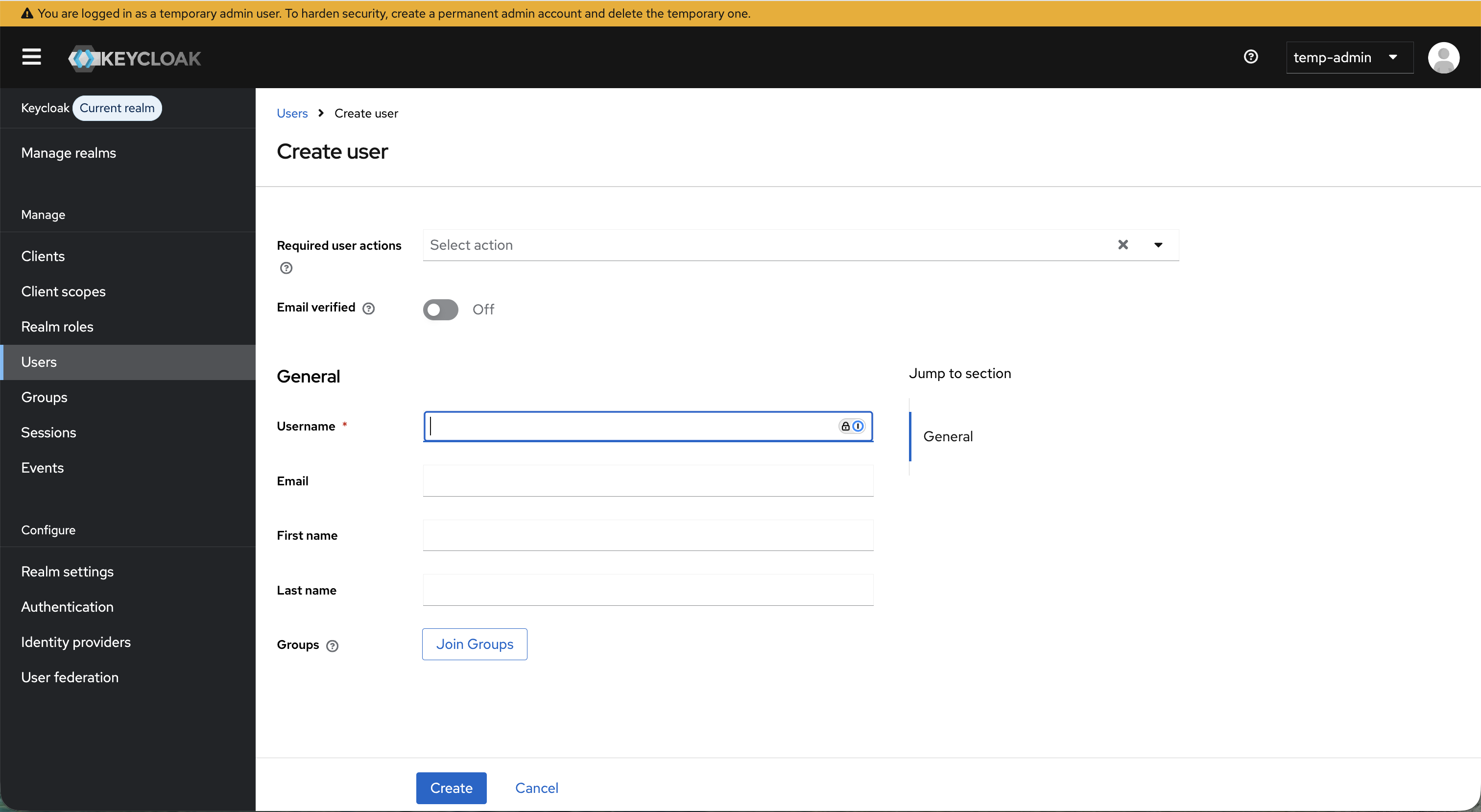
- Assign admin role
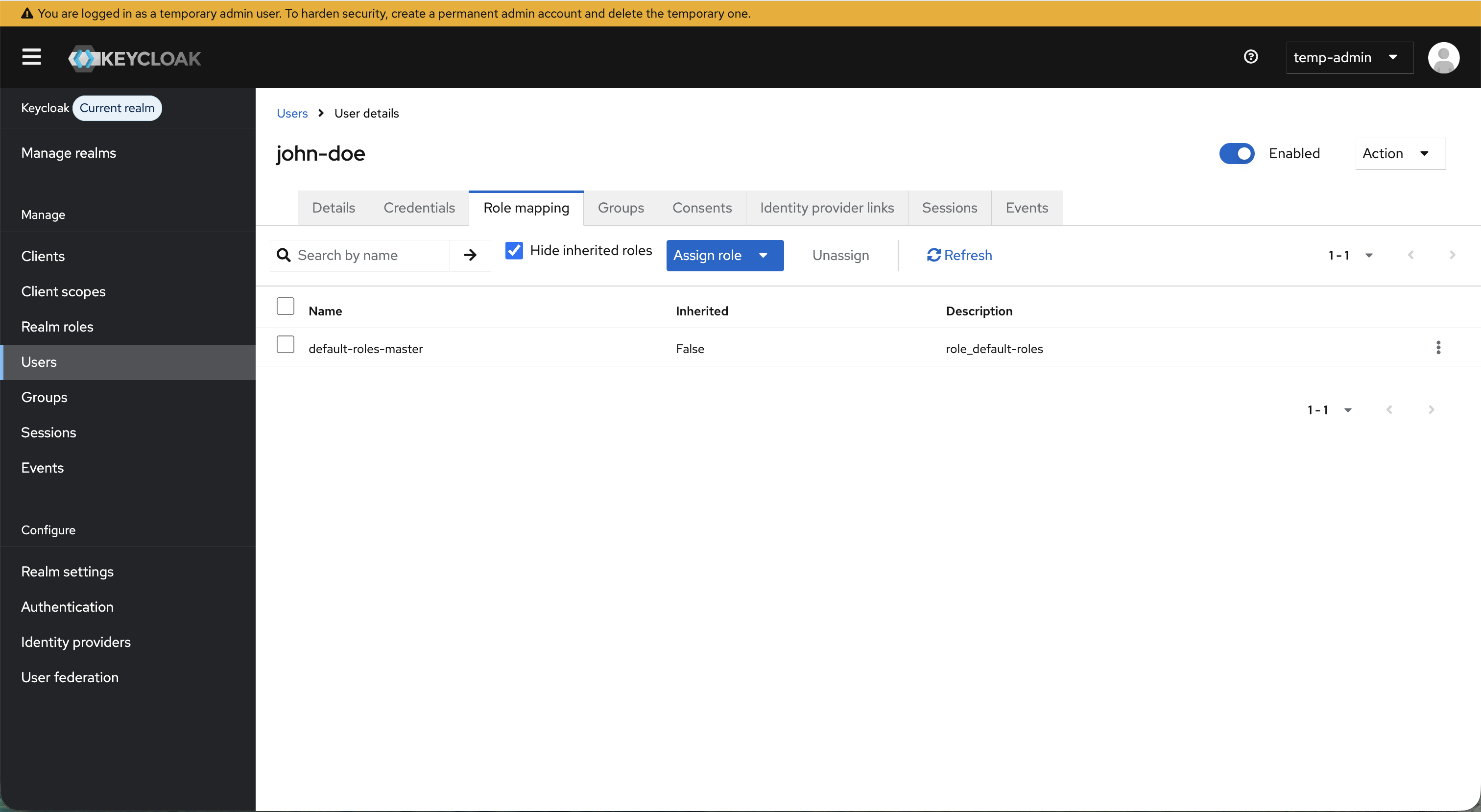
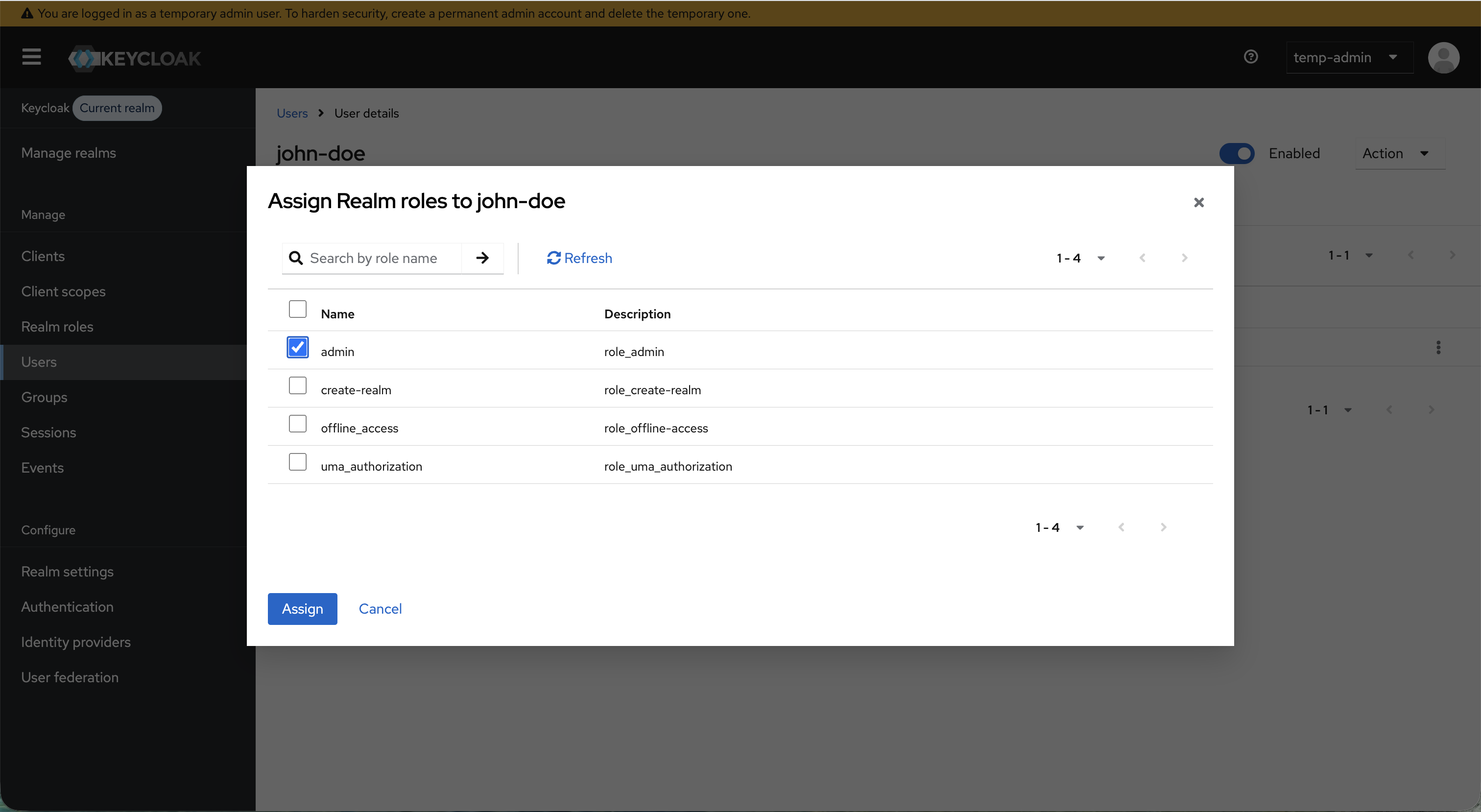
- Set admin credentials
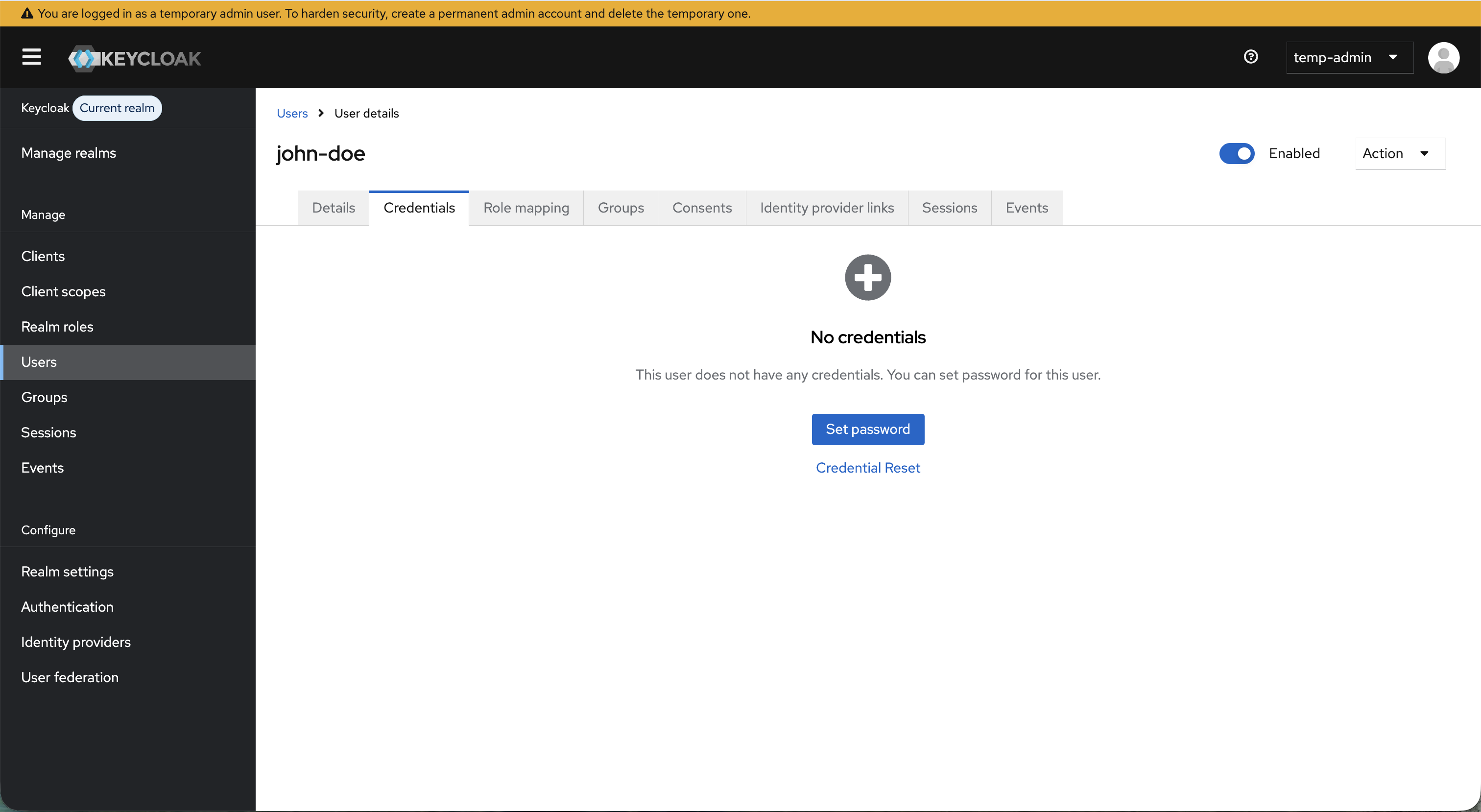
- Add admin user email to the
auth-and-billingsection ofsambastack.yaml:See the SambaStack.yaml Reference for a full example. - Visit
ui.<your-domain>and log in with user credentials retrieved above.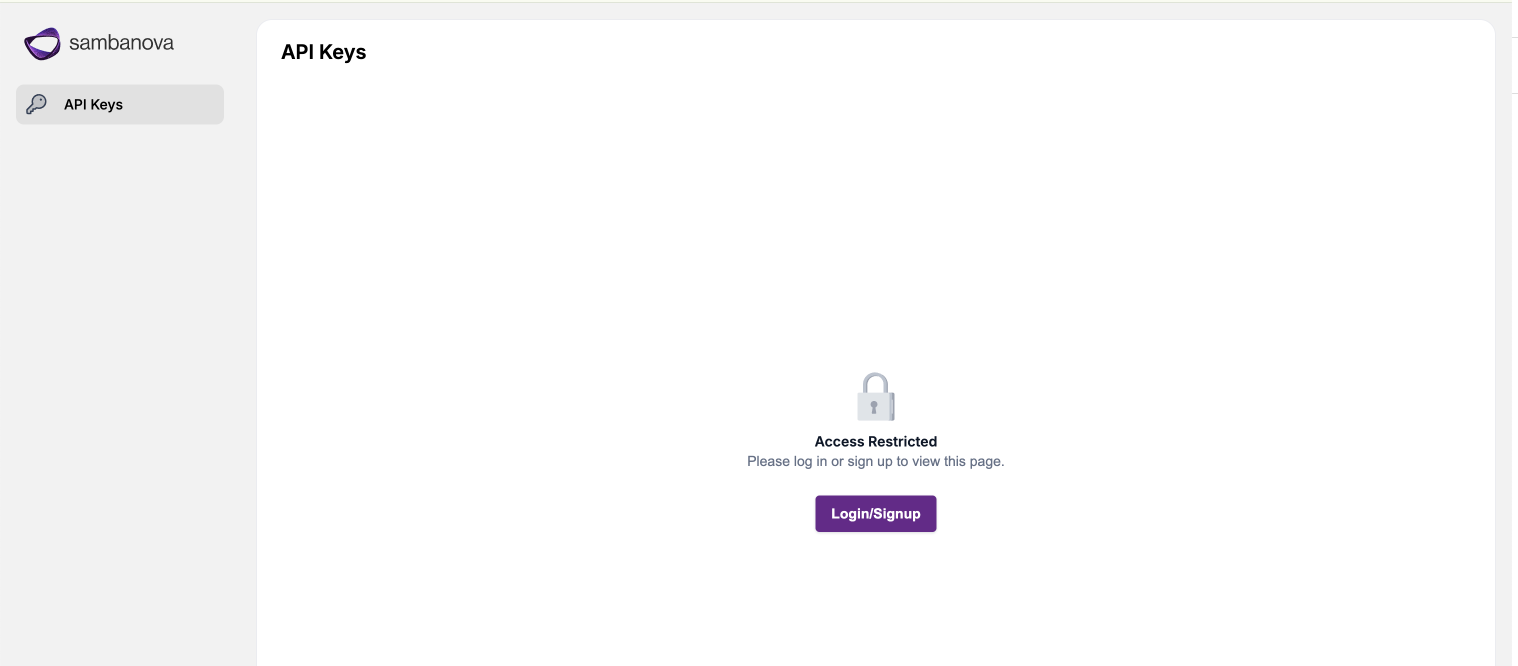
- Create API key and save securely:
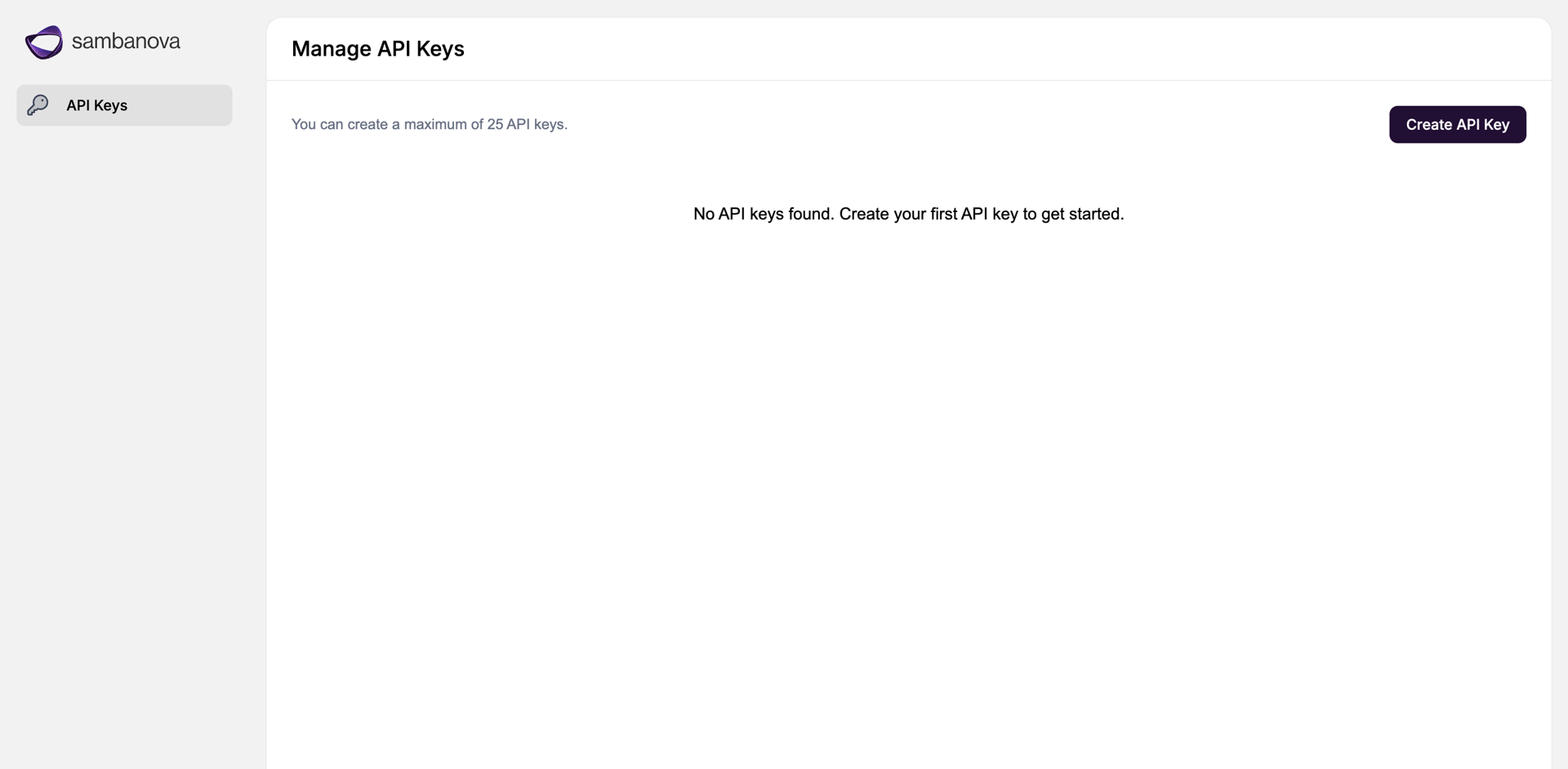
7
Query Deployed Model Bundle
- Set your API key:
- Run a test query against the deployed model bundle with either cURL or a python script:
- cURL
- Python
Run the following cURL commandYour response should resemble the following: