
LiteLLM is a third-party proxy service. SambaNova doesn’t endorse, maintain, or audit LiteLLM’s security or functionality. This guide is provided for informational purposes and may become outdated. Use at your own discretion.
| Capability | Description |
|---|---|
| Centralized authentication | Single point for API key management and rotation |
| Usage tracking | Monitor usage across teams, projects, and keys |
| Cost controls | Implement budgets, quotas, and rate limits |
| Audit logging | Record model interactions for compliance and reviews |
| Model routing | Switch deployments/providers without code changes |
Target audience: Engineers integrating a control layer (rate limits, key management, routing) on top of SambaStack’s OpenAI-compatible inference APIs.
Architecture
SambaStack runs your model deployments on dedicated RDU nodes and exposes them behind an OpenAI-compatible HTTPS API. LiteLLM sits in front of those endpoints as a proxy gateway.
Responsibility matrix
Responsibility matrix
| Layer | SambaStack | LiteLLM | Your App |
|---|---|---|---|
| Hardware & runtime | Runs models on RDU nodes; manages kernels, batching, queuing | — | — |
| Inference API | Provides OpenAI-compatible endpoints | Proxies endpoints behind a single gateway URL | Calls SambaStack directly or via LiteLLM |
| Traffic controls | Platform-level limits | Per-key, user, model, team rate limits, quotas, budgets | Optional safeguard logic |
| API key management | Issues/validates platform API keys | Rotate, scope, revoke app keys; map app→platform keys | Store app-level secrets |
| Model access control | Platform API keys grant access to deployments | Per-app-key allow/deny by model alias | Select allowed aliases per role/policy |
Prerequisites
Before starting, ensure you have:- Python 3.11 or above with pip
- PostgreSQL database (local, self-hosted, or managed)
- SambaStack API key and base URL
| Variable | Description |
|---|---|
SAMBASTACK_BASE_URL | Base URL for SambaStack’s OpenAI-compatible API |
SAMBASTACK_API_KEY | Platform API key used by LiteLLM to call SambaStack |
DATABASE_URL | PostgreSQL connection string (format: postgresql://user:password@host:port/database) |
LITELLM_MASTER_KEY | Admin key for the LiteLLM proxy and API |
LITELLM_SALT_KEY | Salt for encrypting credentials in DB (cannot be changed once set) |
PORT | Port for the LiteLLM HTTP server (default: 4000) |
STORE_MODEL_IN_DB | Set to True to store model definitions in DB |
Getting started
For additional installation options, refer to the official LiteLLM documentation.Step 1: Set up virtual environment
Step 2: Configure environment variables
Step 3: Set up database
Connect to PostgreSQL as a superuser:Step 4: Initialize database schema
Step 5: Create configuration file
Createlitellm_config.yaml:
Step 6: Run LiteLLM proxy
Step 7: Verify installation
Login to LiteLLM UI
Navigate to
http://localhost:4000/. Use admin as the username and your master key as the password.Verify model connection
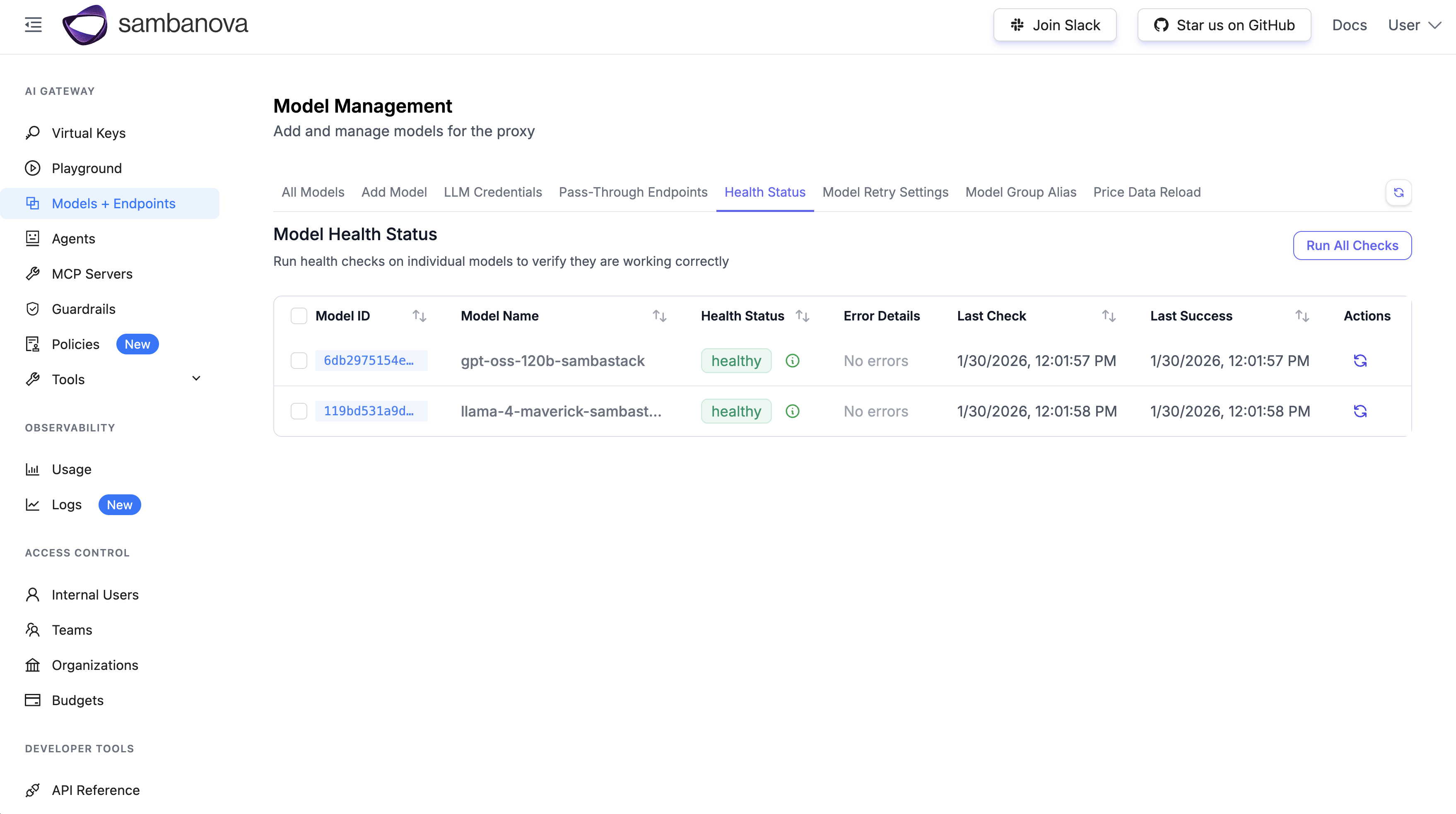
Go to Model Management → Health Status. Your model should appear as connected to SambaStack.
Teams, keys, and rate limits
For the full feature set, refer to the official LiteLLM documentation.Create a team
Configure team settings
-
Team name: e.g.,
Test-team - Models: Select your SambaStack model
-
Max Budget (USD): e.g.,
10 -
Reset Budget: e.g.,
monthly -
RPM limit: e.g.,
3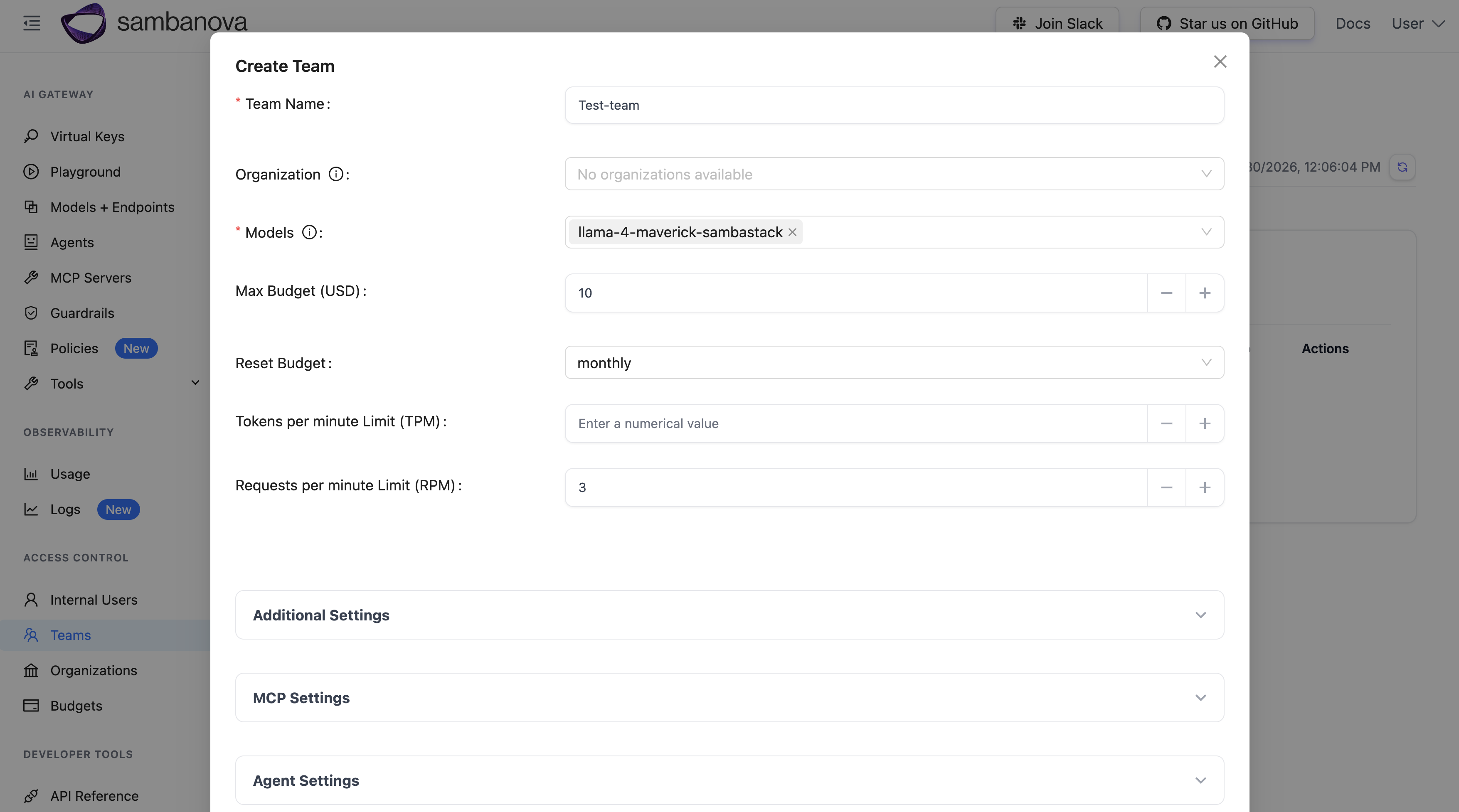
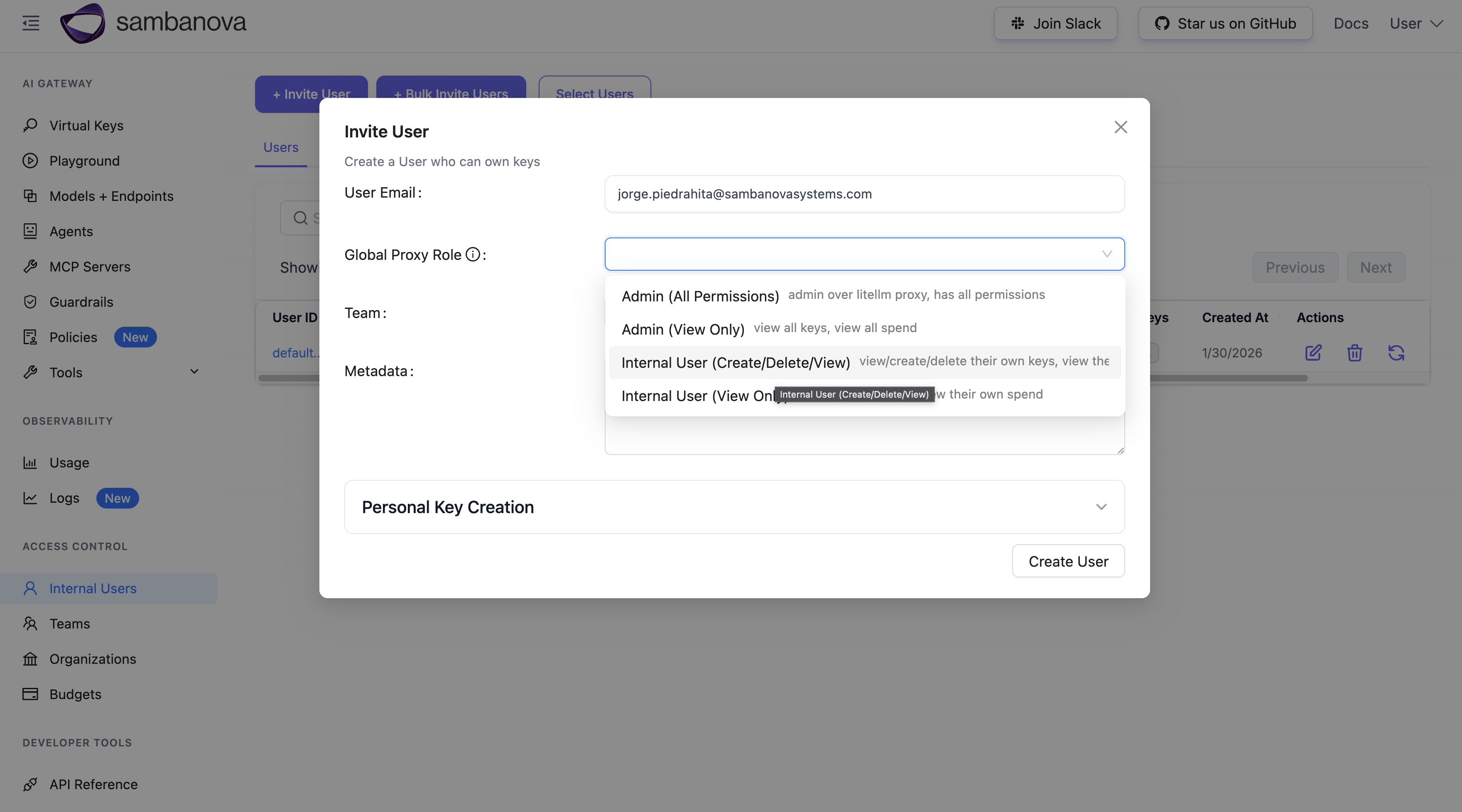
Invite a user
Create virtual API keys
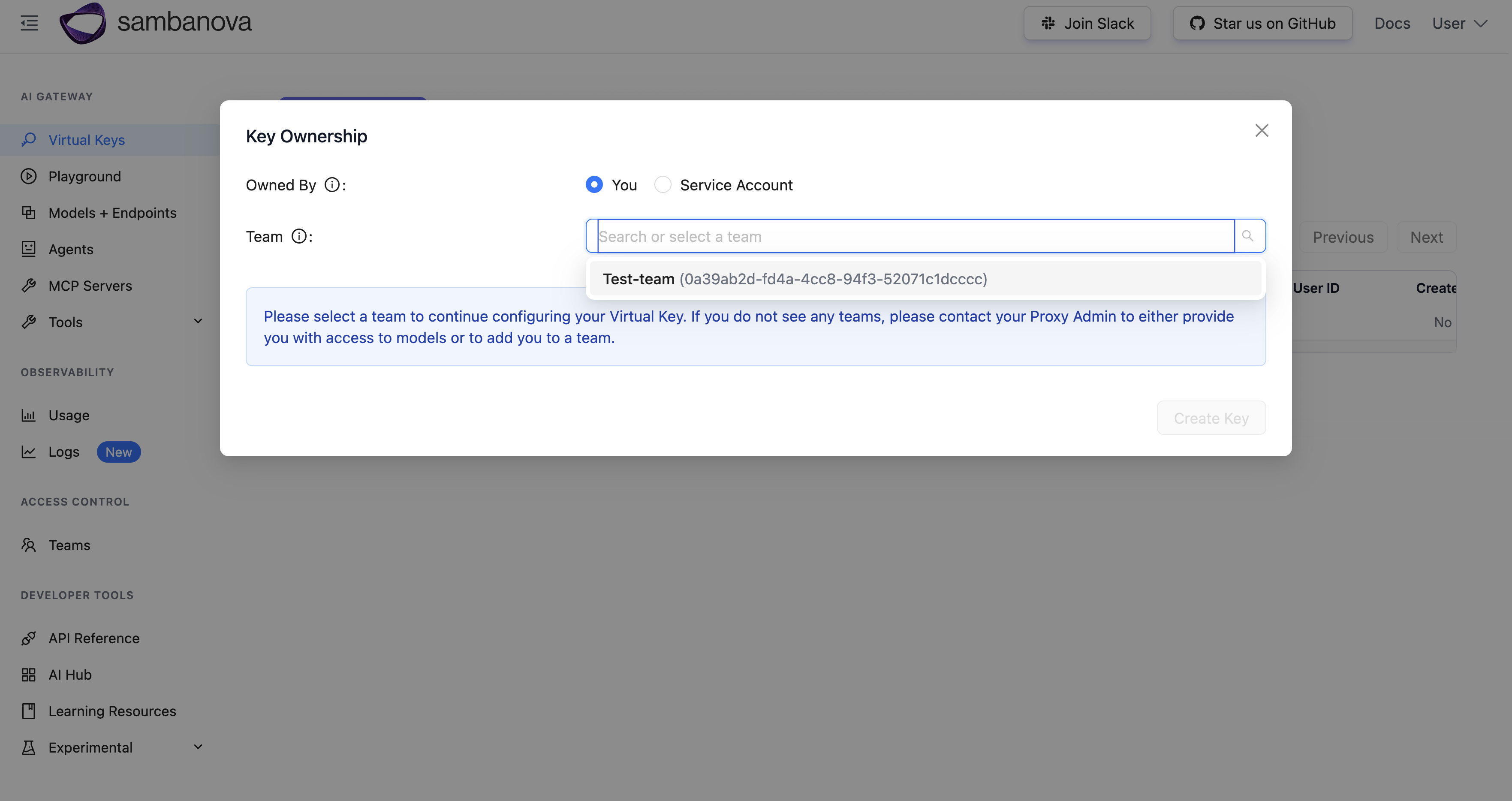
Configure key
- Team: Select your team
-
Key Name: e.g.,
limited-key -
Models: Choose All Team Models or specific model
Test the virtual API key
Monitor usage and logs
- Usage: View spend, requests, and tokens by time range and team at Usage tab
- Logs: Review request outcomes including rate-limit failures at Logs tab
By default, request/response bodies aren’t stored. Enable storage in the proxy configuration if required for compliance.
In-cluster installation
For production, install LiteLLM in the same Kubernetes cluster as SambaStack for optimal performance. See the LiteLLM Kubernetes deployment guide.Troubleshooting
Health check fails
Symptom: Model health check returns connection error. Solutions:- Verify
SAMBASTACK_BASE_URLis correct and accessible - Confirm
SAMBASTACK_API_KEYis valid - Check network connectivity between LiteLLM and SambaStack
Database connection errors
Symptom: LiteLLM fails to start with database errors. Solutions:- Verify
DATABASE_URLformat is correct - Confirm PostgreSQL is running and accessible
- Check that database and user exist with correct permissions
Prisma schema not found
Symptom:prisma generate fails with “schema not found” error.
Solution: Ensure virtual environment is activated and litellm[proxy] is installed. Use the dynamic path detection shown in Step 4.