> ## Documentation Index
> Fetch the complete documentation index at: https://docs.sambanova.ai/docs/llms.txt
> Use this file to discover all available pages before exploring further.
# Pi
[Pi](https://pi.dev/docs/latest) は、軽量なターミナルベースのコーディングハーネスです。コアを意図的に最小限に保ちながら、TypeScript 拡張、スキル、プロンプトテンプレート、テーマ、Pi パッケージによる拡張が可能です。以下の手順に従って、Pi を SambaCloud でホストされているモデルに接続します。
## 前提条件
作業を始める前に、以下の環境を準備してください。
* [SambaCloud](https://cloud.sambanova.ai/?utm_source=pi\&utm_medium=external\&utm_campaign=cloud_signup) アカウントと [API キー](https://cloud.sambanova.ai/apis?utm_source=pi\&utm_medium=external\&utm_campaign=cloud_signup)
* Node.js と npm
* macOS、Linux、または WSL 上の POSIX シェル
## セットアップ
npm で Pi をグローバルにインストールします。
```bash theme={}
npm install -g --ignore-scripts @earendil-works/pi-coding-agent
```
Pi がインストールされたことを確認します。
```bash theme={}
pi --version
```
Pi のエージェント設定ディレクトリがまだ存在しない場合は作成します。
```bash theme={}
mkdir -p ~/.pi/agent
```
SambaNova のプロバイダー設定を記述した `~/.pi/agent/models.json` を作成します。
```json theme={}
{
"providers": {
"sambanova": {
"baseUrl": "https://api.sambanova.ai/v1",
"api": "openai-completions",
"models": [
{ "id": "MiniMax-M2.7" },
{ "id": "DeepSeek-V3.1" },
{ "id": "Meta-Llama-3.3-70B-Instruct" },
{ "id": "gpt-oss-120b" },
{ "id": "DeepSeek-V3.2" },
{ "id": "gemma-4-31B-it" }
]
}
}
}
```
SambaNova の API キーを記述した `~/.pi/agent/auth.json` を作成します。
```json theme={}
{
"sambanova": {
"type": "api_key",
"key": "your-sambanova-api-key"
}
}
```
`your-sambanova-api-key` を、[SambaCloud ポータル](https://cloud.sambanova.ai/apis) で取得したキーに置き換えてください。
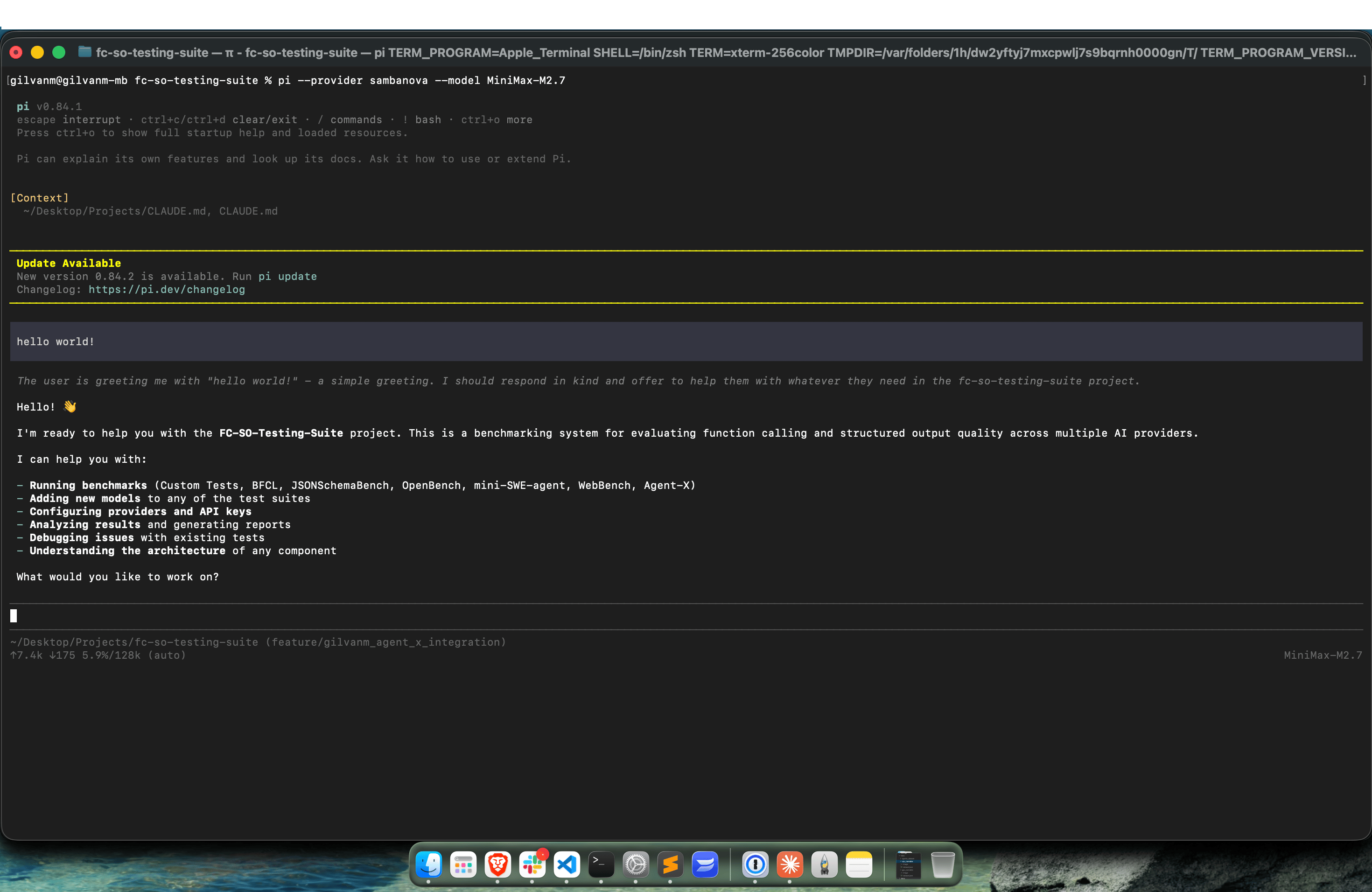
設定した SambaNova プロバイダーとモデルを指定して Pi を実行します。
```bash theme={}
pi --provider sambanova --model MiniMax-M2.7
```
`~/.pi/agent/models.json` に設定した任意のモデルを使用できます。例:
```bash theme={}
pi --provider sambanova --model gpt-oss-120b
```
```bash theme={}
pi --provider sambanova --model Meta-Llama-3.3-70B-Instruct
```
 ## 利用可能なモデル
上記の SambaNova プロバイダー設定には、以下のモデルが含まれています。
```text theme={}
MiniMax-M2.7
DeepSeek-V3.1
Meta-Llama-3.3-70B-Instruct
gpt-oss-120b
DeepSeek-V3.2
gemma-4-31B-it
```
別のモデルを使用するには、そのモデル ID を `~/.pi/agent/models.json` の `models` 配列に追加し、そのモデルを指定して Pi を実行します。
```bash theme={}
pi --provider sambanova --model
```
## トラブルシューティング
インストール後に `pi` が見つからない場合は、npm のグローバルインストールディレクトリが `PATH` に含まれていることを確認してください。
```bash theme={}
npm prefix -g
```
その後、インストールを確認します。
```bash theme={}
pi --version
```
`~/.pi/agent/models.json` が存在しない場合は、まず設定ディレクトリを作成してください。
```bash theme={}
mkdir -p ~/.pi/agent
```
SambaNova の API キーが認識されない場合は、`~/.pi/agent/auth.json` が存在し、正しいプロバイダー名と API キーが記述されていることを確認してください。
```bash theme={}
cat ~/.pi/agent/auth.json
```
プロバイダー名が正確に `sambanova` であることを確認してください。
```json theme={}
{
"sambanova": {
"type": "api_key",
"key": "your-sambanova-api-key"
}
}
```
設定したモデルが利用できずにリクエストが失敗する場合は、そのモデル ID が `~/.pi/agent/models.json` に記載されており、Pi に渡したモデル ID と一致していることを確認してください。
```bash theme={}
pi --provider sambanova --model
```
## 参考情報
* [Pi の公式ドキュメント](https://pi.dev/docs/latest)(英語)
* [GitHub リポジトリ](https://github.com/earendil-works/pi)
* [SambaCloud 対応モデル](/docs/ja/models/sambacloud-models)
## 利用可能なモデル
上記の SambaNova プロバイダー設定には、以下のモデルが含まれています。
```text theme={}
MiniMax-M2.7
DeepSeek-V3.1
Meta-Llama-3.3-70B-Instruct
gpt-oss-120b
DeepSeek-V3.2
gemma-4-31B-it
```
別のモデルを使用するには、そのモデル ID を `~/.pi/agent/models.json` の `models` 配列に追加し、そのモデルを指定して Pi を実行します。
```bash theme={}
pi --provider sambanova --model
```
## トラブルシューティング
インストール後に `pi` が見つからない場合は、npm のグローバルインストールディレクトリが `PATH` に含まれていることを確認してください。
```bash theme={}
npm prefix -g
```
その後、インストールを確認します。
```bash theme={}
pi --version
```
`~/.pi/agent/models.json` が存在しない場合は、まず設定ディレクトリを作成してください。
```bash theme={}
mkdir -p ~/.pi/agent
```
SambaNova の API キーが認識されない場合は、`~/.pi/agent/auth.json` が存在し、正しいプロバイダー名と API キーが記述されていることを確認してください。
```bash theme={}
cat ~/.pi/agent/auth.json
```
プロバイダー名が正確に `sambanova` であることを確認してください。
```json theme={}
{
"sambanova": {
"type": "api_key",
"key": "your-sambanova-api-key"
}
}
```
設定したモデルが利用できずにリクエストが失敗する場合は、そのモデル ID が `~/.pi/agent/models.json` に記載されており、Pi に渡したモデル ID と一致していることを確認してください。
```bash theme={}
pi --provider sambanova --model
```
## 参考情報
* [Pi の公式ドキュメント](https://pi.dev/docs/latest)(英語)
* [GitHub リポジトリ](https://github.com/earendil-works/pi)
* [SambaCloud 対応モデル](/docs/ja/models/sambacloud-models)