> ## Documentation Index
> Fetch the complete documentation index at: https://sambanova-systems.mintlify.site/docs/llms.txt
> Use this file to discover all available pages before exploring further.
# Host module BMC administration
This document describes how to apply security patches and firmware updates to the SN40L-H host module BMC and BIOS. These tasks are typically performed together but can be done independently.
**Procedures covered in this document:**
* Updating the SN40L-H host module BMC firmware
* Updating the SN40L-H host module BIOS
* Recovering the SN40L-H BMC
## Safety warnings
Review and observe the following requirements before performing BMC or BIOS updates.
* **Admin user account:** Do not remove the admin user account or change its password. This account is required for BMC password recovery.
* **Firmware updates:** Do not power off or reboot rack components during firmware updates. Interrupting an update can cause unrecoverable damage. Wait until updates complete successfully before shutting down or rebooting.
* **BMC configuration:** Do not modify BMC configuration unless explicitly instructed.
***
## Updating BMC firmware
This procedure updates the SN40L-H host module BMC firmware while preserving the existing configuration.
If you cancel the firmware update process after starting it, you must reset the BMC before attempting any other operations. Close the browser, then log in to the BMC WebUI again.
**Prerequisites:**
* Access to the SN40L-H host module BMC via the access network
* Chrome or Firefox (latest version)
* BMC patch update downloaded from the SambaNova Support portal
### Step 1: Back up existing configuration
Before updating firmware, back up the current BMC configuration. This backup enables recovery if needed.
**Procedure:**
1. Navigate to `https://` in your browser.
2. Log in and click **Sign me in**.
3. In the left pane, select **Maintenance**.
4. Select **Backup Configuration**.
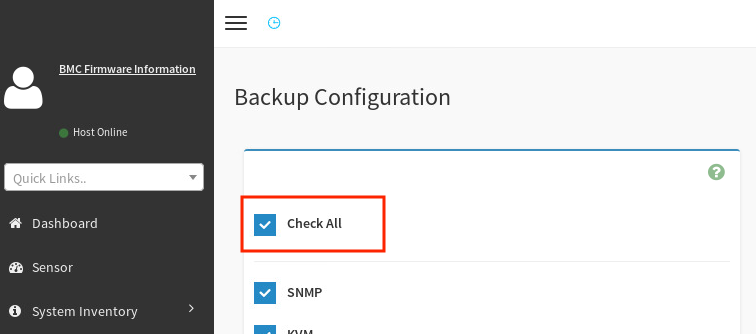
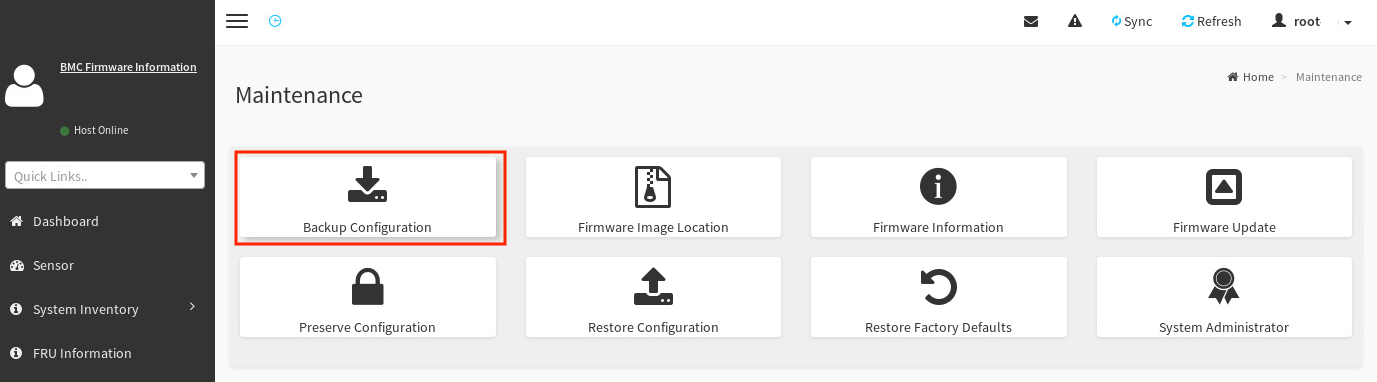 5. Select **Check All** to back up all BMC configuration settings.
 6. Click **Download**.
7. Click **OK** to save the `bmc-config.bak` file to your local system.
### Step 2: Update BMC firmware
After backing up the configuration, update the BMC firmware.
**Procedure:**
1. Download the BMC patch update from the SambaNova Support portal.
2. Unzip the patch to a directory on your local system.
3. In the BMC WebUI, select **Maintenance** in the left pane.
4. Select **Preserve Configuration**.
6. Click **Download**.
7. Click **OK** to save the `bmc-config.bak` file to your local system.
### Step 2: Update BMC firmware
After backing up the configuration, update the BMC firmware.
**Procedure:**
1. Download the BMC patch update from the SambaNova Support portal.
2. Unzip the patch to a directory on your local system.
3. In the BMC WebUI, select **Maintenance** in the left pane.
4. Select **Preserve Configuration**.
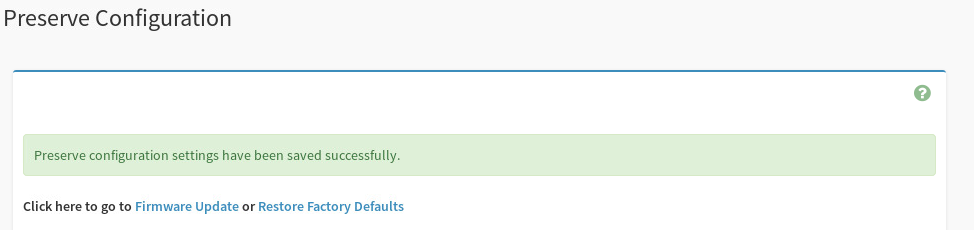
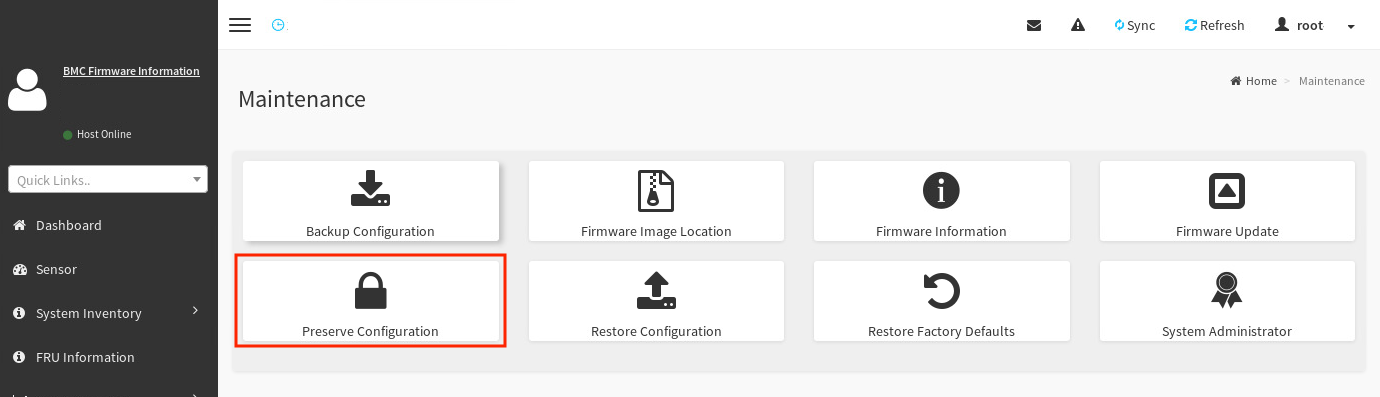 5. Select **Check All** to preserve all configuration settings. A confirmation message appears.
 6. In the left pane, click **Maintenance**, then select **Firmware Update**.
7. Locate and select the firmware file:
* Click **Browse**.
* Navigate to `/SN40L rack//HostBMC_FW/` in the unzipped patch bundle.
* Select `rom.ima_enc` and click **Open**.
8. Click **Start firmware update**.
6. In the left pane, click **Maintenance**, then select **Firmware Update**.
7. Locate and select the firmware file:
* Click **Browse**.
* Navigate to `/SN40L rack//HostBMC_FW/` in the unzipped patch bundle.
* Select `rom.ima_enc` and click **Open**.
8. Click **Start firmware update**.
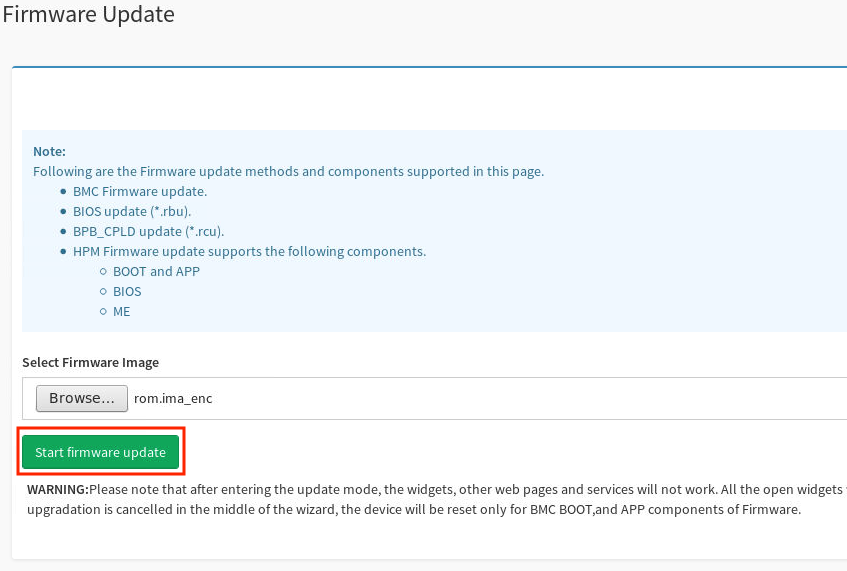 9. Select the **Preserve all Configuration** checkbox.
 10. Scroll down and click **Proceed to Flash**.
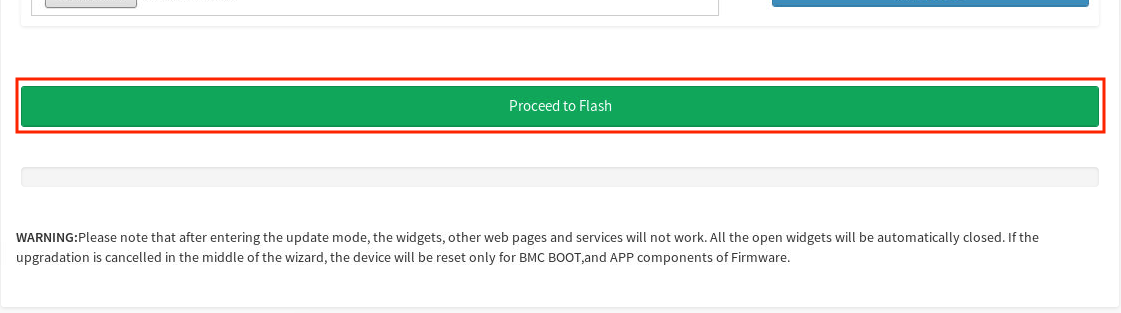 11. Click **OK** to confirm.
The BMC is unreachable for 5–10 minutes while the update applies. The SN40L-H host module OS continues to run normally during this time.
### Step 3: Verify the update
After the BMC becomes accessible again, verify the firmware version.
**Procedure:**
1. Wait 10 minutes, then log in to the BMC WebUI.
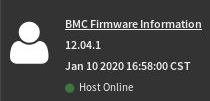
2. Check the firmware version in the upper left corner of the dashboard.
11. Click **OK** to confirm.
The BMC is unreachable for 5–10 minutes while the update applies. The SN40L-H host module OS continues to run normally during this time.
### Step 3: Verify the update
After the BMC becomes accessible again, verify the firmware version.
**Procedure:**
1. Wait 10 minutes, then log in to the BMC WebUI.
2. Check the firmware version in the upper left corner of the dashboard.
 ***
## Updating BIOS
This procedure updates the SN40L-H host module BIOS firmware.
Do not interrupt the update process. When update mode begins, all open widgets close automatically and other web services stop responding. Canceling mid-process resets only the BMC BOOT and APP firmware components.
The BIOS update requires a system reboot to complete. Plan for downtime accordingly.
**Prerequisites:**
* Access to the SN40L-H host module BMC via the access network
* Chrome or Firefox (latest version)
* Infrastructure patch bundle downloaded and uncompressed
### Step 1: Upload and flash BIOS firmware
**Procedure:**
1. Navigate to `https://` in your browser.
2. Log in and click **Sign me in**.
3. In the left pane, select **Maintenance**.
4. Select **Firmware Update**.
***
## Updating BIOS
This procedure updates the SN40L-H host module BIOS firmware.
Do not interrupt the update process. When update mode begins, all open widgets close automatically and other web services stop responding. Canceling mid-process resets only the BMC BOOT and APP firmware components.
The BIOS update requires a system reboot to complete. Plan for downtime accordingly.
**Prerequisites:**
* Access to the SN40L-H host module BMC via the access network
* Chrome or Firefox (latest version)
* Infrastructure patch bundle downloaded and uncompressed
### Step 1: Upload and flash BIOS firmware
**Procedure:**
1. Navigate to `https://` in your browser.
2. Log in and click **Sign me in**.
3. In the left pane, select **Maintenance**.
4. Select **Firmware Update**.
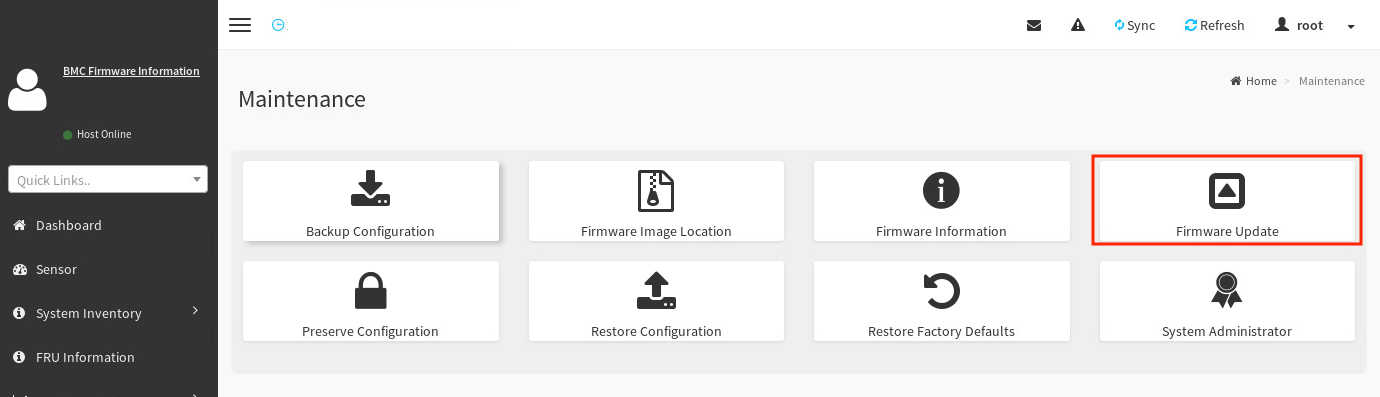 5. Locate and select the BIOS file:
* Click **Browse**.
5. Locate and select the BIOS file:
* Click **Browse**.
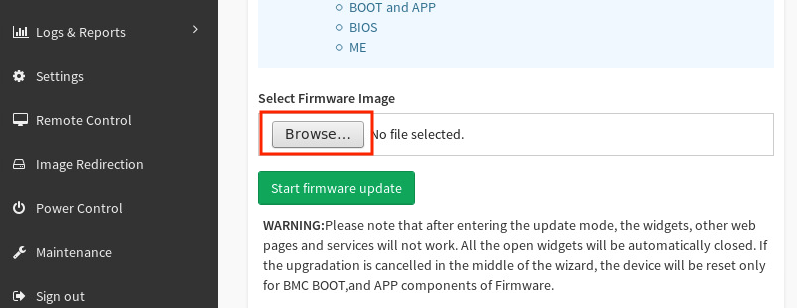 * Navigate to `/Host_BIOS/RBU/` in the uncompressed patch bundle.
* Select `image.RBU` and click **Open**.
6. Click **Start firmware update**.
* Navigate to `/Host_BIOS/RBU/` in the uncompressed patch bundle.
* Select `image.RBU` and click **Open**.
6. Click **Start firmware update**.
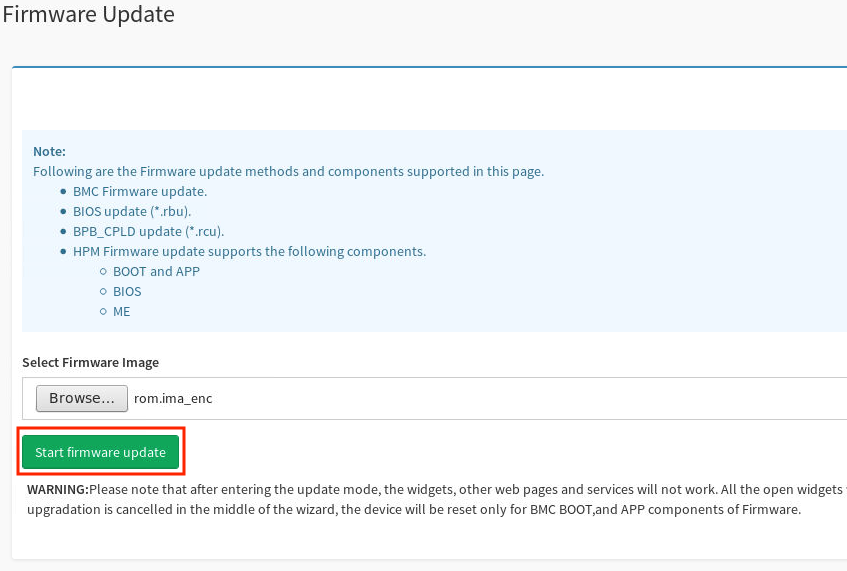 7. From the **Update Type** dropdown, select **BIOS**.
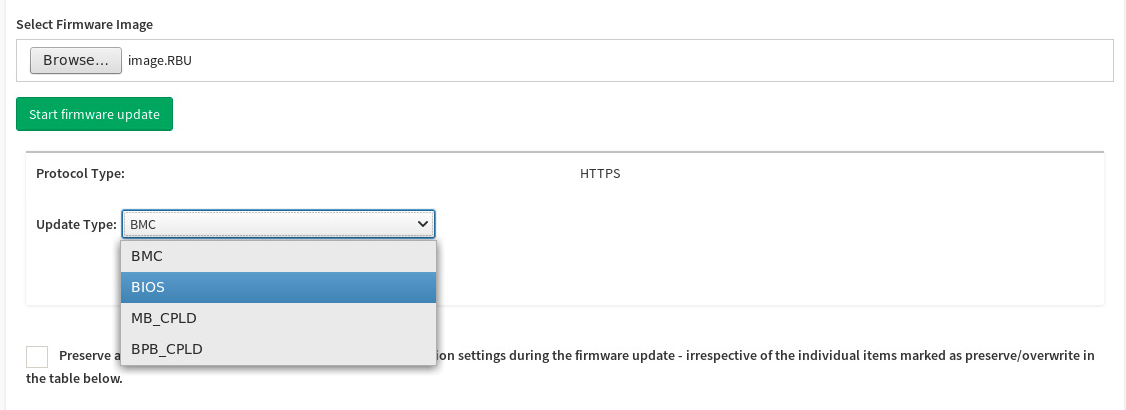 8. Click **Proceed to Flash**, then click **OK**.
This uploads the BIOS firmware but does not apply it yet.
9. When the upload reaches 100%, click **Flash BIOS**.
8. Click **Proceed to Flash**, then click **OK**.
This uploads the BIOS firmware but does not apply it yet.
9. When the upload reaches 100%, click **Flash BIOS**.
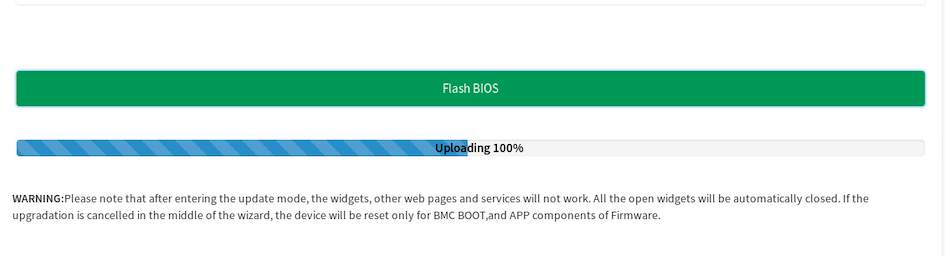 10. When the "firmware image has been updated successfully" message appears, click **OK**.
11. When the "Firmware reset has been called" message appears, click **OK** to log out.
### Step 2: Reboot the host module
The BIOS update requires a system reboot to take effect.
**Procedure:**
1. Connect to the host module OS via SSH:
```bash theme={null}
ssh snuser1@
```
2. Reboot the system:
```bash theme={null}
sudo shutdown -r now
```
### Step 3: Verify the update
After the host module comes back online, verify the BIOS version.
**Procedure:**
1. Log in to the BMC WebUI.
2. In the left pane, select **Maintenance**.
3. Select **Firmware Information**.
10. When the "firmware image has been updated successfully" message appears, click **OK**.
11. When the "Firmware reset has been called" message appears, click **OK** to log out.
### Step 2: Reboot the host module
The BIOS update requires a system reboot to take effect.
**Procedure:**
1. Connect to the host module OS via SSH:
```bash theme={null}
ssh snuser1@
```
2. Reboot the system:
```bash theme={null}
sudo shutdown -r now
```
### Step 3: Verify the update
After the host module comes back online, verify the BIOS version.
**Procedure:**
1. Log in to the BMC WebUI.
2. In the left pane, select **Maintenance**.
3. Select **Firmware Information**.
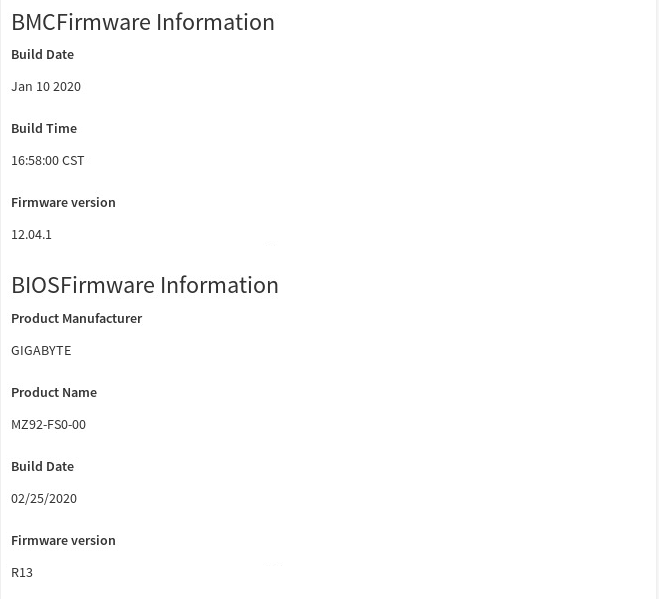
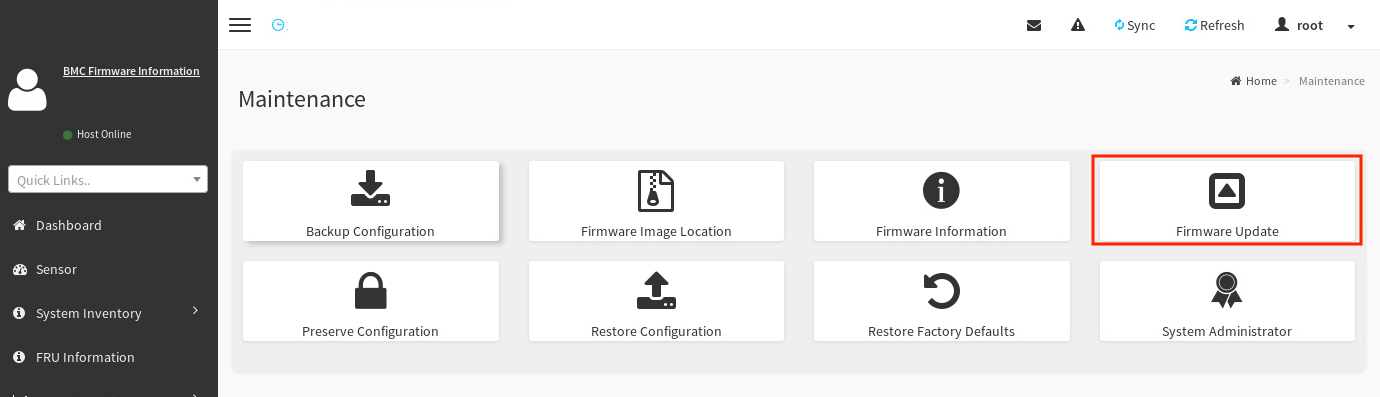 4. Verify the versions in **BMC Firmware Information** and **BIOS Firmware Information**.
 ***
## Recovering the BMC
If the SN40L-H host module BMC is unresponsive, inaccessible, or the password has been lost, contact SambaNova Support for assistance.
***
## Recovering the BMC
If the SN40L-H host module BMC is unresponsive, inaccessible, or the password has been lost, contact SambaNova Support for assistance.