> ## Documentation Index
> Fetch the complete documentation index at: https://sambanova-systems.mintlify.site/docs/llms.txt
> Use this file to discover all available pages before exploring further.
# OpenClaw integration guide
OpenClaw is a personal AI assistant that runs directly on your own devices. It responds through the messaging platforms you already use—such as WhatsApp, Telegram, Slack, Discord, Google Chat, Signal, iMessage, Microsoft Teams, and WebChat—as well as extended channels like BlueBubbles, Matrix, Zalo, and Zalo Personal. It can talk and listen on macOS, iOS, and Android, and display a live, interactive Canvas that you manage. The Gateway serves only as the control layer—the real product is the assistant itself.
## Prerequisites
Before you begin, ensure you have the following set up:
* A free [SambaCloud](http://cloud.sambanova.ai?utm_source=openclaw\&utm_medium=external\&utm_campaign=cloud_signup) account
* [Node.js](https://nodejs.org/en/download) v22.0.0 or later.
## Setup
1. Install openclaw.
```bash theme={null}
npm install -g openclaw@latest
```
2. Start openclaw.
```bash theme={null}
openclaw onboard --install-daemon
```
3. Keep the quick start configuration and the gateway will open the UI in your browser.
### Add SambaNova as a provider
1. In the left sidebar, click on **Config** and then **Models**.
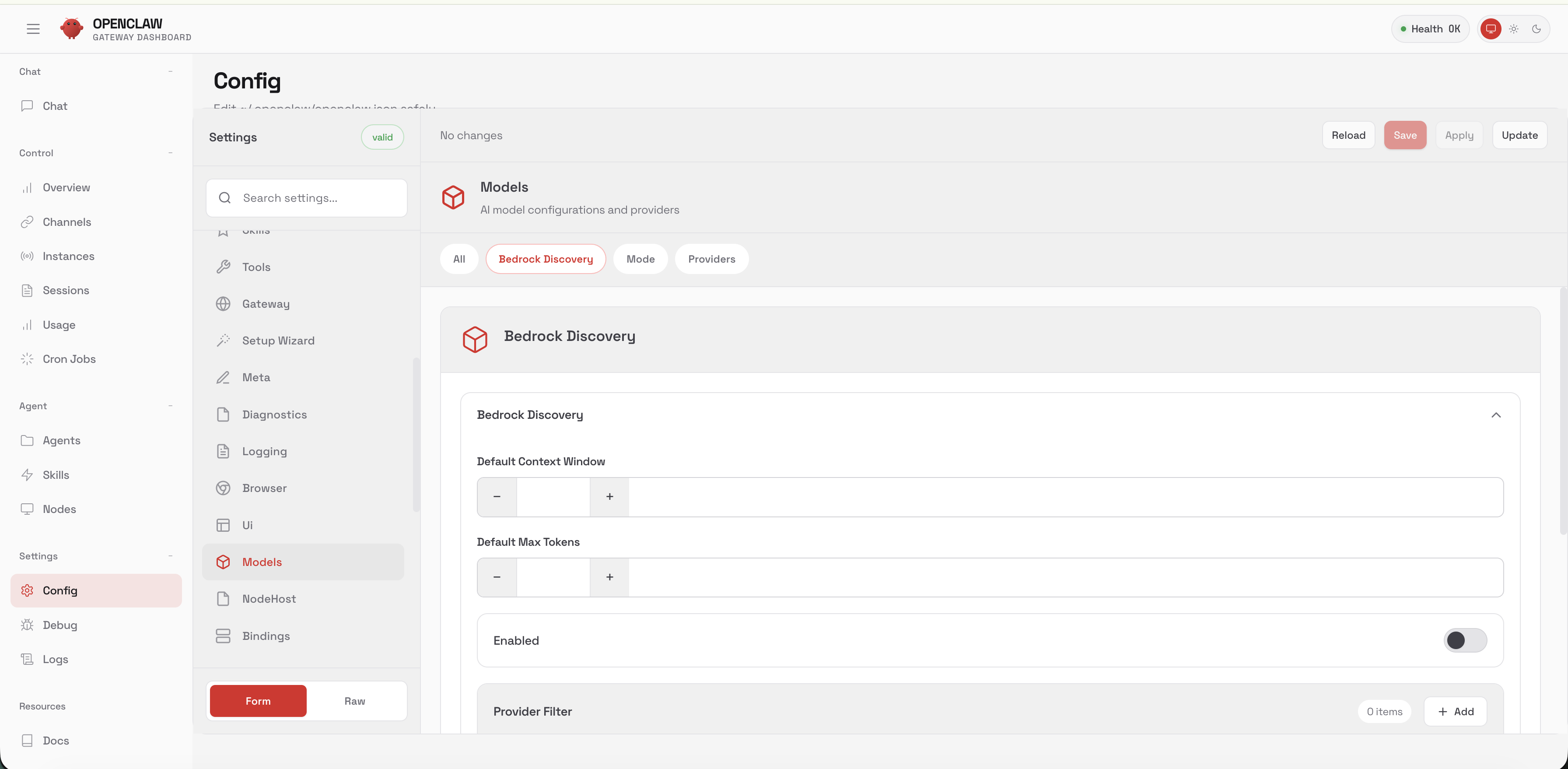 2. Click on **Providers** tab.
3. In the lower-left sidebar, click on **Raw**.
2. Click on **Providers** tab.
3. In the lower-left sidebar, click on **Raw**.
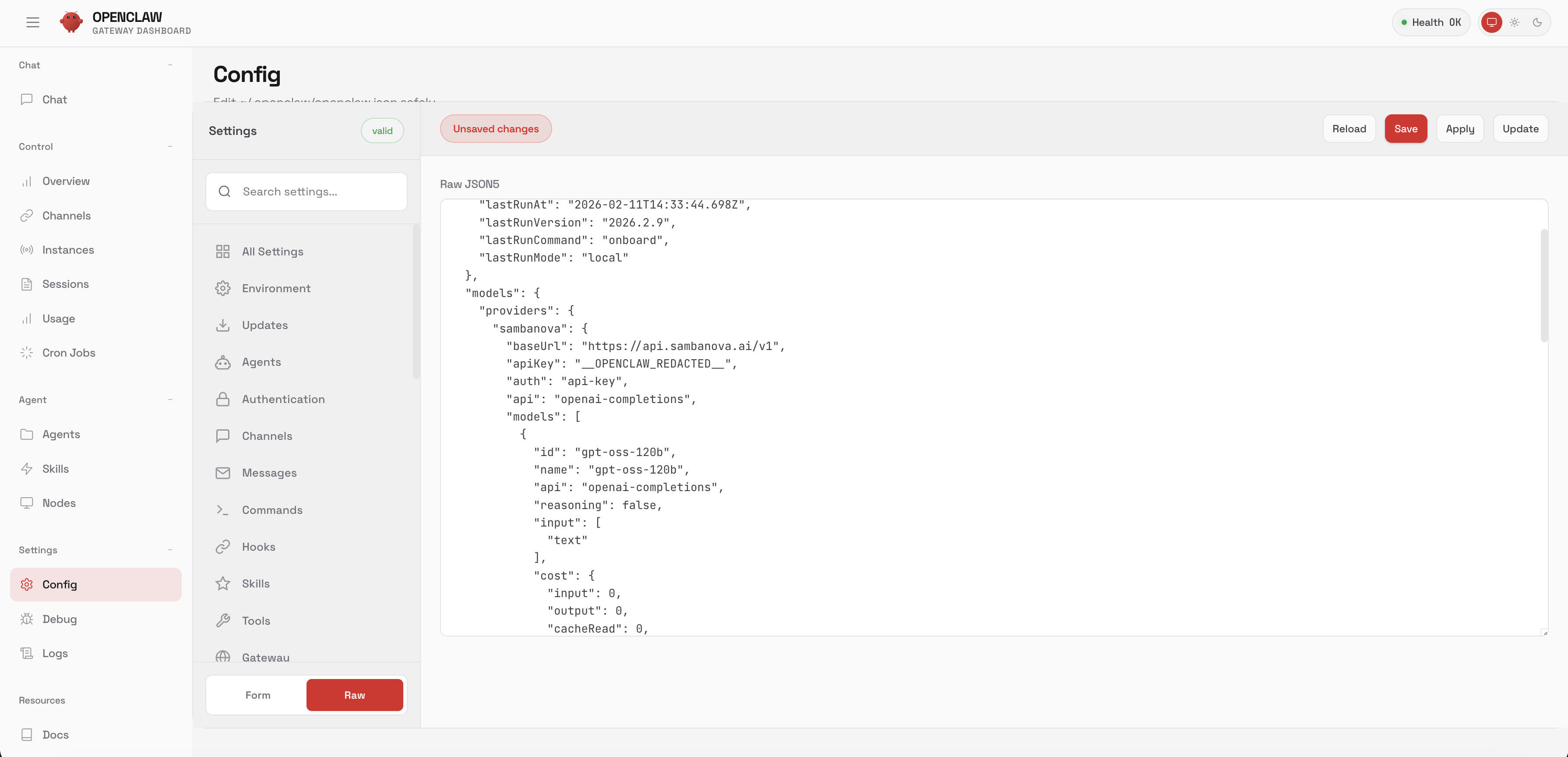 4. Add the following configuration to the current JSON. Make sure to change the placeholders \ and \ (the local directory in agents).
Remove the trailing comma after the closing brace if this is the last section in your config file.
```json theme={null}
"models": {
"providers": {
"sambanova": {
"baseUrl": "https://api.sambanova.ai/v1",
"apiKey": "",
"auth": "api-key",
"api": "openai-completions",
"models": [
{
"id": "MiniMax-M2.7",
"name": "MiniMax-M2.7",
"api": "openai-completions",
"reasoning": true,
"input": [
"text"
],
"cost": {
"input": 0,
"output": 0,
"cacheRead": 0,
"cacheWrite": 0
},
"contextWindow": 32000,
"maxTokens": 16000,
"compat": {
"maxTokensField": "max_tokens"
}
}
]
}
}
},
"agents": {
"defaults": {
"model": {
"primary": "sambanova/MiniMax-M2.7"
},
"models": {
"sambanova/MiniMax-M2.7": {}
},
"workspace": "/Users//.openclaw/workspace",
"compaction": {
"mode": "safeguard"
},
"maxConcurrent": 4,
"subagents": {
"maxConcurrent": 8
}
}
},
```
5. Return to the chat in the upper-left sidebar and now you can use SambaNova models in various OpenClaw workflows.
## Additional resources
For more information about OpenClaw, see the [official OpenClaw documentation](https://docs.openclaw.ai/).
4. Add the following configuration to the current JSON. Make sure to change the placeholders \ and \ (the local directory in agents).
Remove the trailing comma after the closing brace if this is the last section in your config file.
```json theme={null}
"models": {
"providers": {
"sambanova": {
"baseUrl": "https://api.sambanova.ai/v1",
"apiKey": "",
"auth": "api-key",
"api": "openai-completions",
"models": [
{
"id": "MiniMax-M2.7",
"name": "MiniMax-M2.7",
"api": "openai-completions",
"reasoning": true,
"input": [
"text"
],
"cost": {
"input": 0,
"output": 0,
"cacheRead": 0,
"cacheWrite": 0
},
"contextWindow": 32000,
"maxTokens": 16000,
"compat": {
"maxTokensField": "max_tokens"
}
}
]
}
}
},
"agents": {
"defaults": {
"model": {
"primary": "sambanova/MiniMax-M2.7"
},
"models": {
"sambanova/MiniMax-M2.7": {}
},
"workspace": "/Users//.openclaw/workspace",
"compaction": {
"mode": "safeguard"
},
"maxConcurrent": 4,
"subagents": {
"maxConcurrent": 8
}
}
},
```
5. Return to the chat in the upper-left sidebar and now you can use SambaNova models in various OpenClaw workflows.
## Additional resources
For more information about OpenClaw, see the [official OpenClaw documentation](https://docs.openclaw.ai/).