> ## Documentation Index
> Fetch the complete documentation index at: https://docs.sambanova.ai/docs/llms.txt
> Use this file to discover all available pages before exploring further.
# Langfuse integration guide
[Langfuse](https://langfuse.com/) is an open-source LLM engineering platform for tracing, a prompt playground, and LLM-as-a-judge evaluation. Langfuse accepts any OpenAI-compatible provider through a custom base URL, so SambaCloud models work today with no Langfuse code changes. This guide covers the **Playground**, **Experiments** (dataset runs), **LLM-as-a-judge evaluators**, and where their results land in **Scores**.
This connection uses Langfuse's per-project **LLM Connections**, stored under
Project Settings. A separate, instance-wide configuration
(`LANGFUSE_AI_PROVIDER` / `LANGFUSE_AI_BASE_URL`) can also point Langfuse's
own Assistant at SambaCloud on self-hosted deployments. See
[Advanced: instance-wide Assistant](#advanced-instance-wide-assistant) below.
## Prerequisites
* A [SambaCloud account](https://cloud.sambanova.ai/?utm_source=langfuse\&utm_medium=external\&utm_campaign=cloud_signup) and API key.
* A [Langfuse project](https://langfuse.com/docs/get-started) (cloud or self-hosted) where you have the **Owner** or **Admin** role. LLM Connections require the `llmApiKeys:create` permission. A Member or Viewer role can see existing connections but won't see the "Add LLM Connection" button.
## Setup
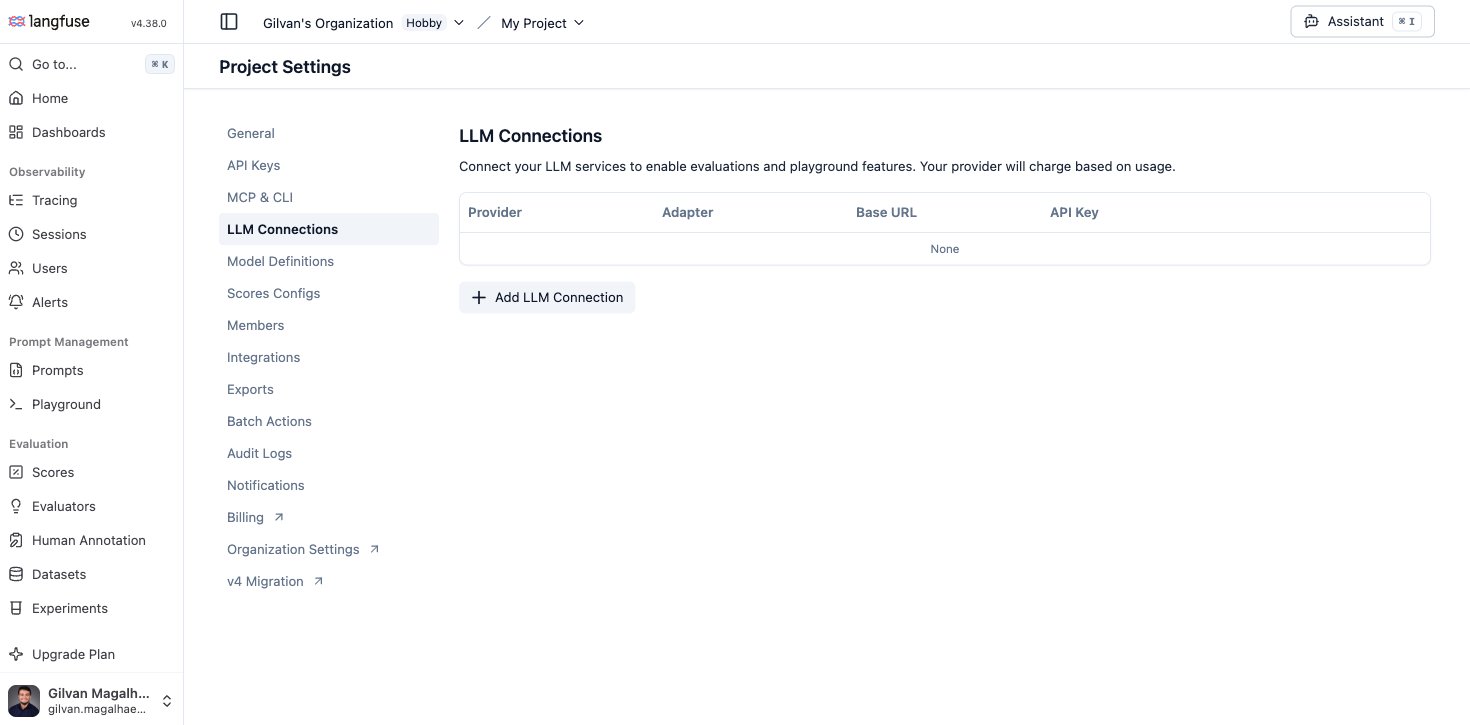
In your Langfuse project, go to **Settings → LLM Connections** and click **Add LLM Connection**.
 * **LLM adapter**: `openai` (Langfuse routes any non-`api.openai.com` base URL through its OpenAI-compatible client automatically)
* **Provider name**: `sambanova` (or any label; this is just how it appears in model pickers)
* **API Key**: your SambaCloud API key
* Expand **Show advanced settings**:
* **API Base URL**: `https://api.sambanova.ai/v1`
* **Enable default models**: turn this **off**, since it populates OpenAI's own model list, which doesn't apply here
* **Custom models**: add the [SambaCloud model IDs](/docs/en/models/sambacloud-models) you want to use, for example `MiniMax-M3`. We recommend `MiniMax-M3` as the model to reach for across this guide: Playground, Experiments, and evaluators all worked reliably with it in testing, thanks to its Structured output support.
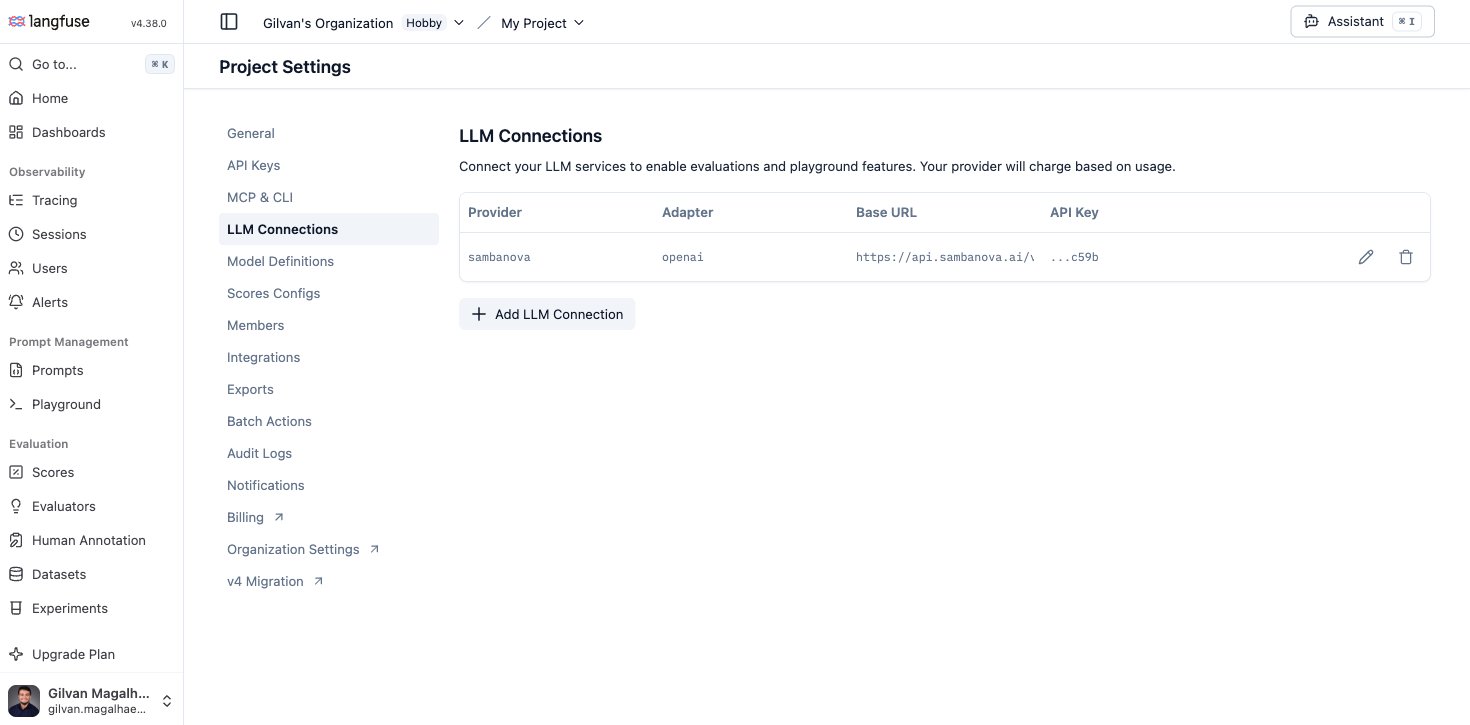
Click **Create connection**. It appears in the table with your base URL and a masked key.
* **LLM adapter**: `openai` (Langfuse routes any non-`api.openai.com` base URL through its OpenAI-compatible client automatically)
* **Provider name**: `sambanova` (or any label; this is just how it appears in model pickers)
* **API Key**: your SambaCloud API key
* Expand **Show advanced settings**:
* **API Base URL**: `https://api.sambanova.ai/v1`
* **Enable default models**: turn this **off**, since it populates OpenAI's own model list, which doesn't apply here
* **Custom models**: add the [SambaCloud model IDs](/docs/en/models/sambacloud-models) you want to use, for example `MiniMax-M3`. We recommend `MiniMax-M3` as the model to reach for across this guide: Playground, Experiments, and evaluators all worked reliably with it in testing, thanks to its Structured output support.
Click **Create connection**. It appears in the table with your base URL and a masked key.
 ## Use it in the Playground
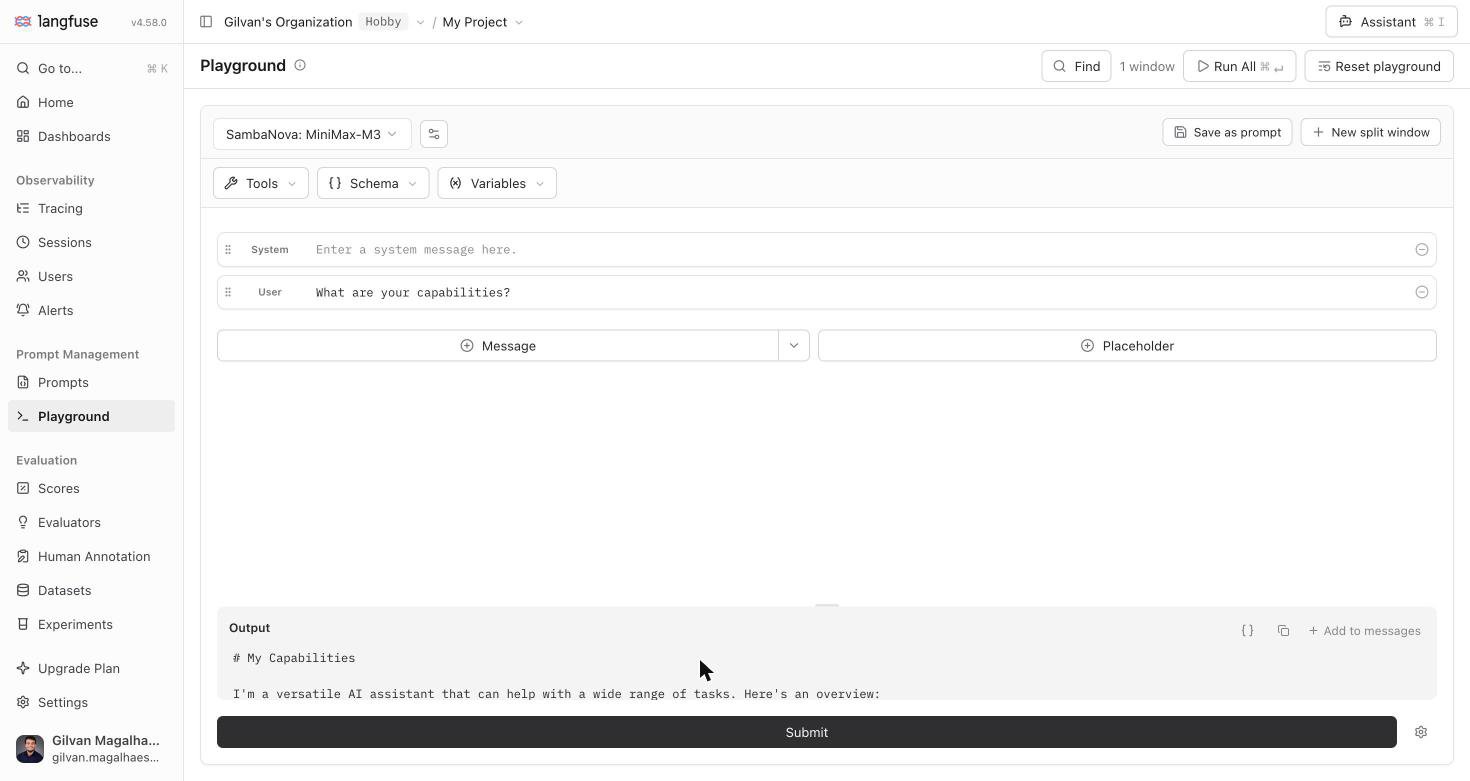
Open **Playground**, pick your SambaNova connection and the `MiniMax-M3` model from the model selector, and ask something like **"What are your capabilities?"**. A real question gets you a real, readable answer, which is a better sanity check (and a better screenshot) than a throwaway test string.
## Use it in the Playground
Open **Playground**, pick your SambaNova connection and the `MiniMax-M3` model from the model selector, and ask something like **"What are your capabilities?"**. A real question gets you a real, readable answer, which is a better sanity check (and a better screenshot) than a throwaway test string.
 ## Use it for Experiments (dataset runs)
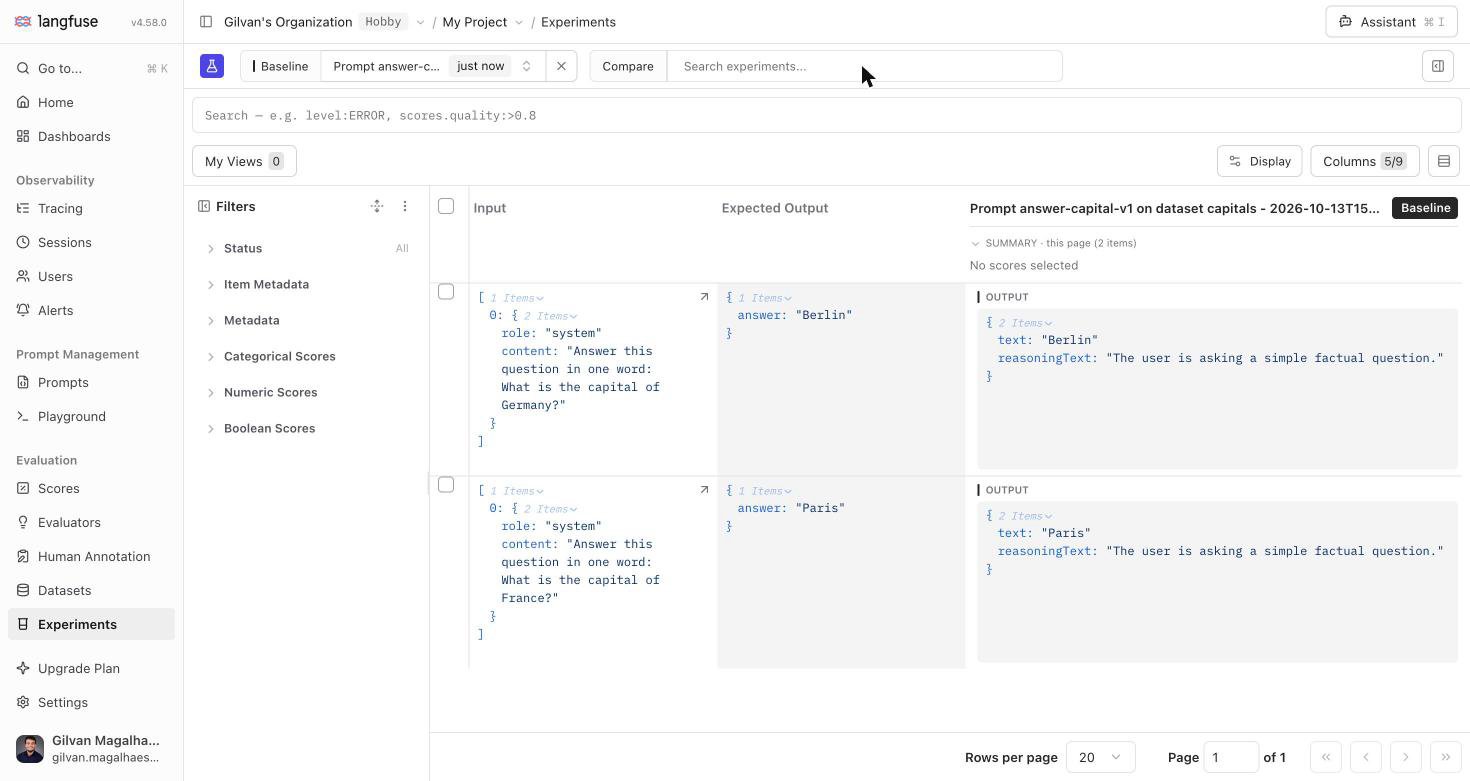
Open **Experiments** and click **Run experiment → via User Interface → Configure**. Pick a prompt, leave (or select) the `sambanova` provider and `MiniMax-M3` model, choose a dataset, optionally attach an evaluator, name the run, and review it before clicking **Run Experiment**. Langfuse calls the model once per dataset item and records the output, latency, and cost for each row.
## Use it for Experiments (dataset runs)
Open **Experiments** and click **Run experiment → via User Interface → Configure**. Pick a prompt, leave (or select) the `sambanova` provider and `MiniMax-M3` model, choose a dataset, optionally attach an evaluator, name the run, and review it before clicking **Run Experiment**. Langfuse calls the model once per dataset item and records the output, latency, and cost for each row.
 ## Use it for LLM-as-a-judge evaluators
Open **Evaluators → New evaluator**, pick a template (or write your own), and select your SambaNova connection and the `MiniMax-M3` model in **Step 1: Define evaluation**. The **Test with sample observations** panel on the right lets you run a real call against a sample trace before saving.
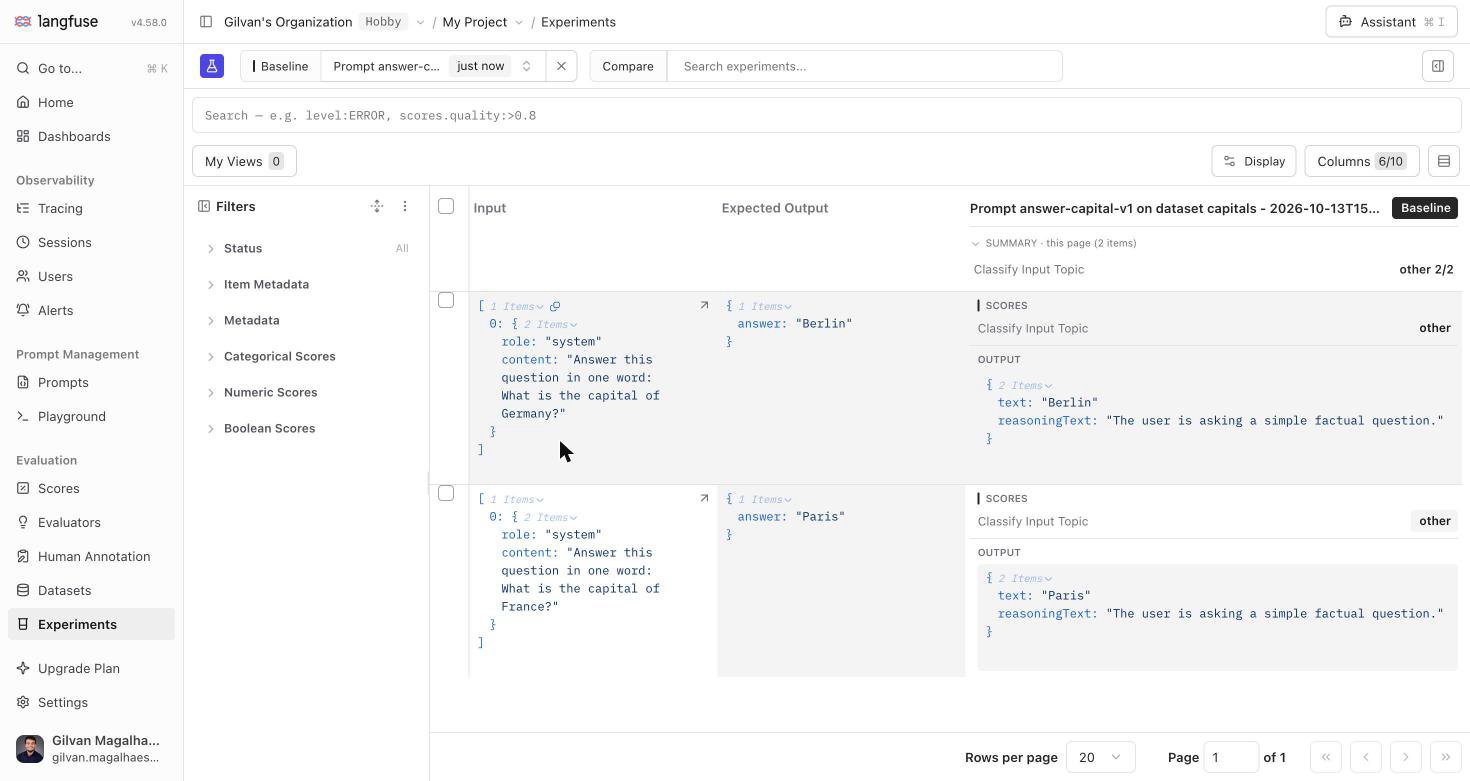
Saving the evaluator and attaching it to a rule (either "Run evaluator on past observations" for a one-time backfill, or a recurring rule for new observations) puts it to work: every subsequent evaluator run writes a real `Score` row. Attach an evaluator to an Experiment run instead, and its scores show up right next to each item's output:
## Use it for LLM-as-a-judge evaluators
Open **Evaluators → New evaluator**, pick a template (or write your own), and select your SambaNova connection and the `MiniMax-M3` model in **Step 1: Define evaluation**. The **Test with sample observations** panel on the right lets you run a real call against a sample trace before saving.
Saving the evaluator and attaching it to a rule (either "Run evaluator on past observations" for a one-time backfill, or a recurring rule for new observations) puts it to work: every subsequent evaluator run writes a real `Score` row. Attach an evaluator to an Experiment run instead, and its scores show up right next to each item's output:
 ## View evaluator and Experiment results in Scores
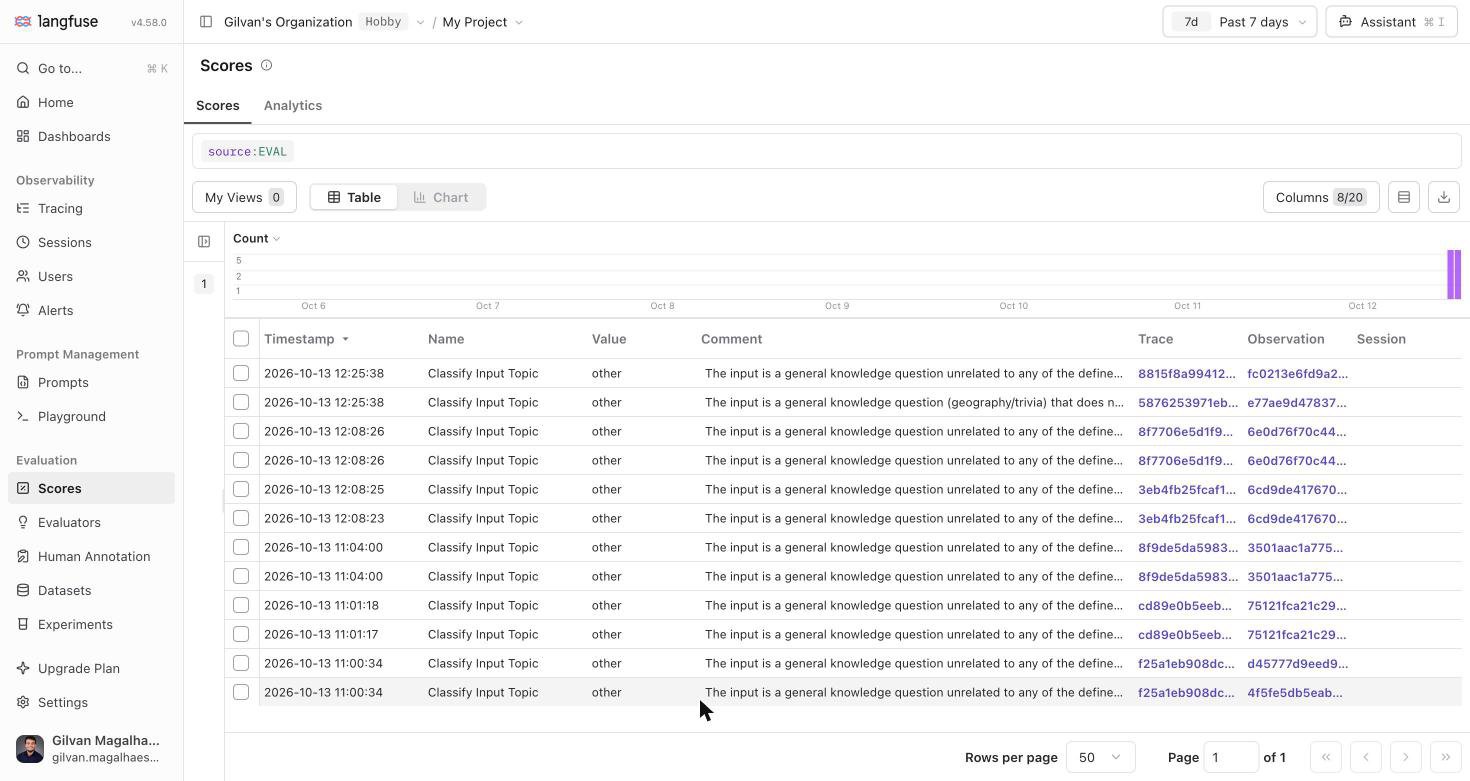
Open **Scores** to see every score `MiniMax-M3` has produced, whether from an evaluator rule or a dataset-run experiment, alongside the model's own reasoning and a link back to the source trace.
## View evaluator and Experiment results in Scores
Open **Scores** to see every score `MiniMax-M3` has produced, whether from an evaluator rule or a dataset-run experiment, alongside the model's own reasoning and a link back to the source trace.
 ## Automate this with the API
Prefer scripting the setup instead of clicking through Settings? Langfuse's public API can create or update an LLM Connection directly, authenticated with a project API key pair:
```bash theme={}
curl -u : \
-X PUT https://your-langfuse-host/api/public/llm-connections \
-H "Content-Type: application/json" \
-d '{
"provider": "sambanova",
"adapter": "openai",
"secretKey": "your-sambacloud-key",
"baseURL": "https://api.sambanova.ai/v1",
"withDefaultModels": false,
"customModels": ["MiniMax-M3"]
}'
```
This upserts on `(project, provider)`, so re-running it with the same `provider` value updates the existing connection instead of duplicating it. This is handy for re-provisioning a connection after a fresh self-hosted deploy or a local dev reset. It creates the exact same row the UI form does, so anything configured this way works in the Playground, Experiments, and evaluators immediately.
## Advanced: instance-wide Assistant
Self-hosted deployments can also point Langfuse's own Assistant / in-app agent at SambaCloud instance-wide, instead of (or in addition to) a per-project LLM Connection:
```bash theme={}
LANGFUSE_AI_PROVIDER=openai
LANGFUSE_AI_BASE_URL=https://api.sambanova.ai/v1
LANGFUSE_AI_API_KEY=your-sambacloud-key
LANGFUSE_AI_MODEL=Meta-Llama-3.3-70B-Instruct
LANGFUSE_IN_APP_AGENT_ENABLED=true
```
"Ask AI" and search-bar AI suggestions are a separate feature gated to
Langfuse Cloud regions. They stay unavailable on self-hosted deployments
regardless of which provider you configure. This is a Langfuse platform
constraint, not specific to SambaNova.
## Troubleshooting
LLM Connections require the `llmApiKeys:create` permission, granted only
to the **Owner** and **Admin** project roles. A **Member** or **Viewer**
sees the connections table but not the create button. Ask a project owner
to add the connection, or to upgrade your role.
Confirm the API key is a valid, non-expired [SambaCloud API key](https://cloud.sambanova.ai/apis) and that **API Base URL** is exactly `https://api.sambanova.ai/v1` (no trailing path, no `/chat/completions`). An Experiment run can complete with every item recorded as an error and no visible error banner in the Formatted view, so check the **Raw output** or the item's error status if a run finishes with unexpectedly high error counts.
We recommend switching to `MiniMax-M3` or another catalogue model with Structured output support for this evaluator or dataset run, since its constrained decoding is the better fit for Langfuse's forced tool-call flow.
Confirm the model ID is listed under **Custom models** on the connection (Settings → LLM Connections → edit), and that it matches a real [SambaCloud model ID](/docs/en/models/sambacloud-models) exactly. Model IDs are case-sensitive.
## Additional resources
* [Langfuse LLM Connections documentation](https://langfuse.com/docs/administration/llm-connection)
* [SambaCloud models](/docs/en/models/sambacloud-models)
## Automate this with the API
Prefer scripting the setup instead of clicking through Settings? Langfuse's public API can create or update an LLM Connection directly, authenticated with a project API key pair:
```bash theme={}
curl -u : \
-X PUT https://your-langfuse-host/api/public/llm-connections \
-H "Content-Type: application/json" \
-d '{
"provider": "sambanova",
"adapter": "openai",
"secretKey": "your-sambacloud-key",
"baseURL": "https://api.sambanova.ai/v1",
"withDefaultModels": false,
"customModels": ["MiniMax-M3"]
}'
```
This upserts on `(project, provider)`, so re-running it with the same `provider` value updates the existing connection instead of duplicating it. This is handy for re-provisioning a connection after a fresh self-hosted deploy or a local dev reset. It creates the exact same row the UI form does, so anything configured this way works in the Playground, Experiments, and evaluators immediately.
## Advanced: instance-wide Assistant
Self-hosted deployments can also point Langfuse's own Assistant / in-app agent at SambaCloud instance-wide, instead of (or in addition to) a per-project LLM Connection:
```bash theme={}
LANGFUSE_AI_PROVIDER=openai
LANGFUSE_AI_BASE_URL=https://api.sambanova.ai/v1
LANGFUSE_AI_API_KEY=your-sambacloud-key
LANGFUSE_AI_MODEL=Meta-Llama-3.3-70B-Instruct
LANGFUSE_IN_APP_AGENT_ENABLED=true
```
"Ask AI" and search-bar AI suggestions are a separate feature gated to
Langfuse Cloud regions. They stay unavailable on self-hosted deployments
regardless of which provider you configure. This is a Langfuse platform
constraint, not specific to SambaNova.
## Troubleshooting
LLM Connections require the `llmApiKeys:create` permission, granted only
to the **Owner** and **Admin** project roles. A **Member** or **Viewer**
sees the connections table but not the create button. Ask a project owner
to add the connection, or to upgrade your role.
Confirm the API key is a valid, non-expired [SambaCloud API key](https://cloud.sambanova.ai/apis) and that **API Base URL** is exactly `https://api.sambanova.ai/v1` (no trailing path, no `/chat/completions`). An Experiment run can complete with every item recorded as an error and no visible error banner in the Formatted view, so check the **Raw output** or the item's error status if a run finishes with unexpectedly high error counts.
We recommend switching to `MiniMax-M3` or another catalogue model with Structured output support for this evaluator or dataset run, since its constrained decoding is the better fit for Langfuse's forced tool-call flow.
Confirm the model ID is listed under **Custom models** on the connection (Settings → LLM Connections → edit), and that it matches a real [SambaCloud model ID](/docs/en/models/sambacloud-models) exactly. Model IDs are case-sensitive.
## Additional resources
* [Langfuse LLM Connections documentation](https://langfuse.com/docs/administration/llm-connection)
* [SambaCloud models](/docs/en/models/sambacloud-models)