> ## Documentation Index
> Fetch the complete documentation index at: https://sambanova-systems.mintlify.site/docs/llms.txt
> Use this file to discover all available pages before exploring further.
# ElevenLabs integration guide
This tutorial walks you through building low-latency Conversational AI agents using ElevenLabs and SambaCloud’s high-speed LLM inference engine. Low latency is crucial for smooth voice conversations, and SambaNova delivers this with specialized hardware optimized for world-class inference speeds using open-source models.
## Prerequisites
Before starting, ensure you have:
* Free account on [SambaCloud](http://cloud.sambanova.ai?utm_source=elevenlabs\&utm_medium=external\&utm_campaign=cloud_signup).
* Free account on [Eleven Labs](https://elevenlabs.io/app/sign-in).
## Setup
Follow these steps to set up your AI agent.
### Access the agent in ElevenLabs
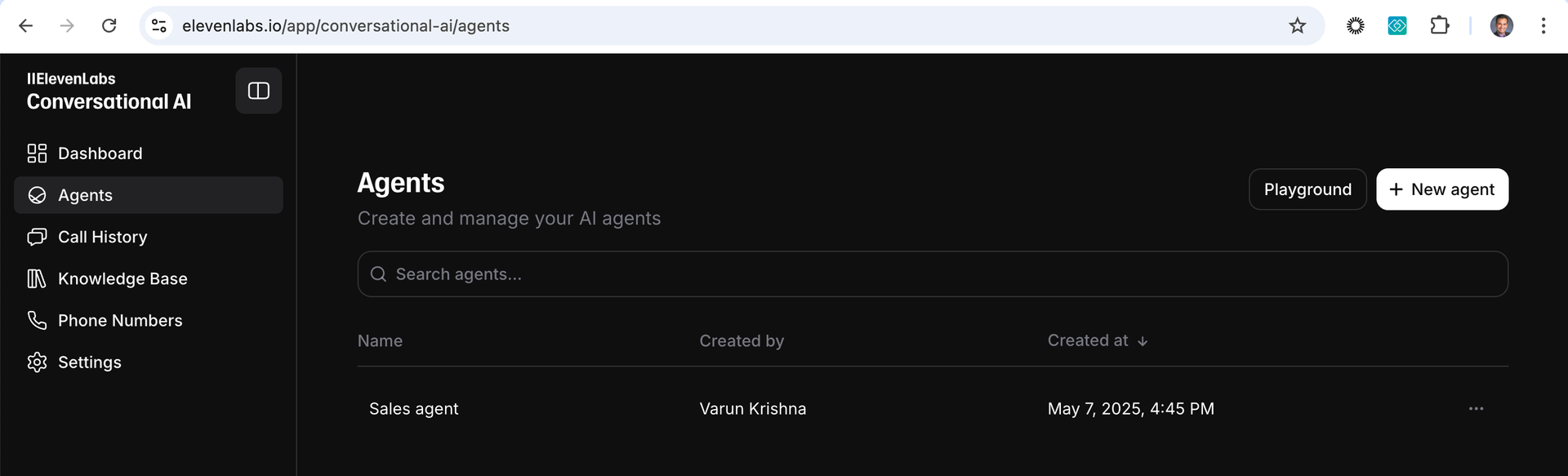
1. Go to the [Agents page on ElevenLabs](https://elevenlabs.io/app/sign-in?redirect=%2Fapp%2Fconversational-ai%2Fagents).
2. Create a new agent, or select an existing agent to edit.
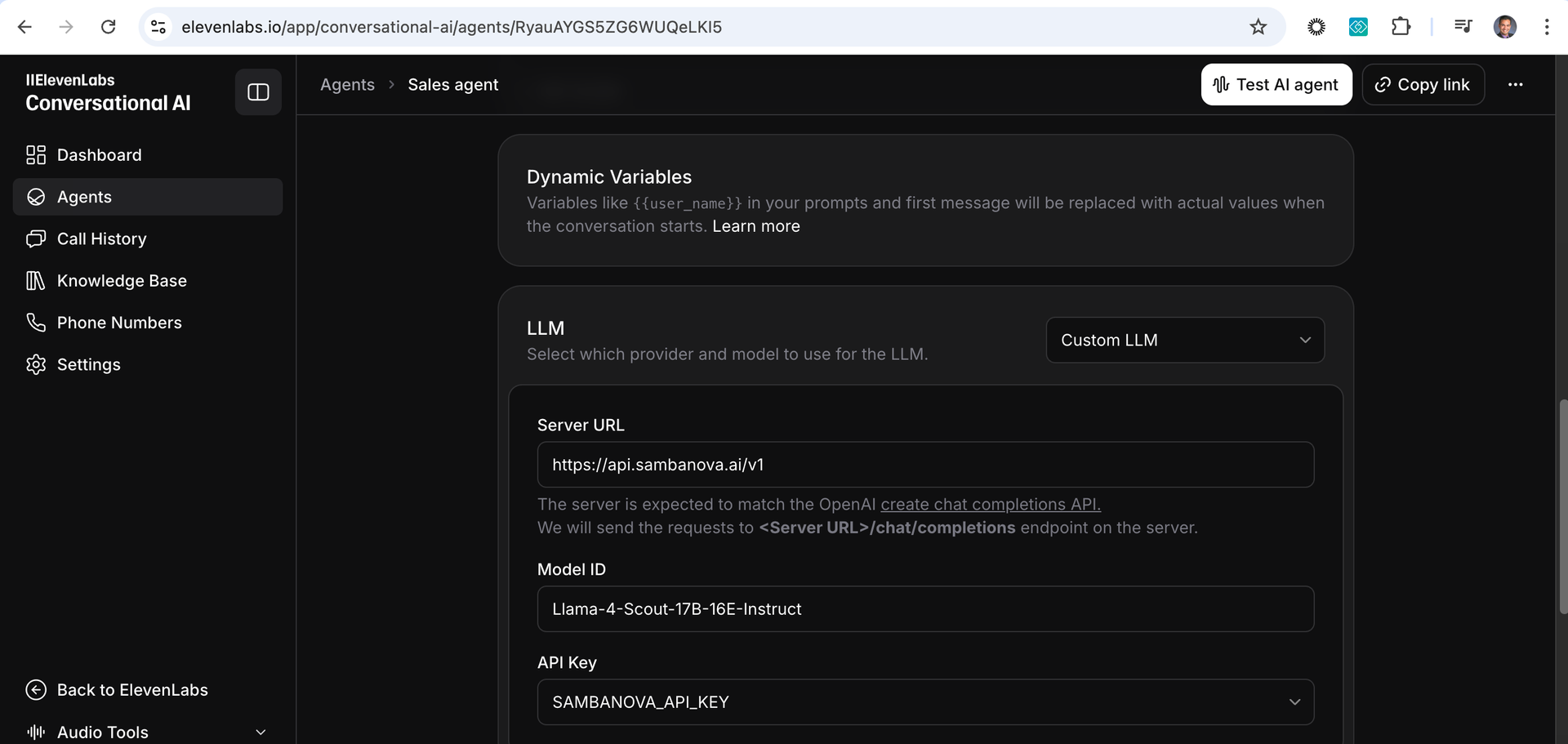
### Configure the LLM settings
1. Scroll to the LLM section of your agent settings.
2. Select Custom LLM from the dropdown menu.
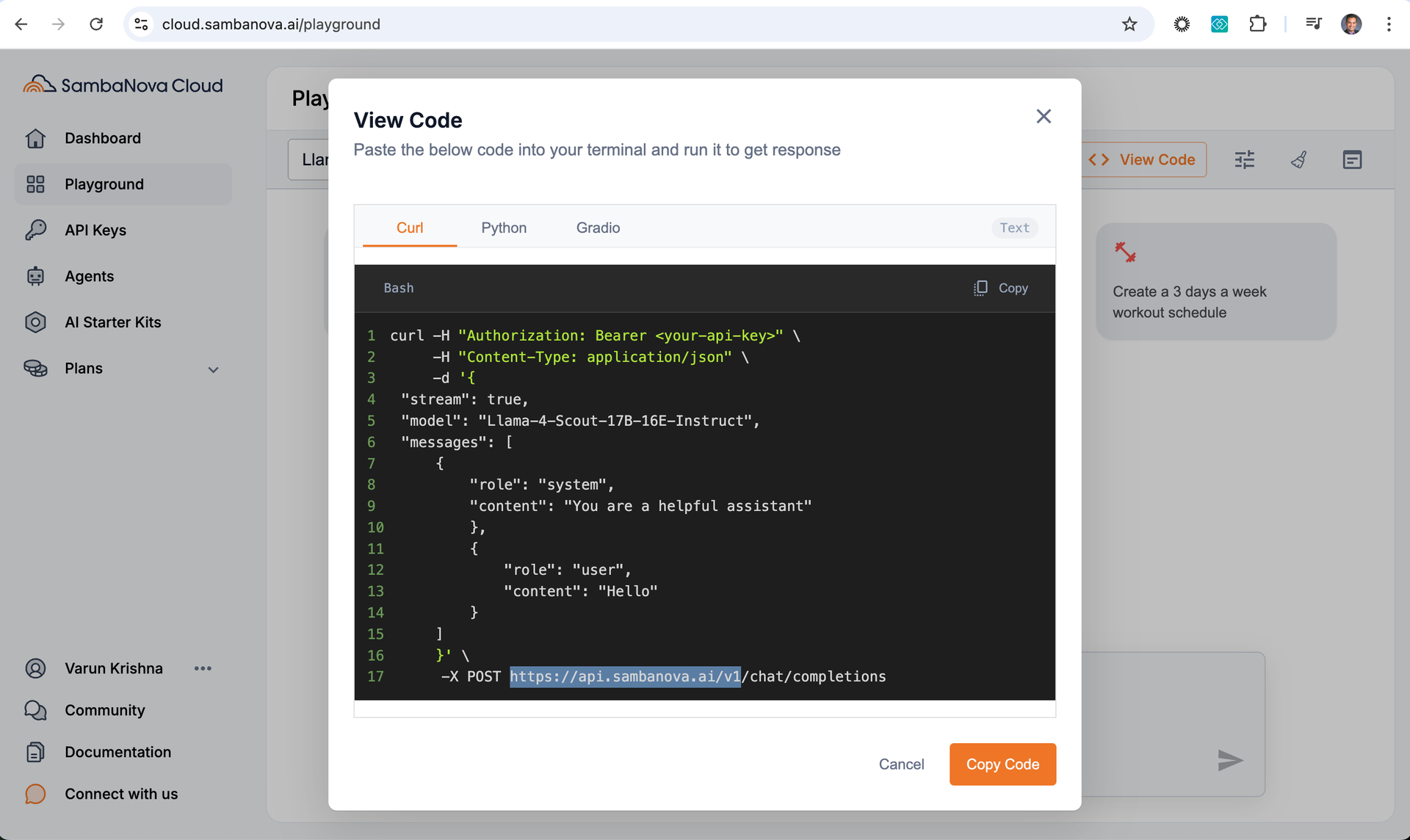
### Retrieve SambaNova endpoint and model
1. Open the [SambaCloud Playground](https://cloud.sambanova.ai/playground).
2. Select View Code in the top-right to get your model endpoint URL and model name.
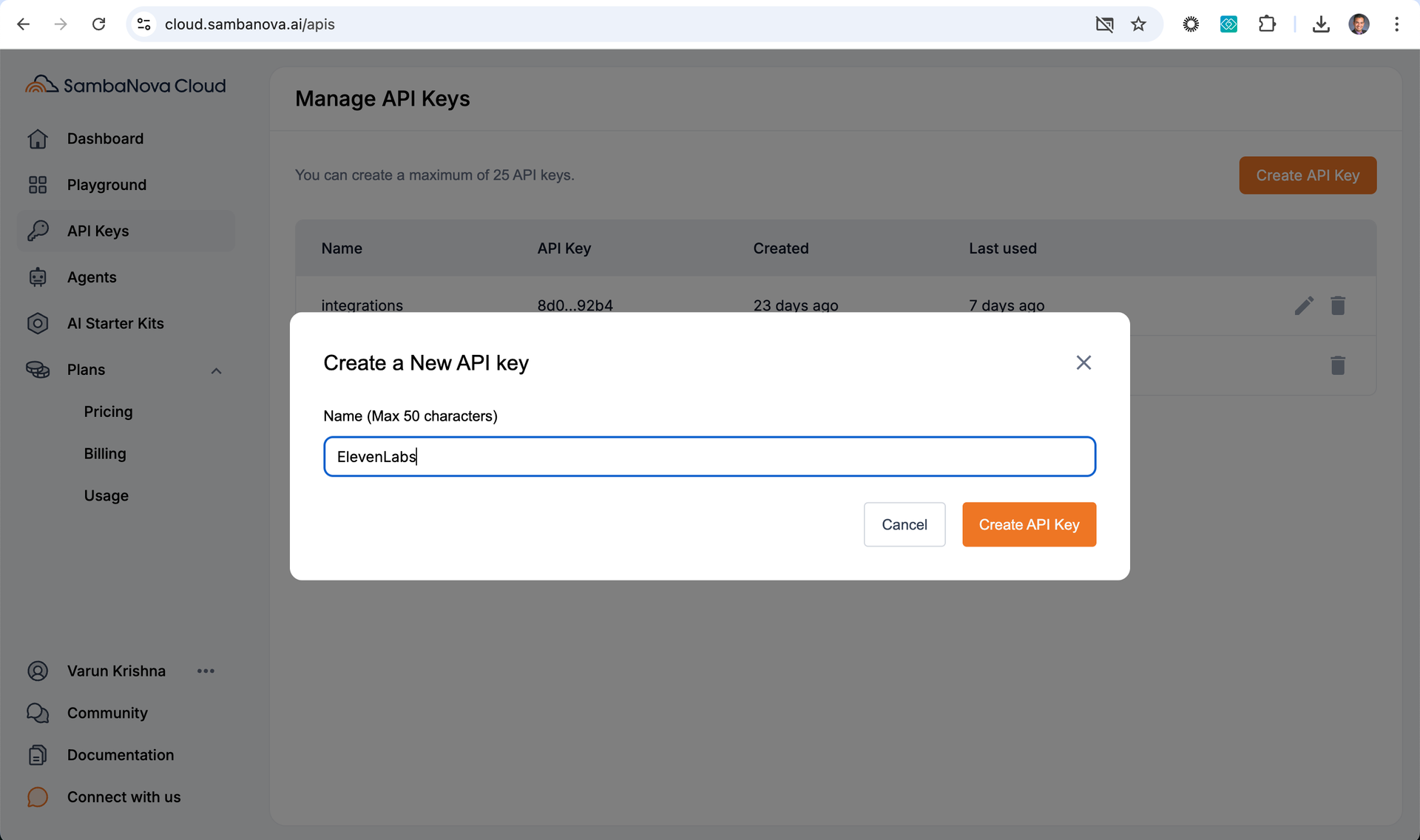
### Generate your SambaNova API key
1. Go to your SambaCloud account.
2. Generate an API key from the portal.
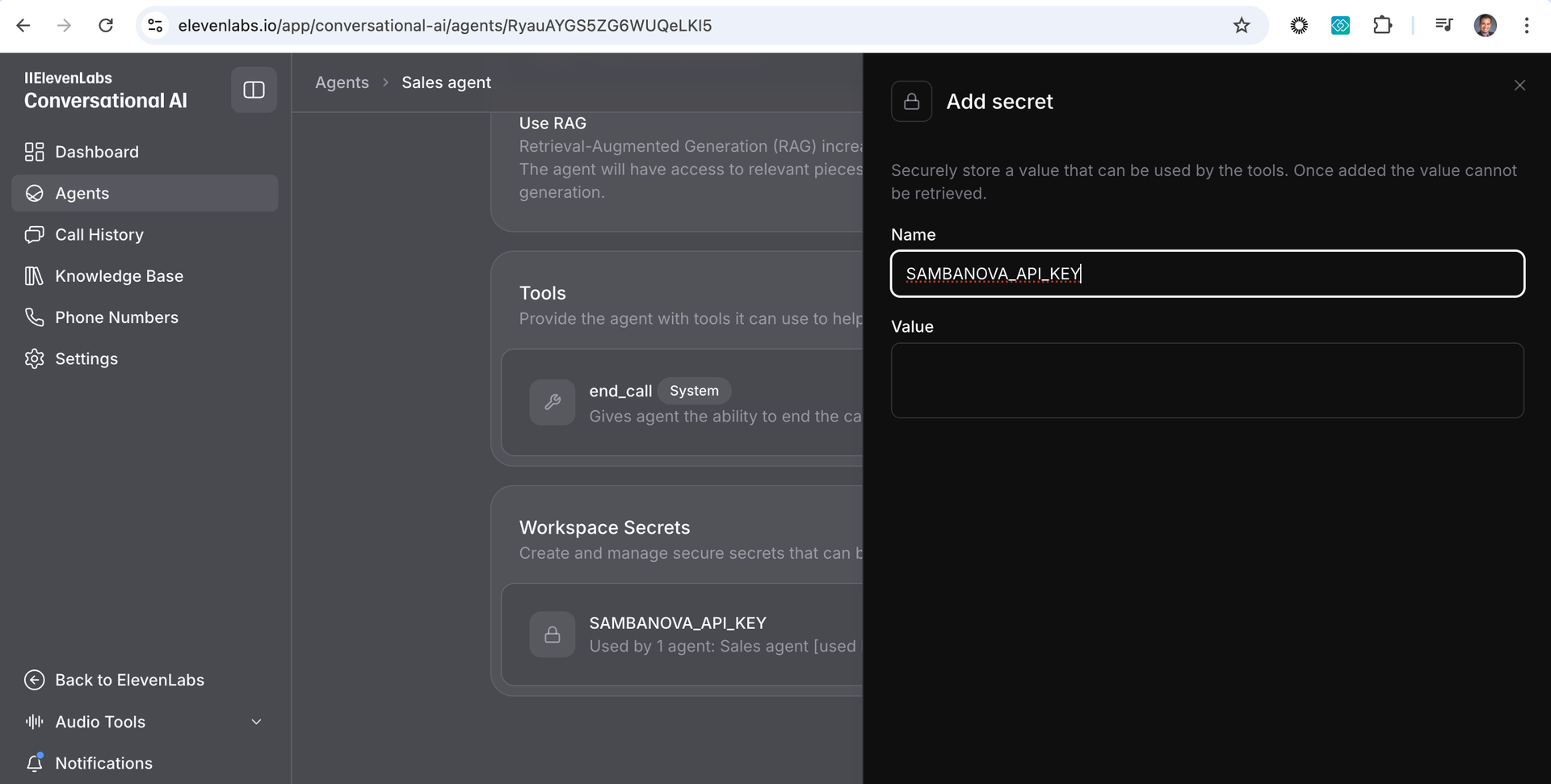
### Add API key to ElevenLabs
1. Return to the ElevenLabs agent settings page.
2. Under Workspace Secrets, add name and value.
3. Name: SAMBANOVA\_API\_KEY.
4. Value: Paste the API key from previous step.
This enables ElevenLabs to access your SambaNova model.
### Set token limit
In the Limit token usage section, set maximum tokens to `1024`. This helps control the response length for optimal conversational flow.
### Save and test
1. Select Save to apply changes.
2. Test your setup by selecting Test AI agent followed by Call AI agent.
3. See video walkthrough for details.
## Video walkthrough
 ### Configure the LLM settings
1. Scroll to the LLM section of your agent settings.
2. Select Custom LLM from the dropdown menu.
### Configure the LLM settings
1. Scroll to the LLM section of your agent settings.
2. Select Custom LLM from the dropdown menu.
 ### Retrieve SambaNova endpoint and model
1. Open the [SambaCloud Playground](https://cloud.sambanova.ai/playground).
2. Select View Code in the top-right to get your model endpoint URL and model name.
### Retrieve SambaNova endpoint and model
1. Open the [SambaCloud Playground](https://cloud.sambanova.ai/playground).
2. Select View Code in the top-right to get your model endpoint URL and model name.
 ### Generate your SambaNova API key
1. Go to your SambaCloud account.
2. Generate an API key from the portal.
### Generate your SambaNova API key
1. Go to your SambaCloud account.
2. Generate an API key from the portal.
 ### Add API key to ElevenLabs
1. Return to the ElevenLabs agent settings page.
2. Under Workspace Secrets, add name and value.
3. Name: SAMBANOVA\_API\_KEY.
4. Value: Paste the API key from previous step.
### Add API key to ElevenLabs
1. Return to the ElevenLabs agent settings page.
2. Under Workspace Secrets, add name and value.
3. Name: SAMBANOVA\_API\_KEY.
4. Value: Paste the API key from previous step.