> ## Documentation Index
> Fetch the complete documentation index at: https://sambanova-systems.mintlify.site/docs/llms.txt
> Use this file to discover all available pages before exploring further.
# Cline integration guide
Cline is a coding assistant that streamlines development workflows, provides account management features, and optimizes provider routing for developers.
For basic single-model use: once you've configured the Cline extension, choose [SambaNova](http://cloud.sambanova.ai?utm_source=cline\&utm_medium=external\&utm_campaign=cloud_signup) as your API provider and enter your API key. For more details, view the [Cline documentation](https://docs.cline.bot/).
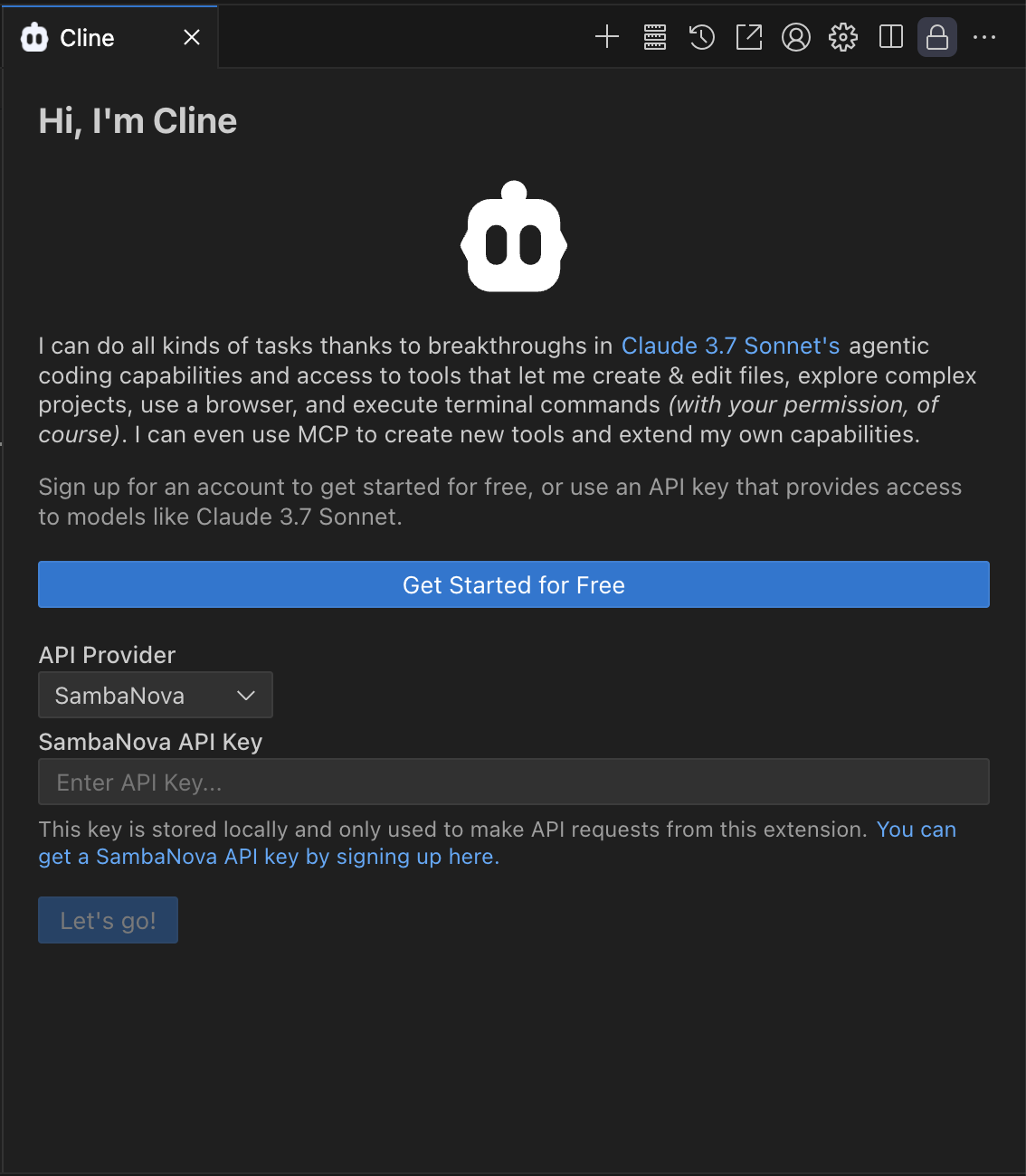 This guide goes further than the basic setup above: it wires Cline's **Plan / Act** modes to SambaNova-hosted models and walks through three real demos — including one that uses an MCP server for live library docs. The demos build on each other, so run them in order.
## What it does
Cline is a VS Code coding agent with first-class **Plan / Act** modes — two model slots, one for thinking, one for doing. That makes it the most direct mapping of SambaNova's **planner / executor** pattern from the [Responses API blog](https://sambanova.ai/blog/build-faster-coding-agents-with-sambanovas-responses-api): pair a frontier reasoning model in Plan with **MiniMax-M2.7** in Act, and the 50–200 file-edit-and-test-run turns go to the cheap, fast model where they belong. SambaNova is a built-in provider in Cline's dropdown — no proxy, no custom JSON.
## Prerequisites
* **VS Code ≥ 1.84** (or Cursor / Windsurf — Cline runs in any VS Code fork).
* **Cline extension** installed from the Marketplace (publisher: `saoudrizwan`).
* **SambaNova API key** from [cloud.sambanova.ai](https://cloud.sambanova.ai/).
* *(For Demo 2 & 3)* an Anthropic or OpenAI key for the frontier Plan-mode model.
## Wire up SambaNova
1. Open the Cline sidebar (robot icon in the activity bar) and click the **⚙️ gear** at the top of the panel.
2. **API Provider** → select **SambaNova** from the dropdown.
3. **API Key** → paste your SambaNova key.
4. **Model** → pick `MiniMax-M2.7`. This sets your **Act-mode** model (the executor) — Act is selected by default via the Plan / Act toggle at the bottom of the chat box (see below).
5. Scroll down and **enable "Use different models for Plan and Act mode"**. A second model picker appears.
6. Under the **Plan-mode** picker:
* For an **SN-only** setup: select SambaNova → `DeepSeek-V3.1` (or `gpt-oss-120b`).
* For a **frontier planner** setup: switch the provider to Anthropic / OpenAI and pick e.g. `claude-sonnet-4-6` or `gpt-5`. Add that key in the same settings panel.
7. **Done** → back to the chat panel.
> **Fallback — if the native SambaNova provider errors.** If the SambaNova dropdown won't load models, throws on connect, or is missing a model you want, use Cline's generic **OpenAI Compatible** provider against SambaNova's OpenAI-compatible endpoint instead — see [Model id confusion](#common-gotchas) under Common gotchas for the exact base URL and steps.
At the bottom of the Cline chat box you'll see a **Plan / Act** toggle. That's the knob you'll flip between the demos.
Make a demo workspace and open it in VS Code:
```bash theme={null}
mkdir -p ~/sambanova-cline-demo && cd ~/sambanova-cline-demo
code .
```
***
## Demo 1 — SambaNova end-to-end
A pet-friendly "hello world" landing page, built and verified entirely by `MiniMax-M2.7`. For this demo, set Act to SambaNova MiniMax-M2.7.
Switch the toggle to **Act**, and in the Cline chat:
```text theme={null}
Create a minimalist, pet-friendly "hello world" landing page in this folder. One index.html, one style.css, no JS frameworks. Soft pastel palette, a friendly paw-print emoji, a short tagline ("Hello, friend"), and a single call-to-action button. Keep it under 80 lines of HTML+CSS combined. Open index.html when done so I can preview it.
```
Approve the file writes when Cline asks. Then verify in the browser:
```bash theme={null}
open index.html # macOS
# Linux: xdg-open index.html
# Windows: start index.html
```
That's the **SN-only** baseline. Plan-mode model unused; one fast executor.
***
## Demo 2 — Frontier plans, SambaNova executes
The architect/builder split, done the way Cline expects it. **Plan mode** (frontier — Claude / GPT) writes a precise `PLAN.md`; **Act mode** (MiniMax-M2.7) executes it. The plan is the artifact that crosses the boundary — reproducible, swappable, reviewable.
If you haven't already, in **⚙️ settings** set Plan mode to a frontier model (e.g. Anthropic → `claude-sonnet-4-6`) and Act mode to SambaNova → `MiniMax-M2.7`.
**Step 1 — switch the toggle to Plan**, then in the chat:
```text theme={null}
Read index.html and style.css in this folder. Write PLAN.md describing how to extend this landing page into a "pet adoption finder" demo:
- A gallery of 6 placeholder pet cards (name, species, one-line bio) in CSS grid
- A search input that filters cards by name (vanilla JS, no frameworks)
- A dark-mode toggle that persists in localStorage
Include exact file layout, the JS event handlers needed, and a verification checklist a human can run in the browser. Don't modify any code yet.
```
In Plan mode, Cline can't edit files — it can only read, search, and draft. The `PLAN.md` write is the one action you'll need to approve. Review and edit it freely; that's the point of materializing the plan.
**Step 2 — switch the toggle to Act**, then:
```text theme={null}
Read PLAN.md and execute every step. After each step, list which acceptance criteria from the plan are now satisfied. Open index.html at the end so I can verify in the browser.
```
Cline keeps the same conversation when you flip Plan→Act, so the executor sees `PLAN.md` and your follow-up instructions, but **not** the planner's chain-of-thought. The plan is the contract.
**Step 3 — verify:** open `index.html`. You should see the gallery, working search, and dark-mode toggle.
> Want to test the executor in isolation? Open a fresh Cline task (the `+` icon) and just say "read PLAN.md and execute it" — same result, no shared history.
***
## Demo 3 — MCP-fed planning with live library docs
Demo 2, plus an MCP server. The Plan-mode model uses [**Context7**](https://github.com/upstash/context7) to fetch *current* docs for a library, bakes them into `PLAN.md`, and Act-mode MiniMax executes. Solves the "model trained on stale docs" problem without writing custom retrieval.
### Install Context7
Free API key from [context7.com/dashboard](https://context7.com/dashboard).
In the Cline sidebar, click **MCP Servers** → **Marketplace**. Search for **Context7** and install it, then click **Done**.
If you want to validate the installation, return to the MCP Servers option and go to **Configure**. Cline should show `context7` as connected, with two tools: `resolve-library-id` and `query-docs`.
### The task
Stamp each pet card from Demo 2 with a human-readable "Added *X* days ago" label, computed at page load with [date-fns](https://date-fns.org/) (`formatDistanceToNow`). date-fns is a good Context7 target: its v2→v3 rewrite changed how it's imported (tree-shakeable named exports, a new UMD `cdn.min.js` build) and v4 added time-zone support — so models routinely emit stale default-import patterns that don't run.
### Step 1 — Plan-mode (frontier) fetches current docs and writes the plan
Switch the toggle to **Plan**, then:
```text theme={null}
Use the `context7` MCP server to look up **current** date-fns docs, then plan adding an "Added X days ago" label to each pet card.
Before writing any code
Verify and quote verbatim from the docs:
- The exact `formatDistanceToNow` signature and what the `addSuffix` option does
- How to load date-fns in a plain browser page (UMD `cdn.min.js` → `dateFns` global) vs ESM named imports — and which one works over `file://`
- The exact `
This guide goes further than the basic setup above: it wires Cline's **Plan / Act** modes to SambaNova-hosted models and walks through three real demos — including one that uses an MCP server for live library docs. The demos build on each other, so run them in order.
## What it does
Cline is a VS Code coding agent with first-class **Plan / Act** modes — two model slots, one for thinking, one for doing. That makes it the most direct mapping of SambaNova's **planner / executor** pattern from the [Responses API blog](https://sambanova.ai/blog/build-faster-coding-agents-with-sambanovas-responses-api): pair a frontier reasoning model in Plan with **MiniMax-M2.7** in Act, and the 50–200 file-edit-and-test-run turns go to the cheap, fast model where they belong. SambaNova is a built-in provider in Cline's dropdown — no proxy, no custom JSON.
## Prerequisites
* **VS Code ≥ 1.84** (or Cursor / Windsurf — Cline runs in any VS Code fork).
* **Cline extension** installed from the Marketplace (publisher: `saoudrizwan`).
* **SambaNova API key** from [cloud.sambanova.ai](https://cloud.sambanova.ai/).
* *(For Demo 2 & 3)* an Anthropic or OpenAI key for the frontier Plan-mode model.
## Wire up SambaNova
1. Open the Cline sidebar (robot icon in the activity bar) and click the **⚙️ gear** at the top of the panel.
2. **API Provider** → select **SambaNova** from the dropdown.
3. **API Key** → paste your SambaNova key.
4. **Model** → pick `MiniMax-M2.7`. This sets your **Act-mode** model (the executor) — Act is selected by default via the Plan / Act toggle at the bottom of the chat box (see below).
5. Scroll down and **enable "Use different models for Plan and Act mode"**. A second model picker appears.
6. Under the **Plan-mode** picker:
* For an **SN-only** setup: select SambaNova → `DeepSeek-V3.1` (or `gpt-oss-120b`).
* For a **frontier planner** setup: switch the provider to Anthropic / OpenAI and pick e.g. `claude-sonnet-4-6` or `gpt-5`. Add that key in the same settings panel.
7. **Done** → back to the chat panel.
> **Fallback — if the native SambaNova provider errors.** If the SambaNova dropdown won't load models, throws on connect, or is missing a model you want, use Cline's generic **OpenAI Compatible** provider against SambaNova's OpenAI-compatible endpoint instead — see [Model id confusion](#common-gotchas) under Common gotchas for the exact base URL and steps.
At the bottom of the Cline chat box you'll see a **Plan / Act** toggle. That's the knob you'll flip between the demos.
Make a demo workspace and open it in VS Code:
```bash theme={null}
mkdir -p ~/sambanova-cline-demo && cd ~/sambanova-cline-demo
code .
```
***
## Demo 1 — SambaNova end-to-end
A pet-friendly "hello world" landing page, built and verified entirely by `MiniMax-M2.7`. For this demo, set Act to SambaNova MiniMax-M2.7.
Switch the toggle to **Act**, and in the Cline chat:
```text theme={null}
Create a minimalist, pet-friendly "hello world" landing page in this folder. One index.html, one style.css, no JS frameworks. Soft pastel palette, a friendly paw-print emoji, a short tagline ("Hello, friend"), and a single call-to-action button. Keep it under 80 lines of HTML+CSS combined. Open index.html when done so I can preview it.
```
Approve the file writes when Cline asks. Then verify in the browser:
```bash theme={null}
open index.html # macOS
# Linux: xdg-open index.html
# Windows: start index.html
```
That's the **SN-only** baseline. Plan-mode model unused; one fast executor.
***
## Demo 2 — Frontier plans, SambaNova executes
The architect/builder split, done the way Cline expects it. **Plan mode** (frontier — Claude / GPT) writes a precise `PLAN.md`; **Act mode** (MiniMax-M2.7) executes it. The plan is the artifact that crosses the boundary — reproducible, swappable, reviewable.
If you haven't already, in **⚙️ settings** set Plan mode to a frontier model (e.g. Anthropic → `claude-sonnet-4-6`) and Act mode to SambaNova → `MiniMax-M2.7`.
**Step 1 — switch the toggle to Plan**, then in the chat:
```text theme={null}
Read index.html and style.css in this folder. Write PLAN.md describing how to extend this landing page into a "pet adoption finder" demo:
- A gallery of 6 placeholder pet cards (name, species, one-line bio) in CSS grid
- A search input that filters cards by name (vanilla JS, no frameworks)
- A dark-mode toggle that persists in localStorage
Include exact file layout, the JS event handlers needed, and a verification checklist a human can run in the browser. Don't modify any code yet.
```
In Plan mode, Cline can't edit files — it can only read, search, and draft. The `PLAN.md` write is the one action you'll need to approve. Review and edit it freely; that's the point of materializing the plan.
**Step 2 — switch the toggle to Act**, then:
```text theme={null}
Read PLAN.md and execute every step. After each step, list which acceptance criteria from the plan are now satisfied. Open index.html at the end so I can verify in the browser.
```
Cline keeps the same conversation when you flip Plan→Act, so the executor sees `PLAN.md` and your follow-up instructions, but **not** the planner's chain-of-thought. The plan is the contract.
**Step 3 — verify:** open `index.html`. You should see the gallery, working search, and dark-mode toggle.
> Want to test the executor in isolation? Open a fresh Cline task (the `+` icon) and just say "read PLAN.md and execute it" — same result, no shared history.
***
## Demo 3 — MCP-fed planning with live library docs
Demo 2, plus an MCP server. The Plan-mode model uses [**Context7**](https://github.com/upstash/context7) to fetch *current* docs for a library, bakes them into `PLAN.md`, and Act-mode MiniMax executes. Solves the "model trained on stale docs" problem without writing custom retrieval.
### Install Context7
Free API key from [context7.com/dashboard](https://context7.com/dashboard).
In the Cline sidebar, click **MCP Servers** → **Marketplace**. Search for **Context7** and install it, then click **Done**.
If you want to validate the installation, return to the MCP Servers option and go to **Configure**. Cline should show `context7` as connected, with two tools: `resolve-library-id` and `query-docs`.
### The task
Stamp each pet card from Demo 2 with a human-readable "Added *X* days ago" label, computed at page load with [date-fns](https://date-fns.org/) (`formatDistanceToNow`). date-fns is a good Context7 target: its v2→v3 rewrite changed how it's imported (tree-shakeable named exports, a new UMD `cdn.min.js` build) and v4 added time-zone support — so models routinely emit stale default-import patterns that don't run.
### Step 1 — Plan-mode (frontier) fetches current docs and writes the plan
Switch the toggle to **Plan**, then:
```text theme={null}
Use the `context7` MCP server to look up **current** date-fns docs, then plan adding an "Added X days ago" label to each pet card.
Before writing any code
Verify and quote verbatim from the docs:
- The exact `formatDistanceToNow` signature and what the `addSuffix` option does
- How to load date-fns in a plain browser page (UMD `cdn.min.js` → `dateFns` global) vs ESM named imports — and which one works over `file://`
- The exact `